Spreadsheet integration
Connect a public Google Sheet to the card-pack model to update parameters from a spreadsheet. Tip Learn more about Google Sheets integration here.
If you already have a spreadsheet where all your loot box parameters are stored, Machinations can grab those values directly. This means you can tweak the values directly from the spreadsheet, and see the results change in the diagram.
Learn more about Google Sheets integration here.
| Variable | Common | Rare | Epic | Legendary |
|---|---|---|---|---|
| Drop Chances | 72 | 23 | 4 | 1 |
| Card Count | 310 | 118 | 58 | 41 |
| Disenchant Value | 5 | 20 | 100 | 400 |
| Craft Cost | 100 | 200 | 800 | 1600 |
| Craft Preference | 1 | 10 | 100 | 400 |
We’ve created a spreadsheet which contains all the variables our model needs.
Google Sheets must be Public to be accessed by Machinations.
Alternatively, if you have access to Private Google Sheets, simply make sure you’re using the same email account to access both the spreadsheet and Machinations.
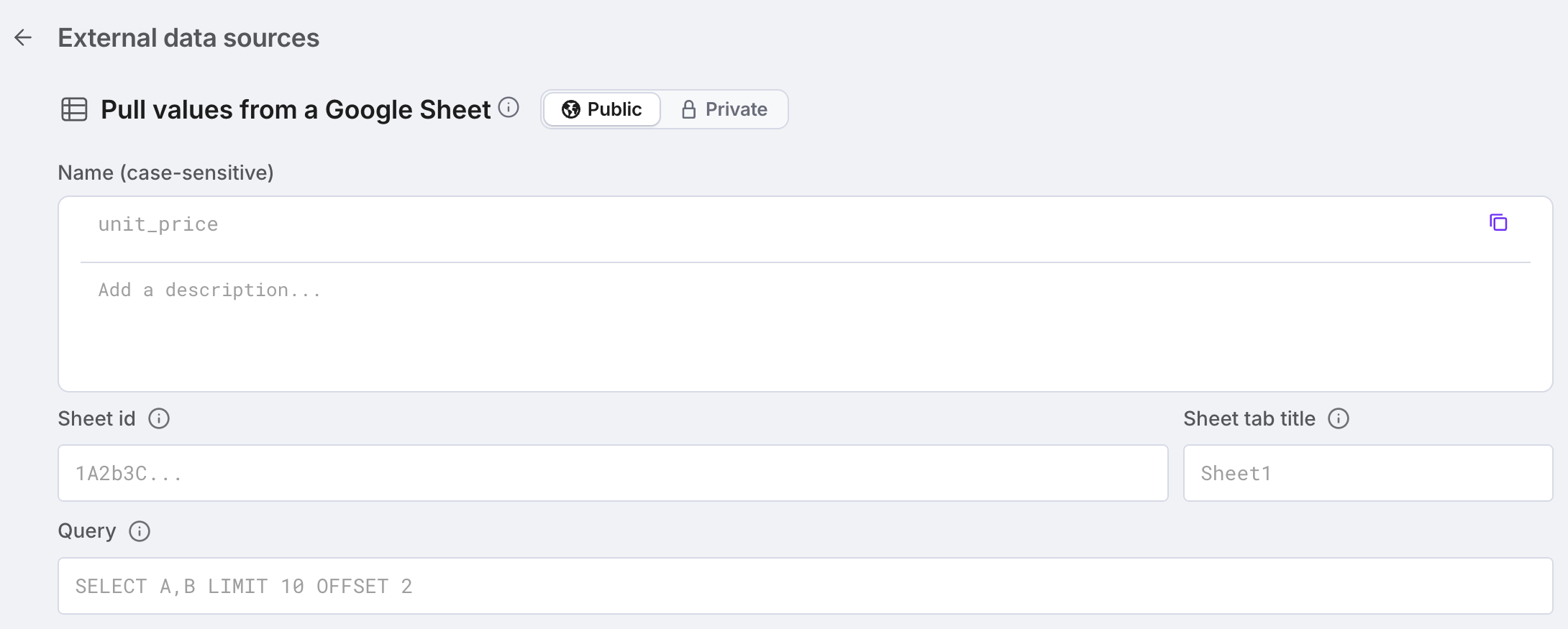
Here, we’ve connected the spreadsheet in the Data tab (under Add connector, choose Google Sheets), and a parameter reads the entire set of variables from it:
With our pre-existing parameters, we can reference a particular row of data from the parameter we just created from the connected sheet, and use that to overwrite the existing data we added to each variable.
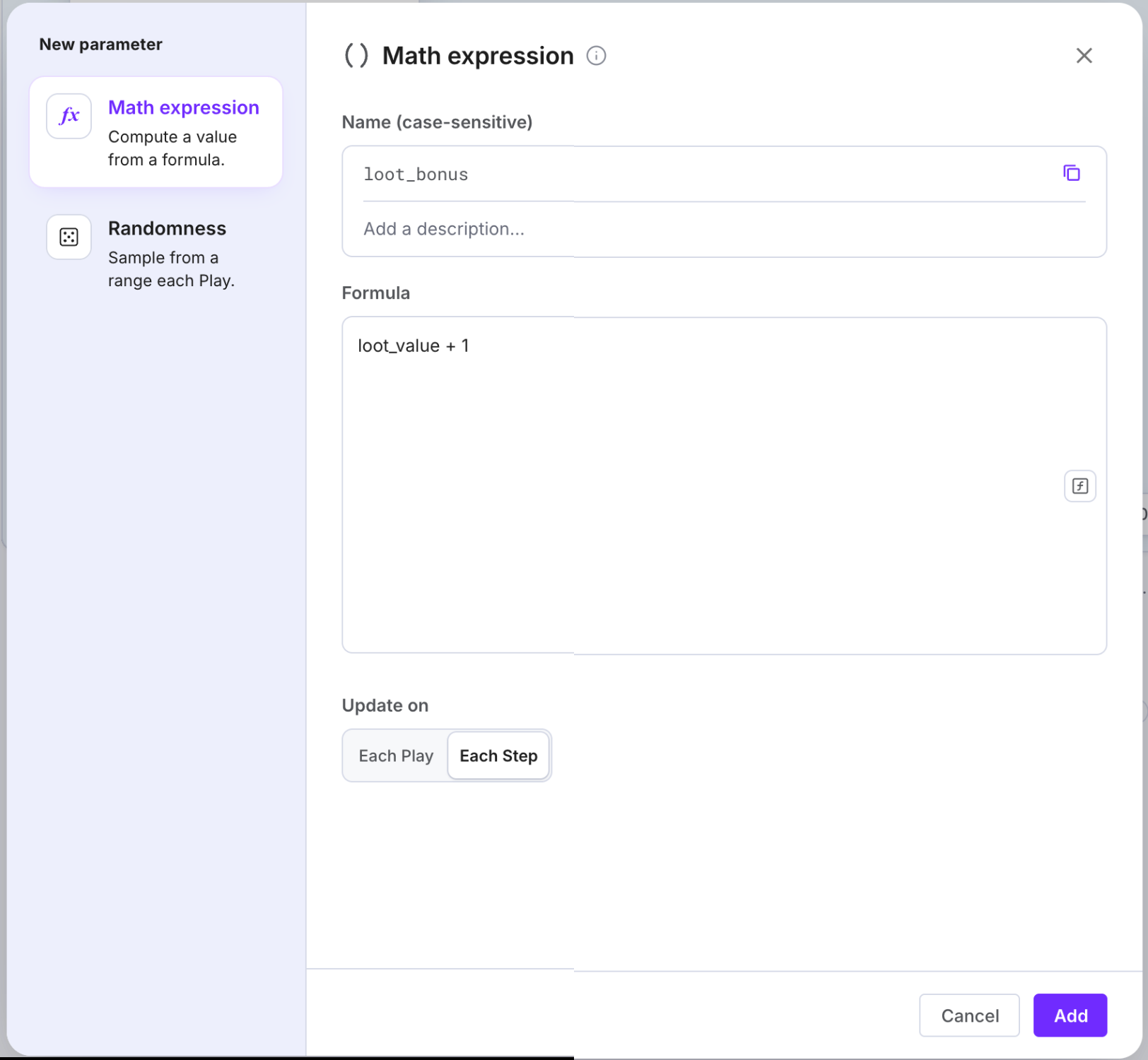
Notice when hitting Play that our DropChances variable has an extra pair of square brackets around it. This will cause an error in our diagram.
Parameters read from Google Sheets are always two-dimensional arrays.
To remove redundant square brackets from an array, use the flatten() function.
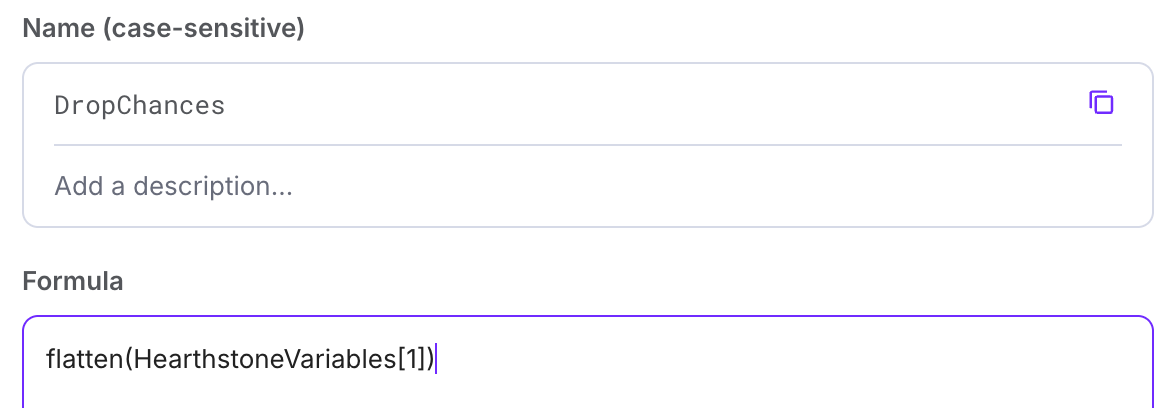
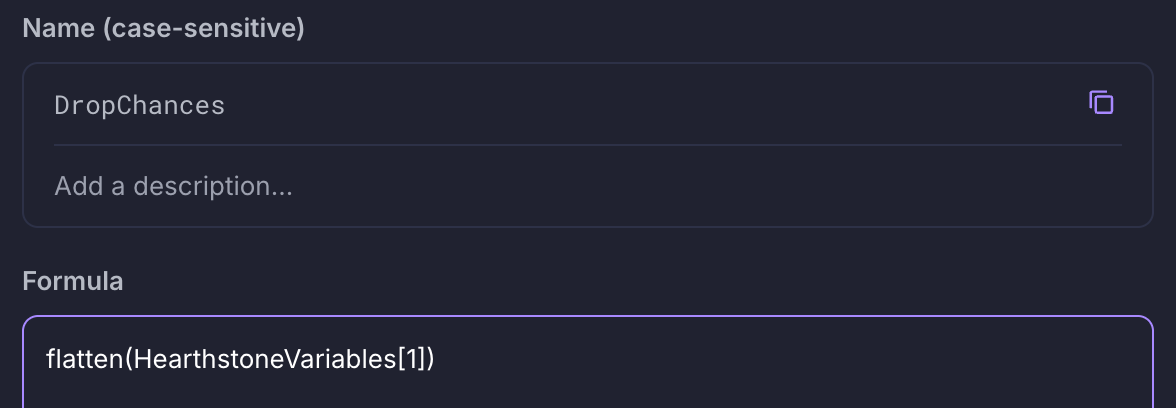
After adding the flatten() function to our parameter, the array will be restored to its original format, and the diagram will work correctly again.
Any change to the linked spreadsheet will be automatically reflected in Machinations on hitting Play or Forecast.