Losing health in battles
In this section, you calculate the player’s health, which will be lost after each battle. When the player loses all their health, the game is over.
In this section, you will calculate the player’s health, which will be lost after each battle. If the player loses all their health, then the game is over!
Storing the player’s HP
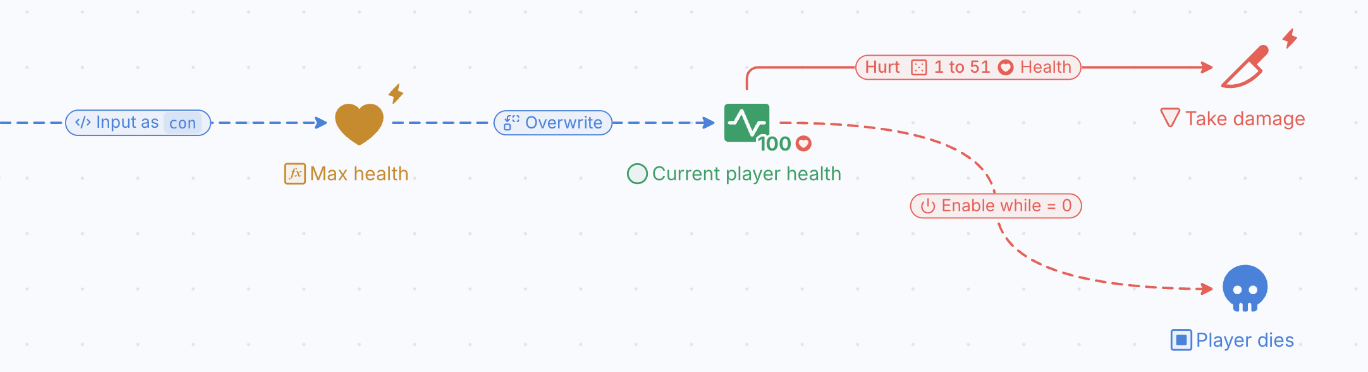
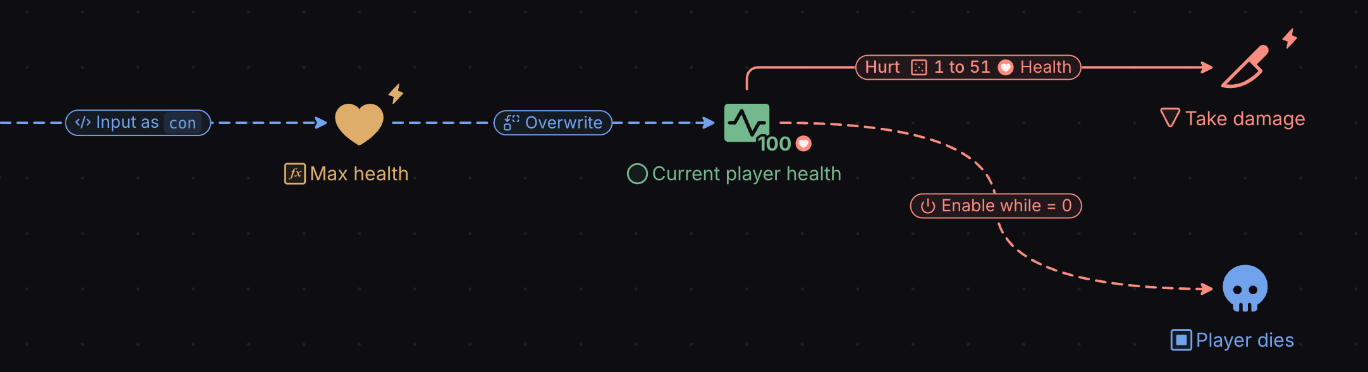
- Create a pool to the right of the “Max health” register and label it “Current player health”.
- We need to change the state of the “Current player health” whenever the Max health changes. Whenever you need to get the state from a component and “pass” it to another component, you should use State Connections. Create a State Connection and click first in the “Max health” register and last in the “Current player health” pool.
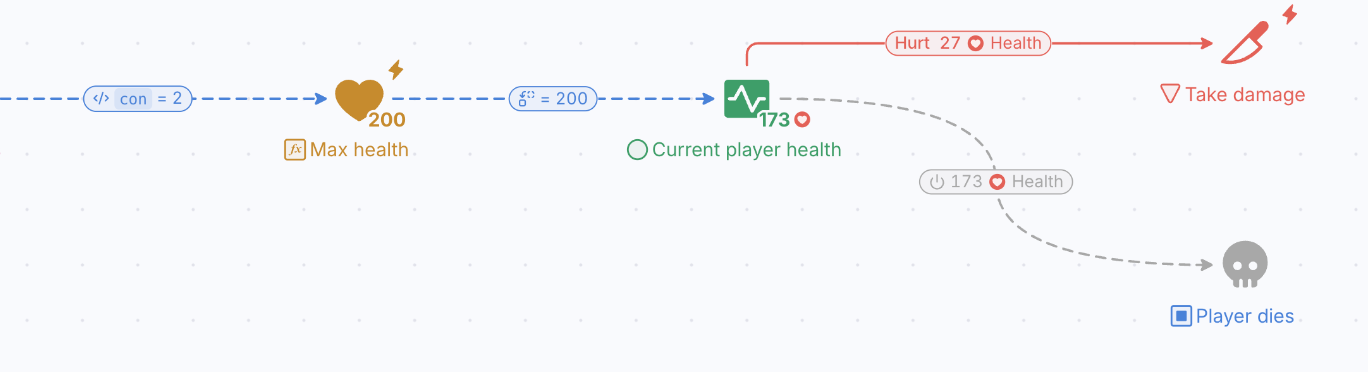
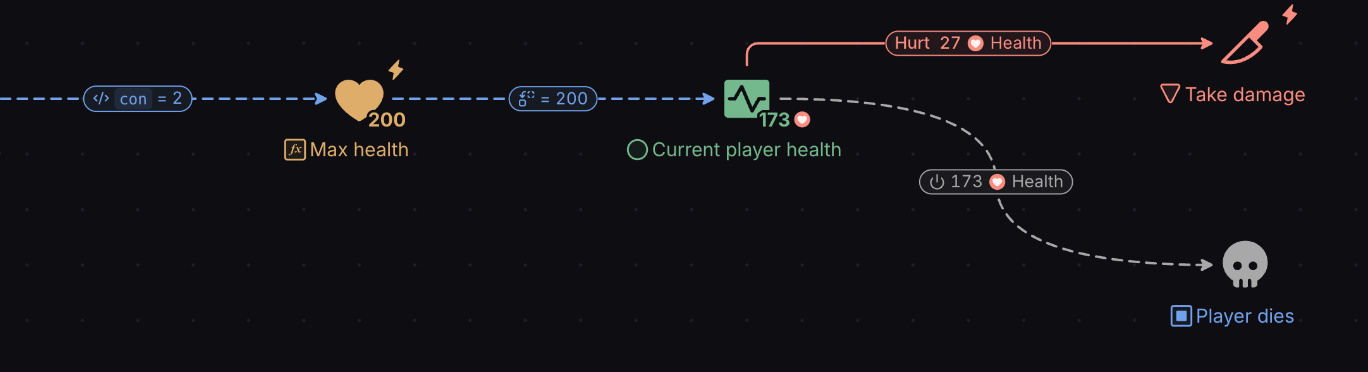
- Press “Play” and observe how the “Current player health” pool is updating each time the “Max health” register changes. In this example, Max health reaches 200 after two skill points go to Constitution, and Current player health follows it.
Taking Damage
After calculating the player’s health on each step, we need to model the player losing up to 50 HP each minute. We must remove HP from the “Current player health” pool whenever they take damage. When we have to take away or remove resources from a pool, we need to use Sinks.
- Click the Sink icon in the toolbar or use the keyboard shortcut “k”.

- Click on the canvas below the “Current player health” pool to place the sink in the canvas.
- Select the sink, and type “Take damage” into the label at the top of the Properties panel (it reads “Add a label” on a new component).
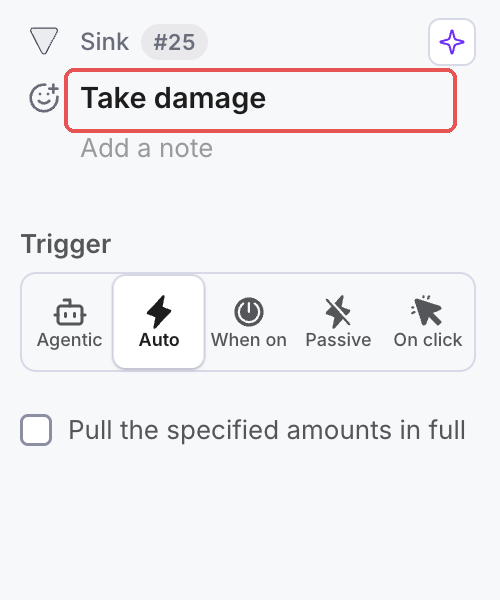
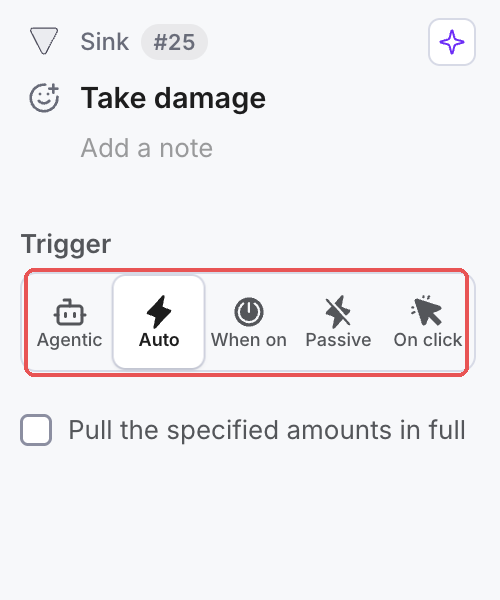
- As the player will take damage every minute, the “Take damage” sink must also be activated automatically every minute. Select the sink, and in the “Properties” panel, under the “Trigger” section, check the Trigger is “Auto” (a new Sink already is). You will see the sink now has a lightning bolt on top.
- It is necessary to transfer the HP from the “Current player health” pool to the “Take damage” sink. Create a new Resource Connection, clicking first on the “Current player health” pool and last on the “Take damage” sink. (You can left-click on the pool’s name and drag it on top of the pool so that it does not get in the way of the connection).
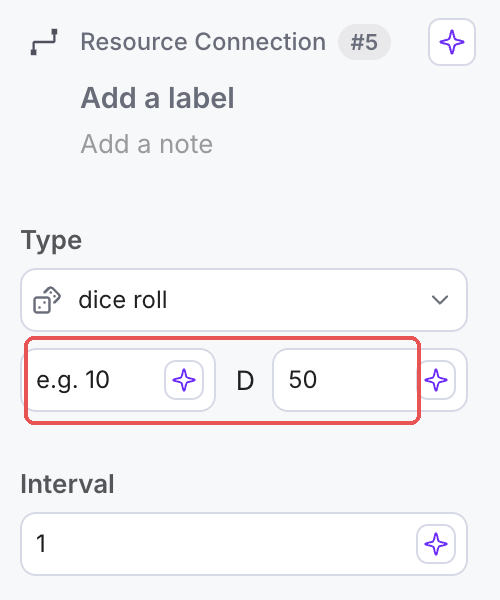
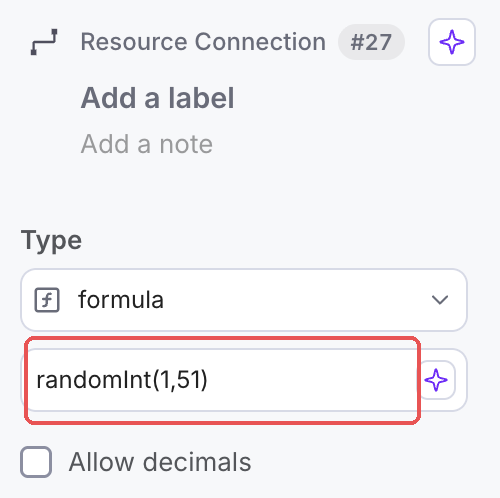
- The player has to lose a random number of HP up to 50 points every minute. Select the Resource Connection and set Type to “Dice roll” or “Formula” and use one of the following options:
6a. To throw a 50-sided dice, choose “Dice roll” and write 50 after the D.
6b. To get a random integer number between 1 and 50, write “randomInt(1,51)” into the box under Type “Formula”. Functions can also be used in resource connections, and we will use this last method to move forward.
- Press “Play” and observe how the player loses HP every minute, although it can be increased if they allocate skill points to Constitution.
Detecting when the player dies
To finish this stage of the Level Progression system, we will detect if the player has died, and if they die, end the Play.
- Create an End Condition and place it in the canvas to the right of the “Current player health” pool.
- With the End Condition selected, type “Player dies” into the label at the top of the Properties panel (it reads “Add a label” on a new component).
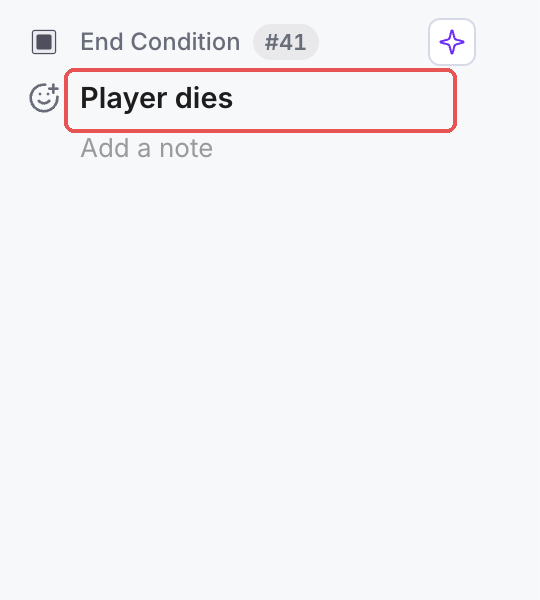
- You need to check the state of the player’s health. Create a State Connection by first clicking on the “Current player health” pool and then on the “Player dies” end condition.
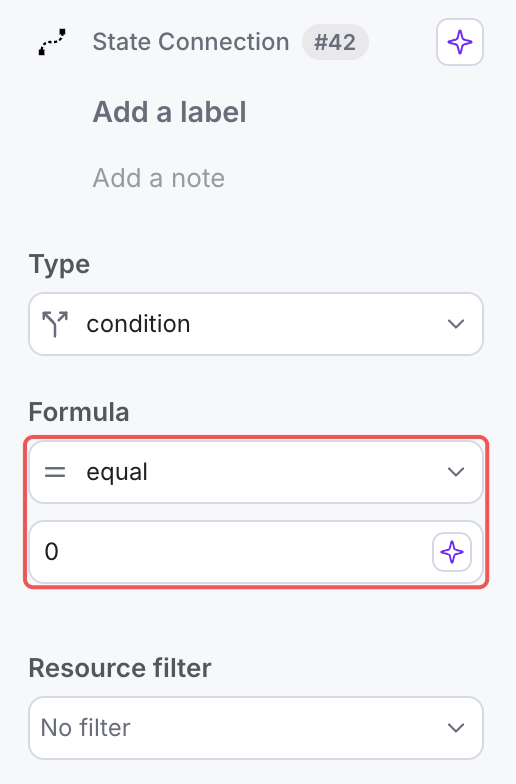
- We want the Play to finish when the player’s health is equal to 0, and the State Connection is responsible for checking this condition. Select the State Connection and leave Type on “Enable while”, set Formula to “Equal” and type 0 into the box under it. “Less or equal” with 0 would work as well.
- Press “Play” to start the Play again. How many minutes (or steps) went by before the player dies? In this Play the player survived all 20 steps and ended with 169 HP, because two skill points went to Constitution and raised Max health to 200.


If no skill points go to Constitution, Max health stays at 100 and the player can die within a few steps.