Google Sheets (public or private)
Public Google Sheets
Parameters (called Custom variables in older guides) of the type Public Google Sheets can ingest data from a public Google Sheet. As the name suggests, the Google Sheet must be public. To add one, open the Data tab at the top of the editor, press Google Sheets under Add connector and keep Public selected.
This is a paid feature, and you need to upgrade your subscription plan in order for you to use it.
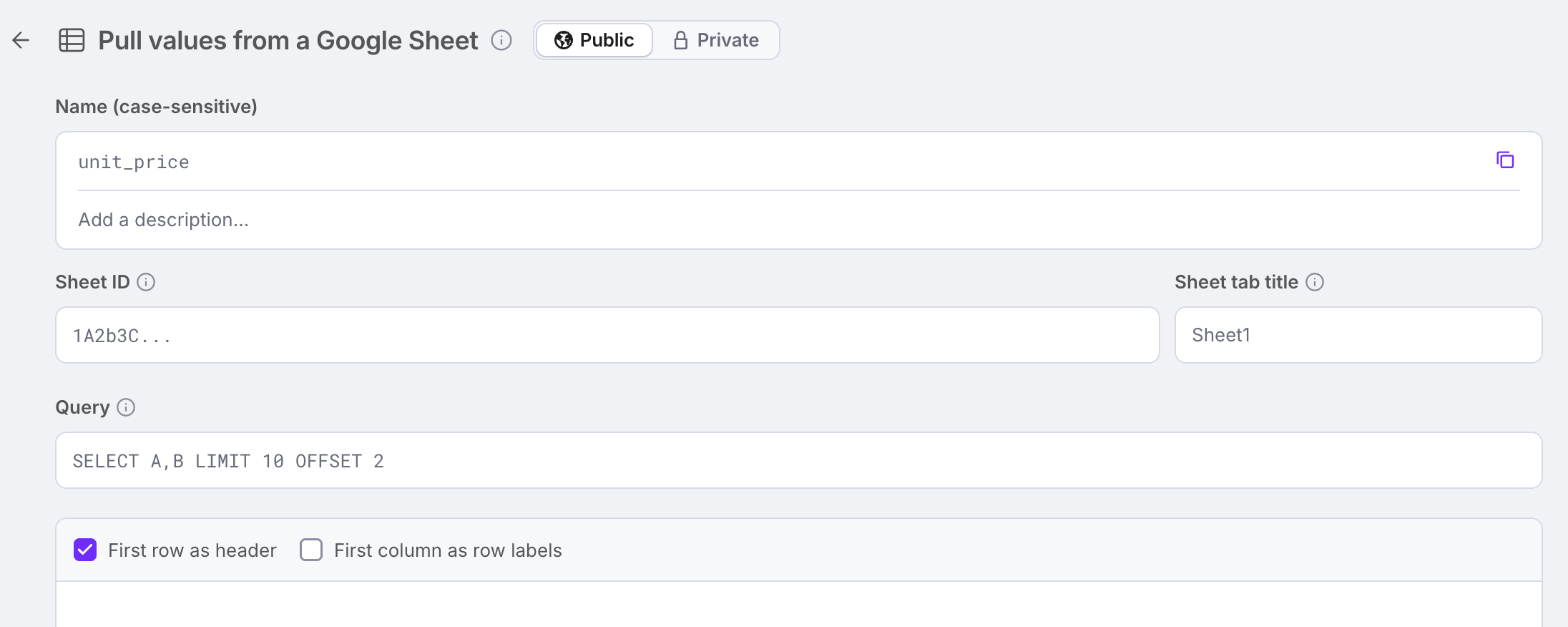
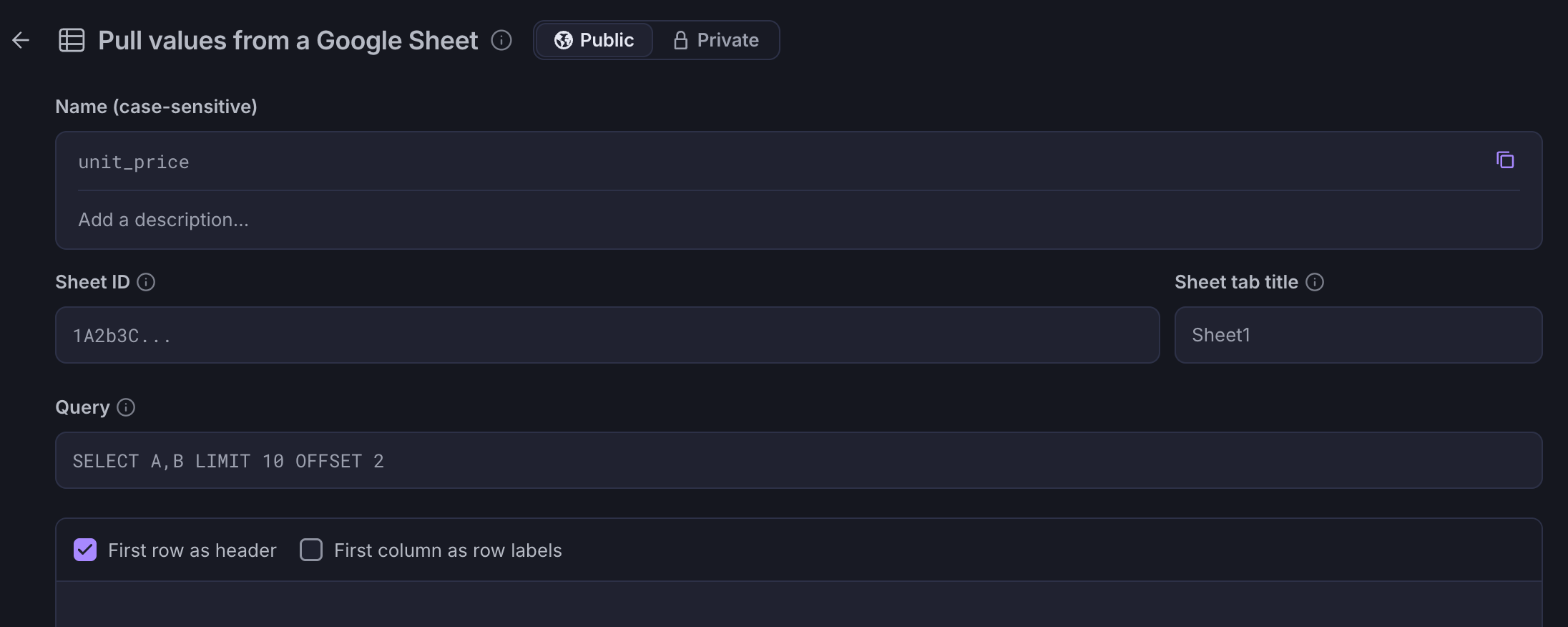
Name:
This is the name of your new custom variable. Please remember that they are case-sensitive.
Sheet ID:
You can find the Google Sheets ID in the URL of your Google Sheet. The ID is the long string of random characters between the “/d/” and the “/edit” in the URL.
For example, if your Google Sheet URL is “https://docs.google.com/spreadsheets/d/1bBMm-T3DCxqSX8UzRTiYUIGjShQ9DVOV7snmVu02BLU/edit#gid=0″, then the ID is “1bBMm-T3DCxqSX8UzRTiYUIGjShQ9DVOV7snmVu02BLU“.
Sheet Tab Title:
Please type the exact name of the Google Sheet tab you want to import. You may also leave this field empty, and the variable will choose the default sheet name “Sheet1”.
Query:
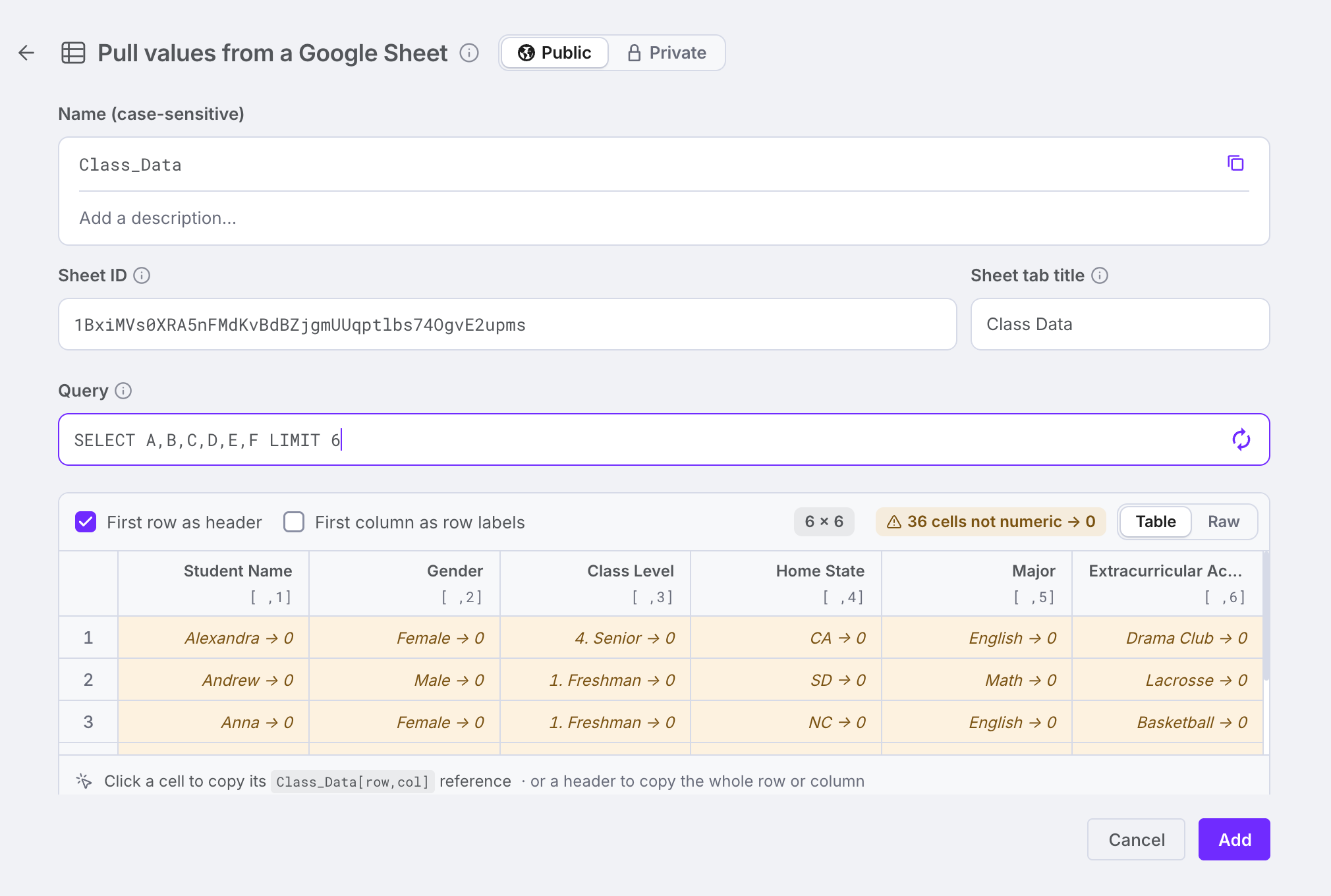
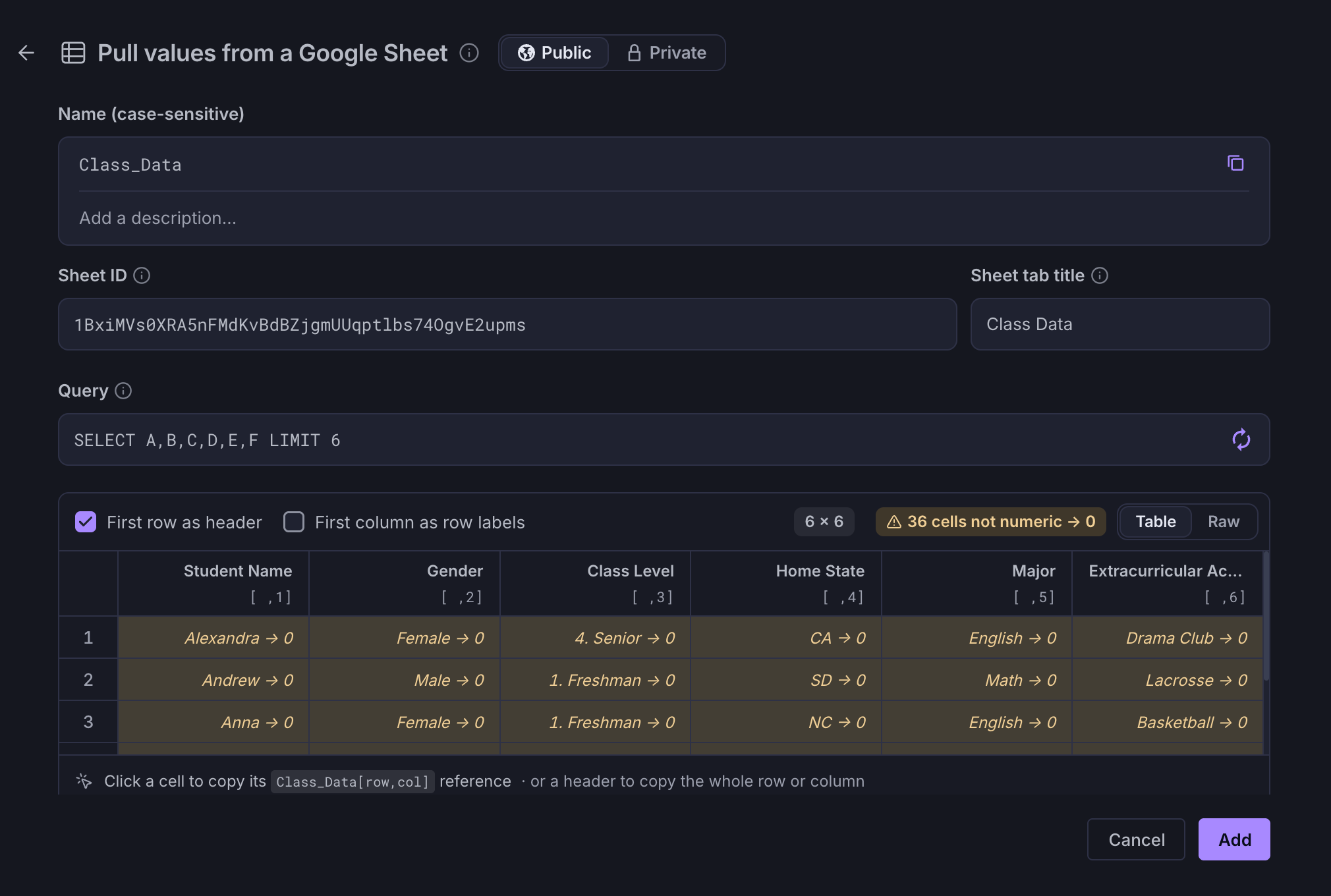
Use a Google Sheets query to select the data for your Custom Variable. You can type your query formula in this cell. If your query is valid, you will see a preview of the data being fetched from your Google Sheet. You will also see an error message if your query is invalid.
You can find more information about queries here.
Preview:
Under the fields the form shows a preview of the imported cells once the Sheet id and the query or range are filled in. The tick boxes First row as header and First column as row labels and the toggle at the right of the preview change how the cells are shown there.
Description:
Describe the purpose of your variable for others.
Accessing the public sheet data
Important:
- If your sheet contains columns with only text, they will be interpreted as 0 and cannot be used as values in a custom variable, except for headers cells.
- The cells in your sheet must contain numeric values. This includes the resulting values of a cell formula.
- All numeric values fetched from one or several columns will be converted into a 2-dimensional array.
Once you have set up the custom variable, it is time to access its values using another custom variable or the formula field in a Register, Resource Connection, or State Connection.
Each row of your Google Sheet will be interpreted as an array, resulting in a 2-dimensional array for more than one selected columns.
You can access the individual values using the following syntax: VariableName[Row,Column]
Example Public Google Sheets
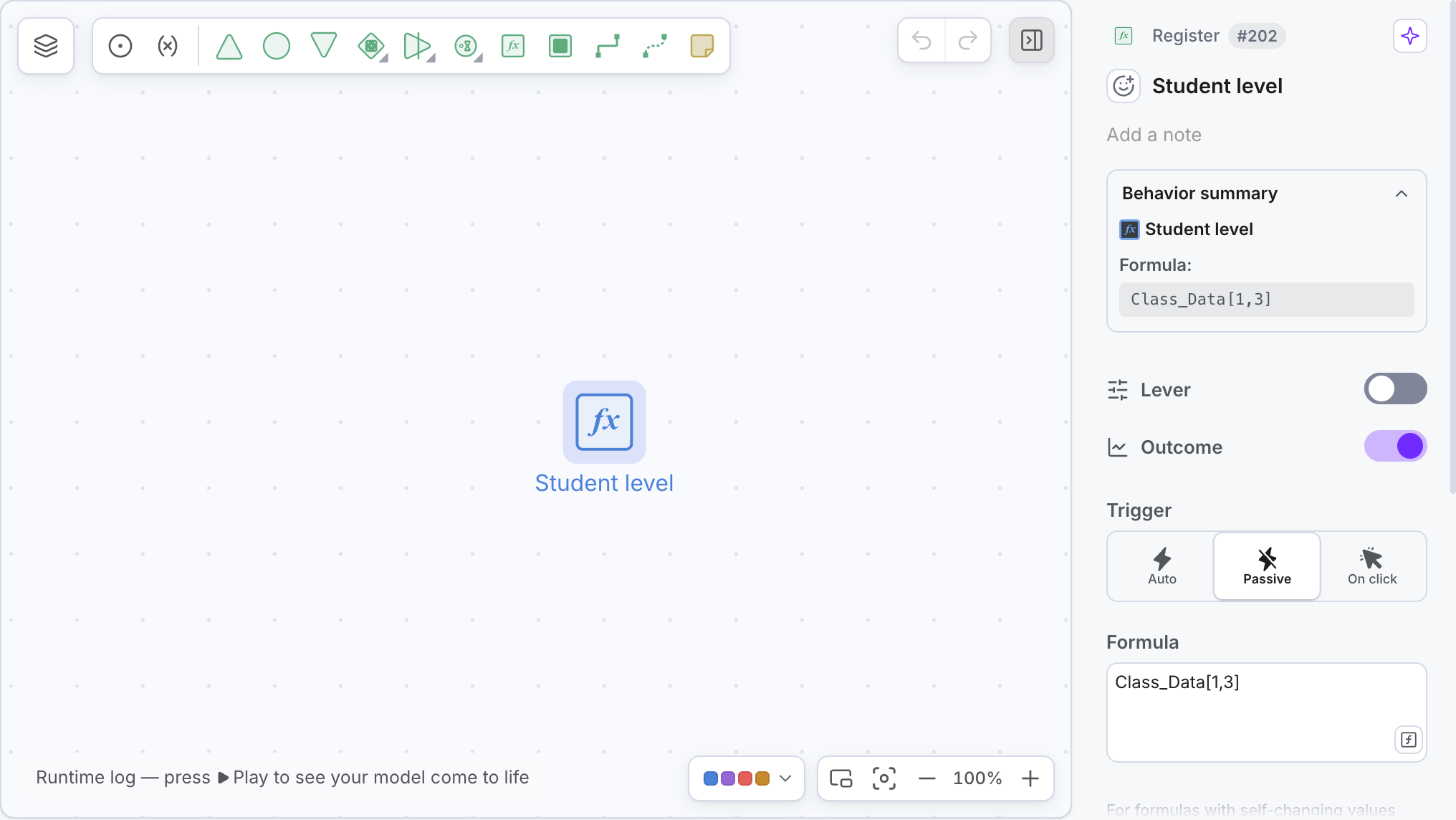
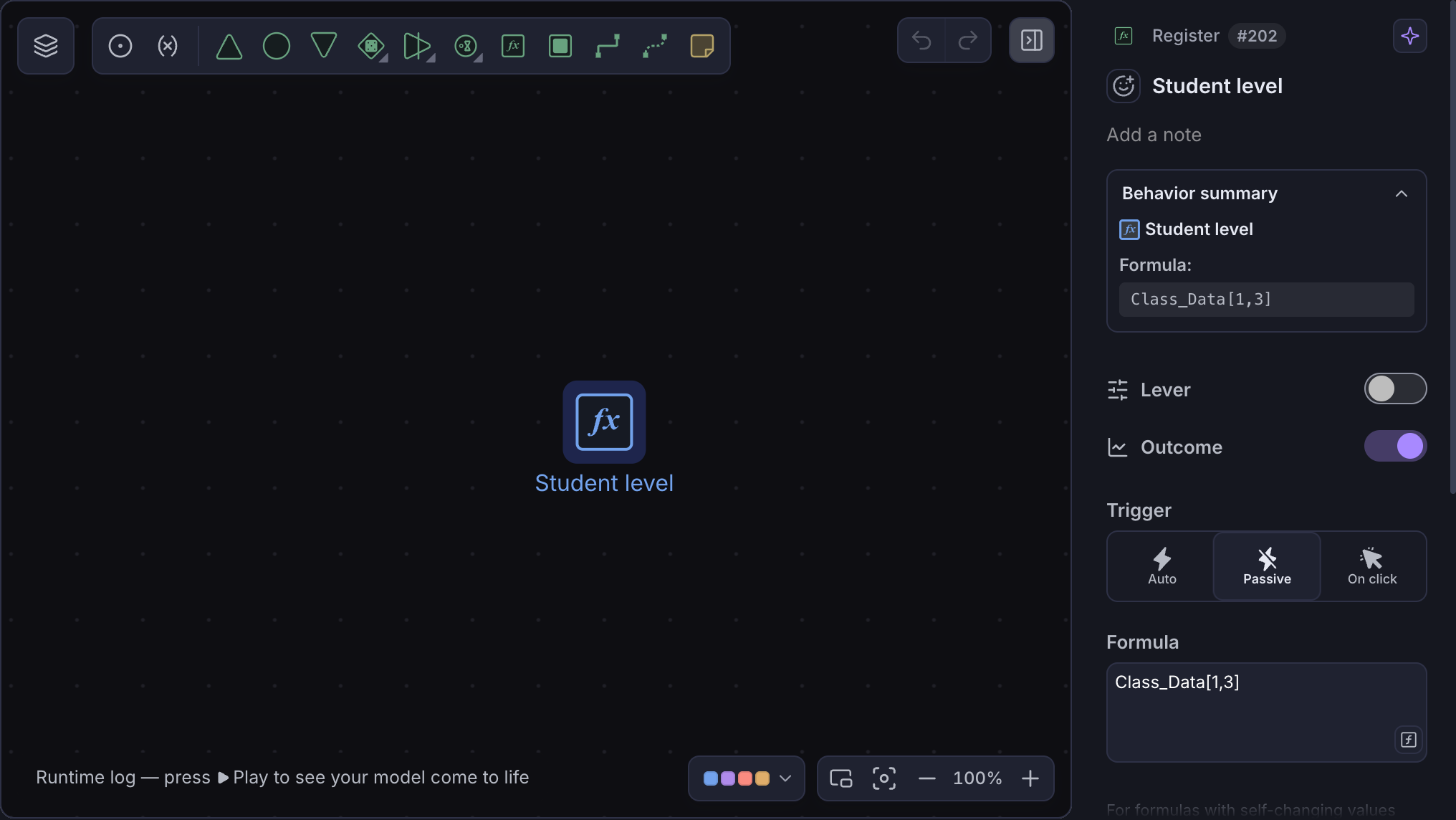
In this example, the name of our Custom Variable is Public_Encounter_LT.
To access the value for Gold for the first encounter on the list (encounter_1) in the table on the right (Public Google Sheet), you can use the following formula:
Public_Encounter_LT[1,3]
The result will be 10. You can combine multiple State Connections or Registers to access all values within the Public_Encounter_LT Array.
For more information on Arrays and how to access their values, please refer to the Using Arrays section in our Math Expression article.
Private Google Sheets
Custom variables of the type Private Google Sheets can ingest data from a private Google Sheet. Using this custom variable type will allow you to use all your private Google Sheets without the risk of data leaking to the public. To add one, open the Data tab, press Google Sheets under Add connector and select Private.
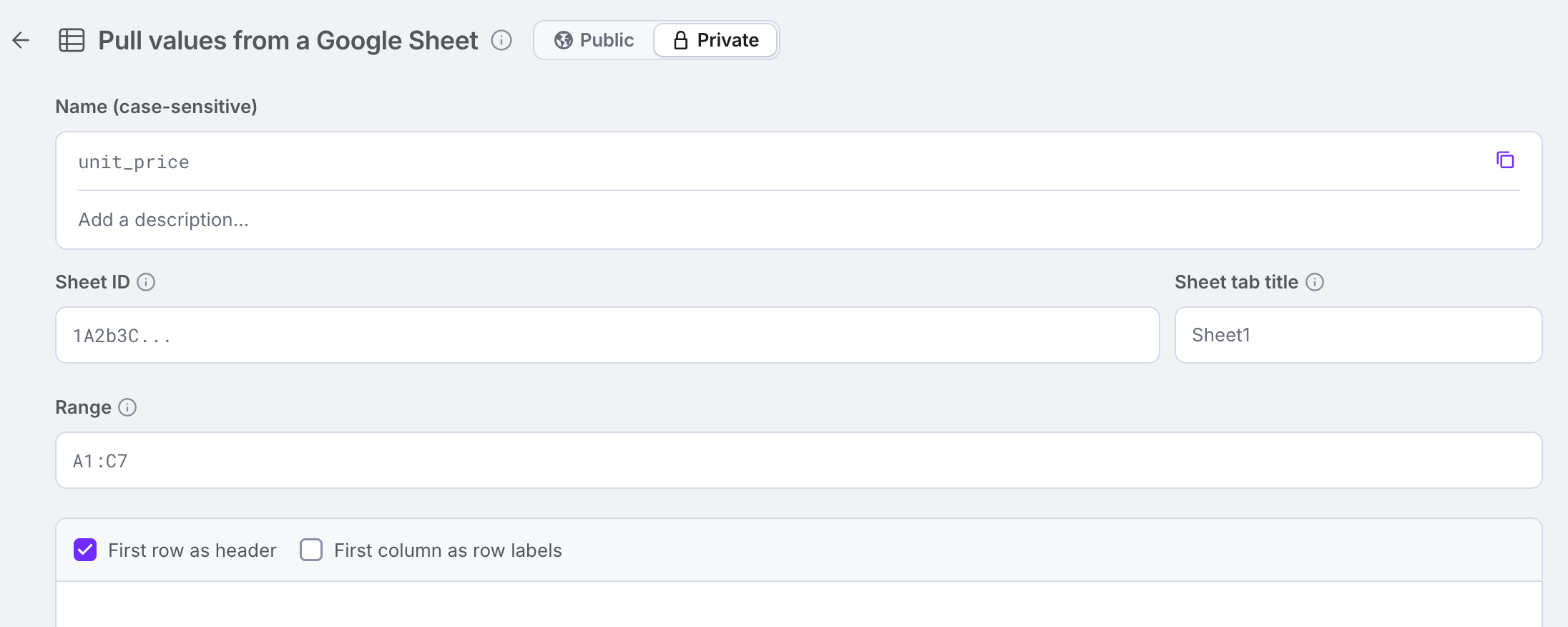
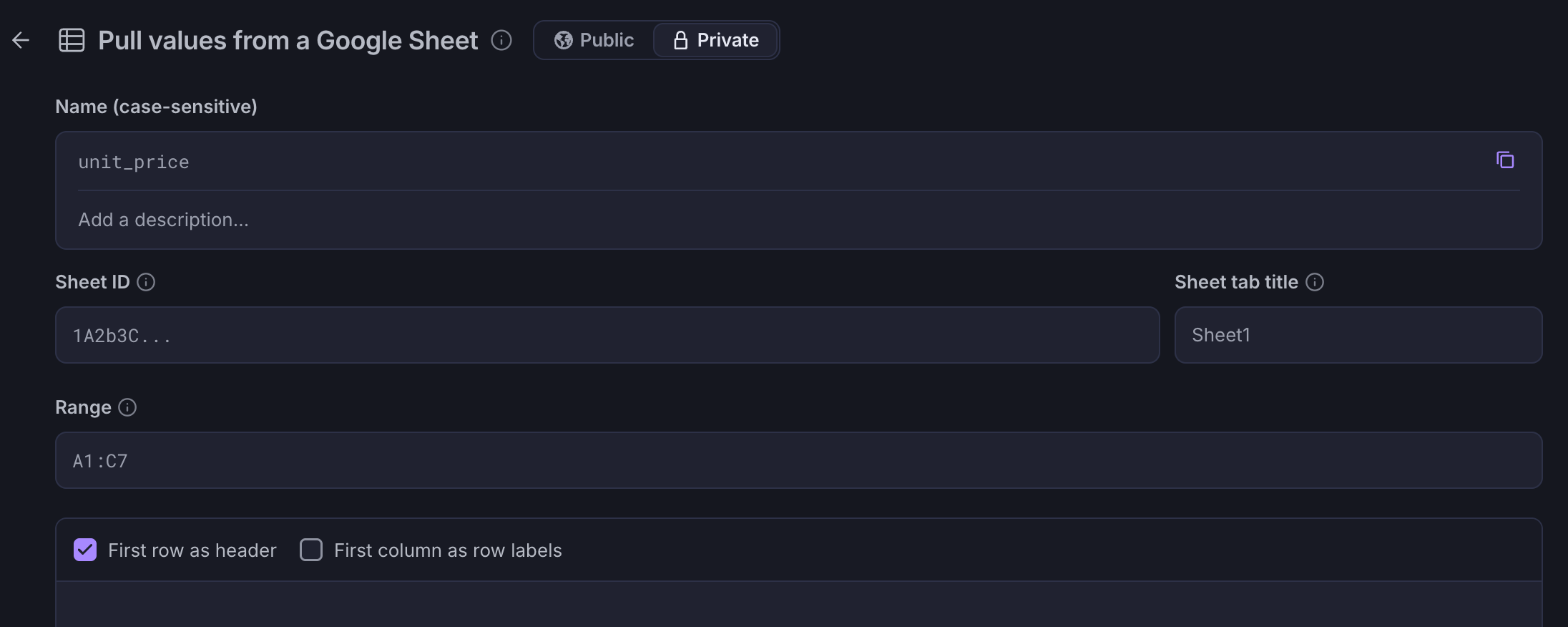
Name:
This is the name of your new custom variable. Please remember that they are case-sensitive.
Sheet ID:
You can find the Google Sheets ID in the URL of your Google Sheet. The ID is the long string of random characters between the “/d/” and the “/edit” in the URL.
For example, if the Google Sheet URL is “https://docs.google.com/spreadsheets/d/1ge0yePyqsbGo0Pcd9QdKgYc5OfkMaP3xK48-NCJDuG0/edit#gid=0”, then the ID is “1ge0yePyqsbGo0Pcd9QdKgYc5OfkMaP3xK48-NCJDuG0“.
Sheet Tab Title:
You can leave this field empty and the variable will choose the default sheet name “Sheet1”. If you have multiple sheets you should type the exact name of the Google Sheet tab you want to import the data from.
Range:
Define the Range to select the data for your Custom Variable as you would define it in Google Sheets (e.g.:A2:E8). You will also see an error message if your range selection is invalid.
You can find more information about the R1C1 notation here.
Preview:
Under the fields the form shows a preview of the imported cells once the Sheet id and the query or range are filled in. The tick boxes First row as header and First column as row labels and the toggle at the right of the preview change how the cells are shown there.
Accessing the private sheet data
Important:
- If your sheet contains columns with only text, they will be interpreted as 0 and cannot be used as values in a custom variable, except for headers cells.
- The cells in your sheet must contain numeric values. This includes the resulting values of a cell formula.
- All numeric values fetched from one or several columns (e.g.: A2:C4) will be converted into a 2-dimensional array. This is also true if you select one single cell! (e.g.: B2)
You can access the values of your Private Google Sheet variable by using its name in a formula field, a Register, Resource Connection, or State Connection, and of course in other custom variables.
Each row of your Private Google Sheet will be interpreted as an array, resulting in a 2-dimensional array for more than one selected columns.
You can access the individual values using the following syntax: VariableName[Row,Column]
Example Private Google Sheets
In this example the name of our Custom Variable is Private_Encounter_LT.
To access the value for Gold for the first encounter on the list (encounter_1) in the table on the right (Private Google Sheet), you can use the following formula:
Private_Encounter_LT[1,3]
The result will be 10. You can combine multiple State Connections or Registers to access all values within the Private_Encounter_LT Array.
For more information on Arrays and how to access their values, please refer to the Using Arrays section in our Math Expression article.
Private Google Sheets for Collaborative Editing
When sharing a diagram with a Private Google Sheets custom variable to other Machinations users, keep in mind the following functionalities:
- The values used in Plays for both the owner and the editor are the values saved most recently by the owner in the custom variables panel;
- If the owner changes the values only in the source, Google Sheet, and the changes in the custom variable are not saved in the application the changes will not be reflected for both owner and editor. To ensure that the changes are properly changed, use the refresh button on the variable’s query or start a new Play or Forecast;
- Collaborative editors need editing rights for the original sheet in order to have the same functionality as the owner of the sheet.