Earning skill points
Learn how to add new features such as getting skill points, allocating them to attributes, and how this affects the character’s stats.
In the last stage of the Level Progression tutorial, we will add new features such as getting skill points, allocating them to specific attributes, and how this affects the character’s stats.
In this example, they died in step 5 because they did not allocate any points to Constitution.
Earning skill points
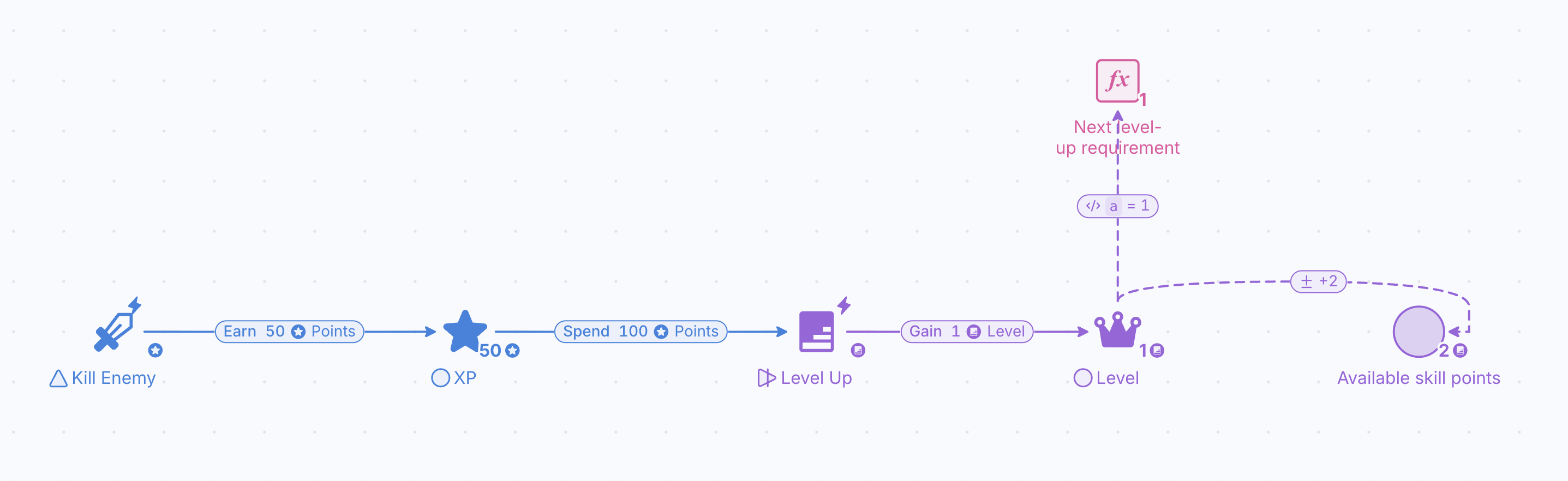
We will assume that players get 2 skill points every time they level up. They will also start with 2 skill points allocated to their attributes.
Therefore, we need to store the number of skill points somewhere and detect whenever the level has increased. Use State Connections if a change in the state of a component must affect another component. (Note: as with the rest of the tutorial, this is only one way to design this in Machinations; there are many more!).
- Left-click and drag the “Next level-up requirement” register to place it above the “Level” pool to make space for this requirement. You can left-click on any label in the diagram to move it or see its full name.
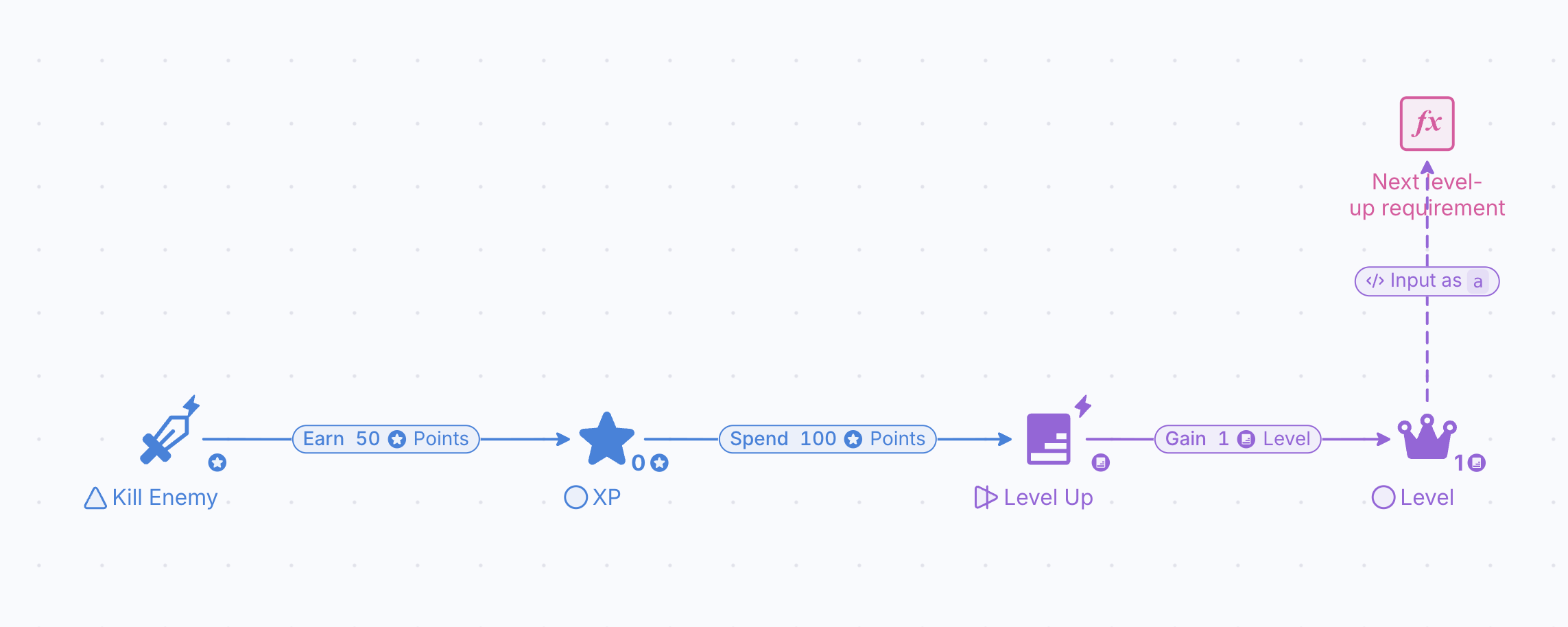
- You need to create a pool to store the amount of skill points. Add a new Pool to the right of the “Level” pool, and in the label at the top of the Properties panel (it reads “Add a label” on a new component), type “Available skill points”.
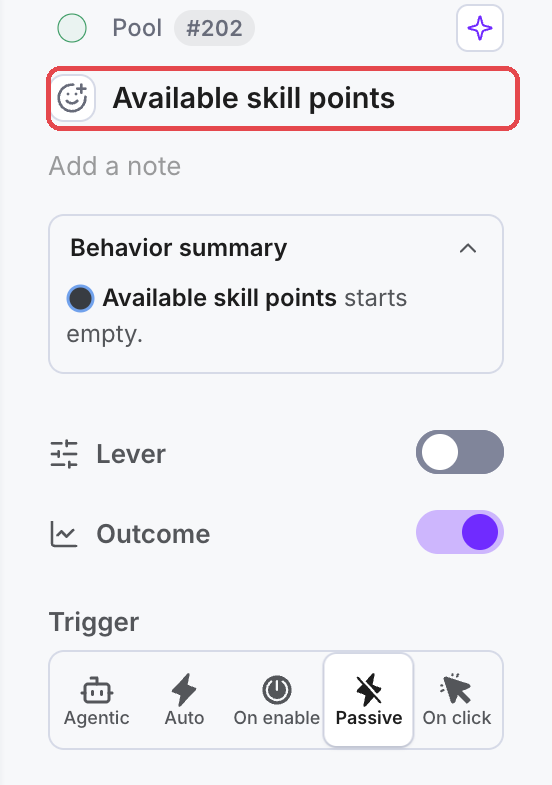
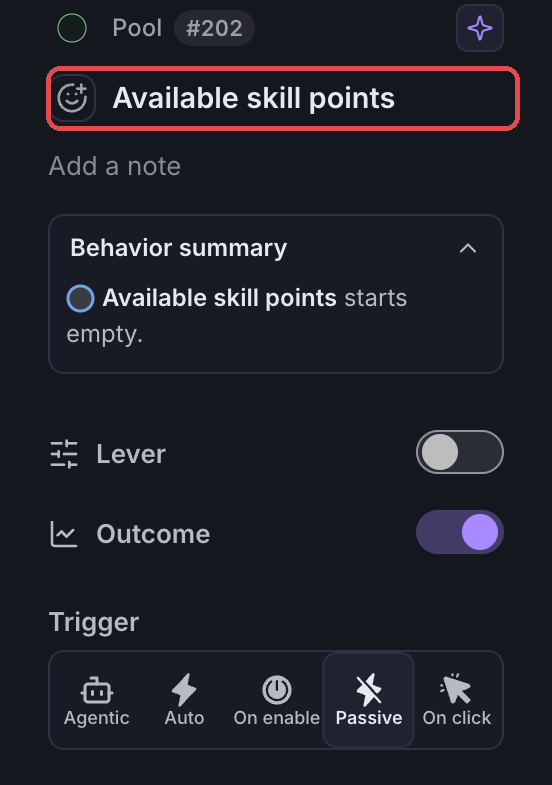
- Create a new State Connection between the “Level” pool and the “Available skill points” pool. Observe that, with Type on “Change value”, its Formula is “Add change” and its Multiplier is 1 (the label on the canvas reads “Add change”).
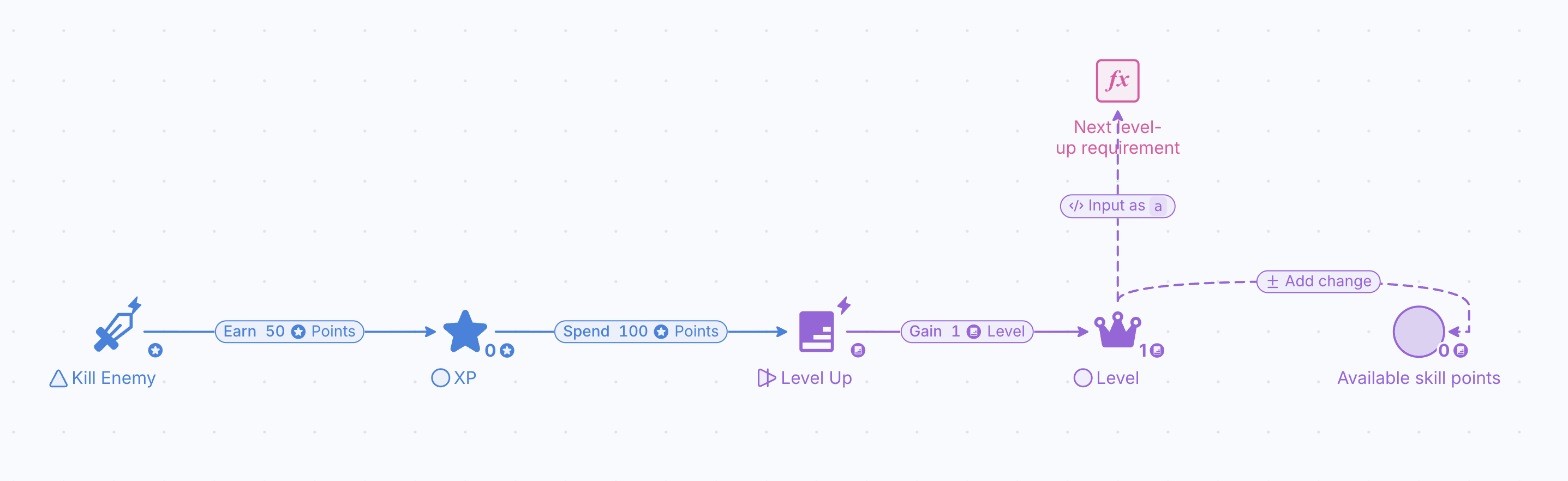
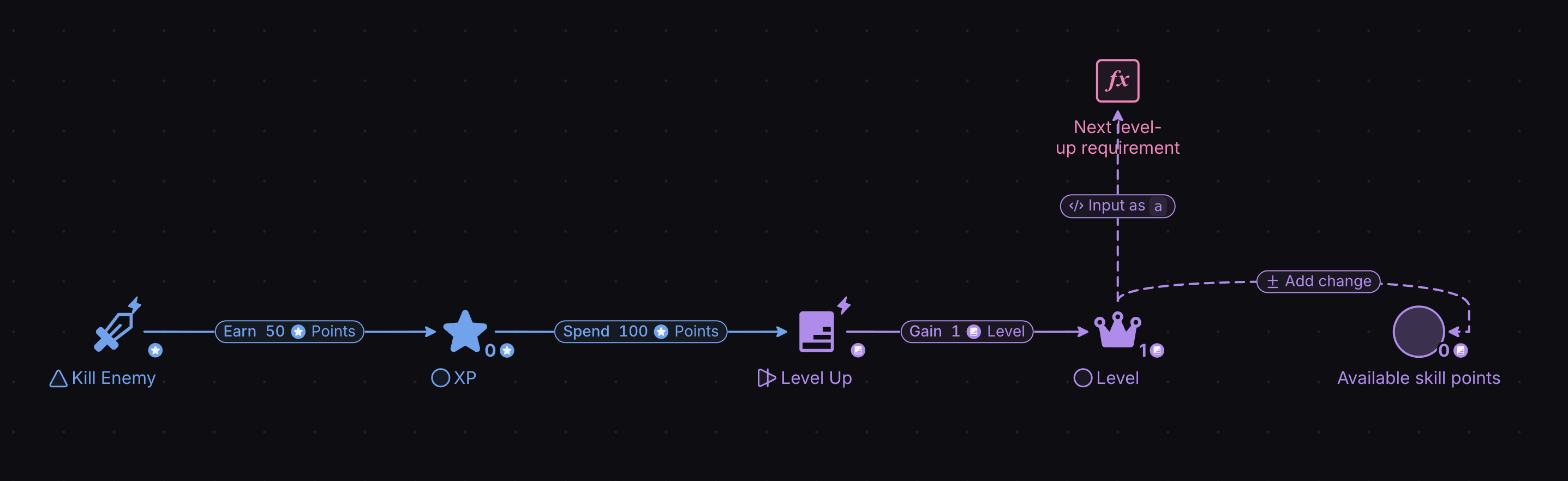
- Press “Step” or ”Play” and observe that the player now has 1 skill point when they should have 2.
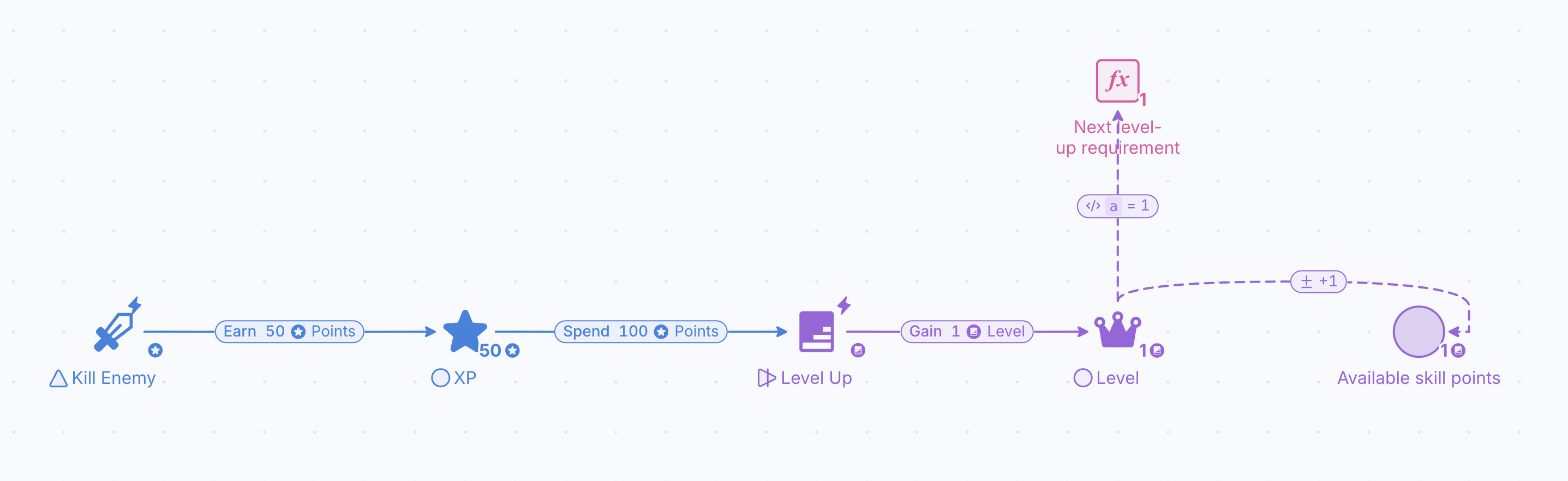
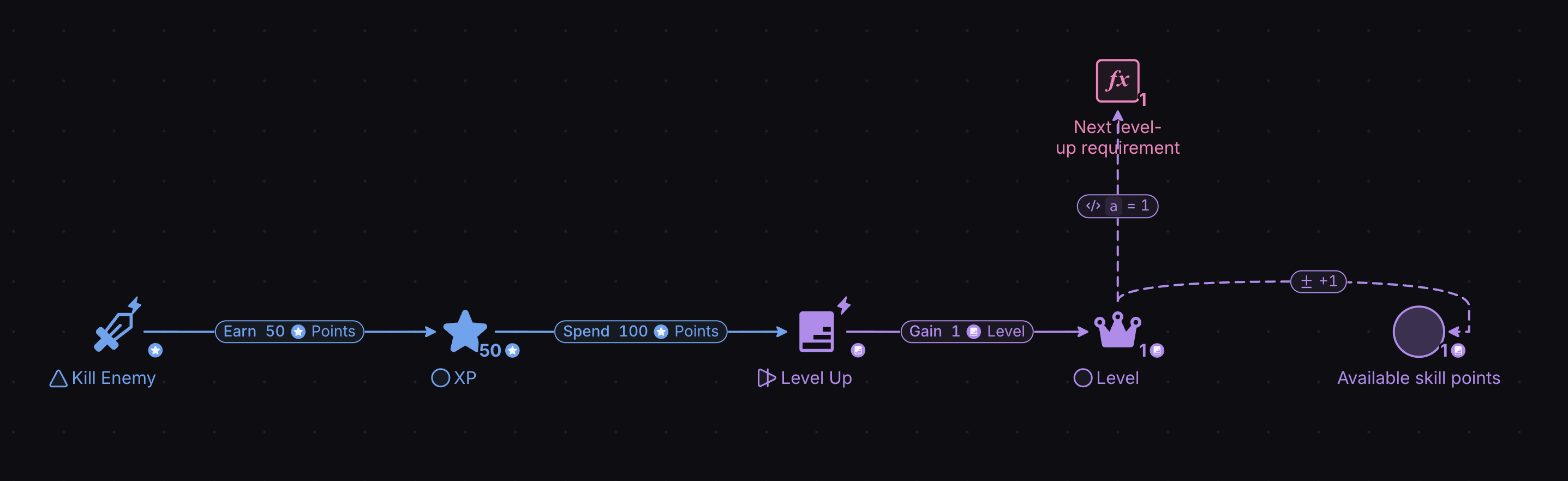
The State Connection works in this way: it will multiply its formula (in this case, Add change with a Multiplier of 1) by any change in value in the origin pool (“Level”) and add it to the destination pool (“Available skill points”). This is because the State Connection works with the following formula:
New value of the target pool = old value of the target pool + Multiplier × change in the origin pool
In this example, the target pool now has the value of 1 because its previous value was 0. The State Connection is Add change with a Multiplier of 1, and the “Level” pool has just changed by 1, therefore:
New value of Available skill points = 0 + 1 × 1 = 1
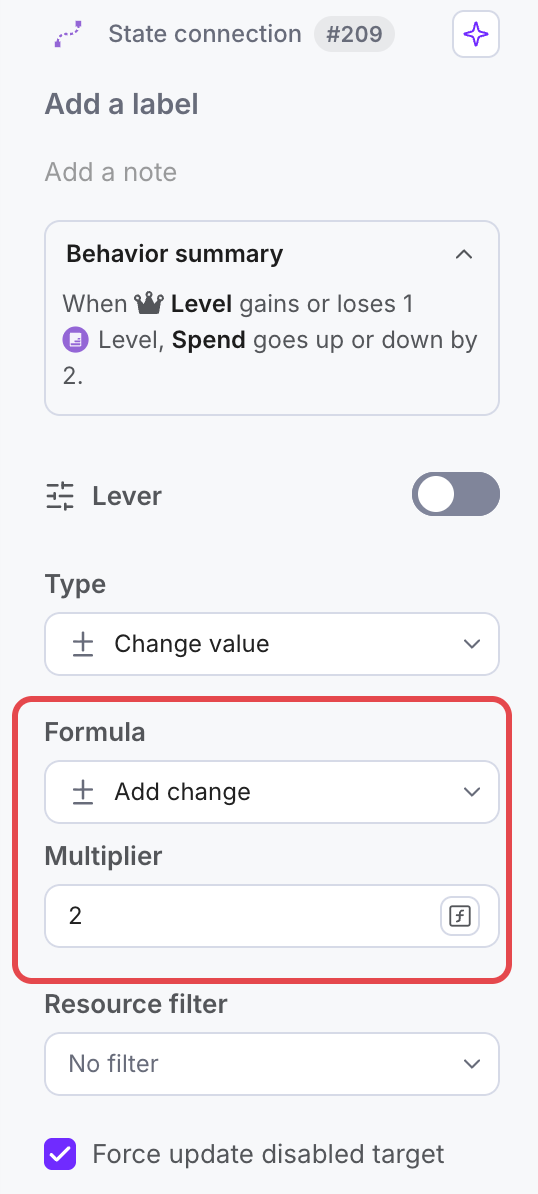
- We need to change the formula of the State Connection. Instead of having 1 additional skill point, we need 2 additional skill points. Select the State Connection between the “Level” and “Available skill points” pools, and in the Properties panel leave Type on “Change value”, set Formula to “Add change” and type 2 into Multiplier.
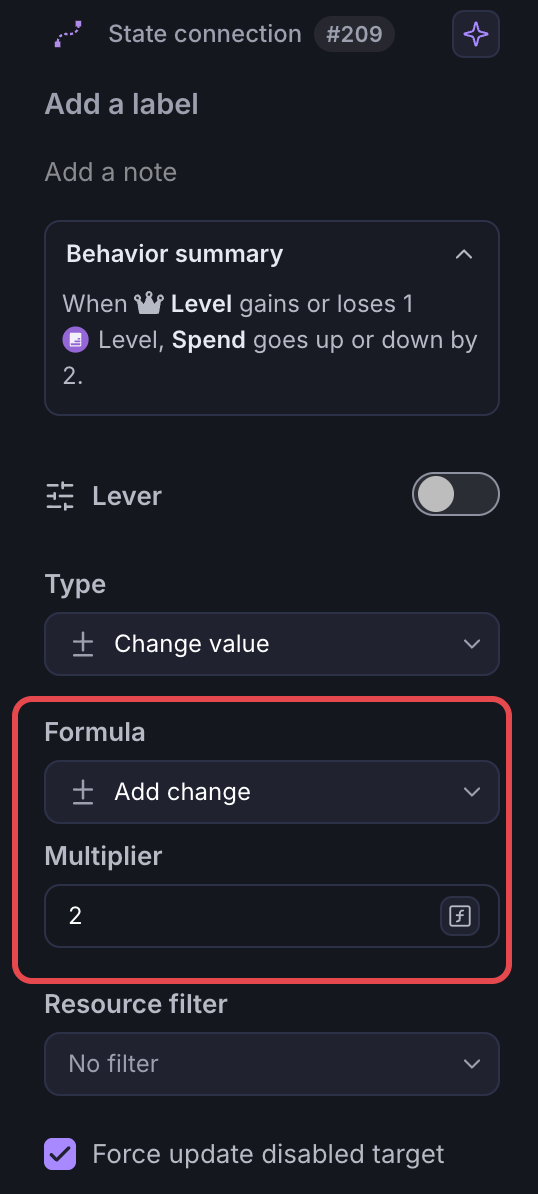
- Press “Play” or ”Step” and observe that the player will now earn 2 skill points every time they level up.