Parameters

Collect card-pack parameters in Custom Variables so they are easier to find, edit and compare. If it’s been a while since you’ve used your model.

Suppose we decided to rebalance our system so that the player can collect cards faster. There are several gameplay variables we could modify to achieve this.
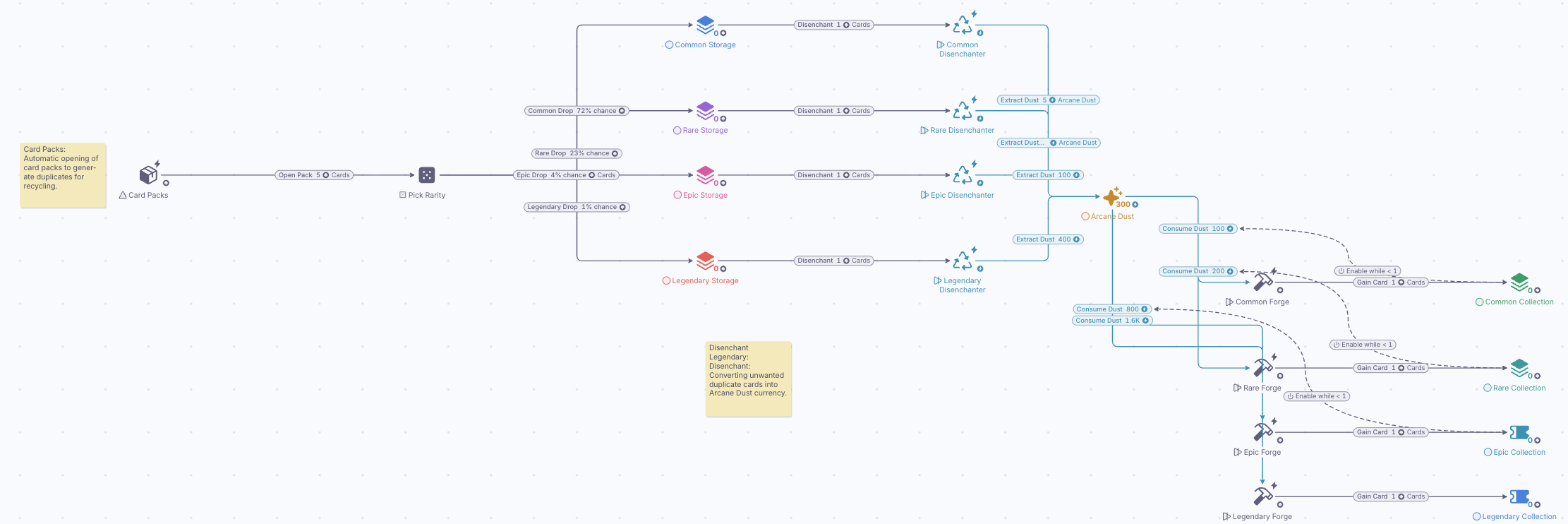
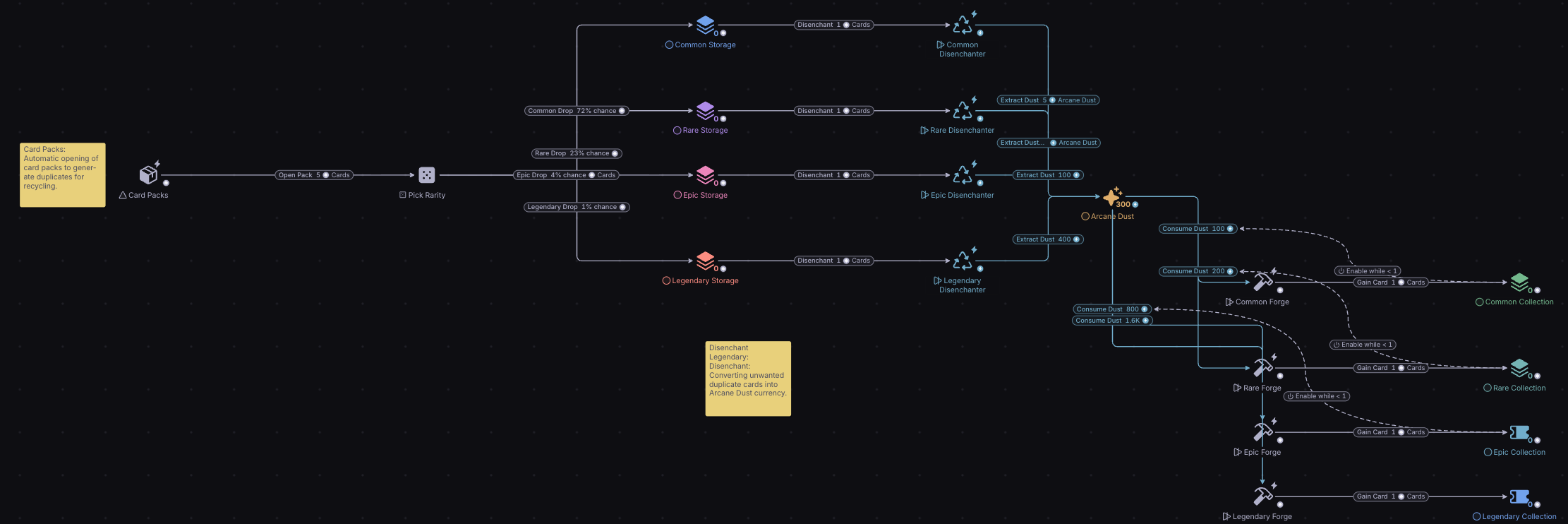
The whole crafting model: the 5 cards per pack, the 72%, 23%, 4% and 1% drop chances, the dust each Disenchant gives and the dust each Forge costs are typed into connection labels spread across the diagramThe whole crafting model: the 5 cards per pack, the 72%, 23%, 4% and 1% drop chances, the dust each Disenchant gives and the dust each Forge costs are typed into connection labels spread across the diagram

The problem with our model is that these variables are spread across the diagram. If it’s been a while since you’ve used your model, or if someone else in your team wants to use it, finding the variables and updating them can be cumbersome.

Tip

Parameters (also called custom variables) allow you to declare gameplay variables in a dedicated area, the Parameters button on the toolbar, which you can interact with without editing the diagram directly.
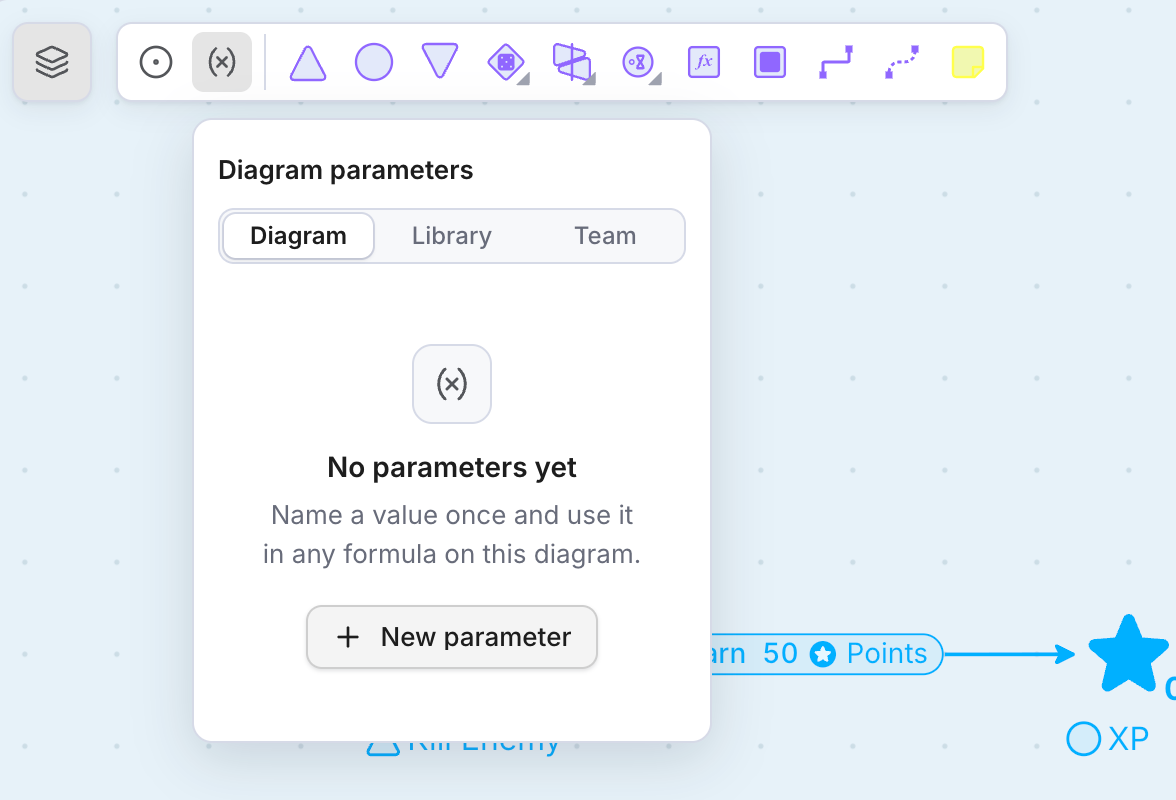
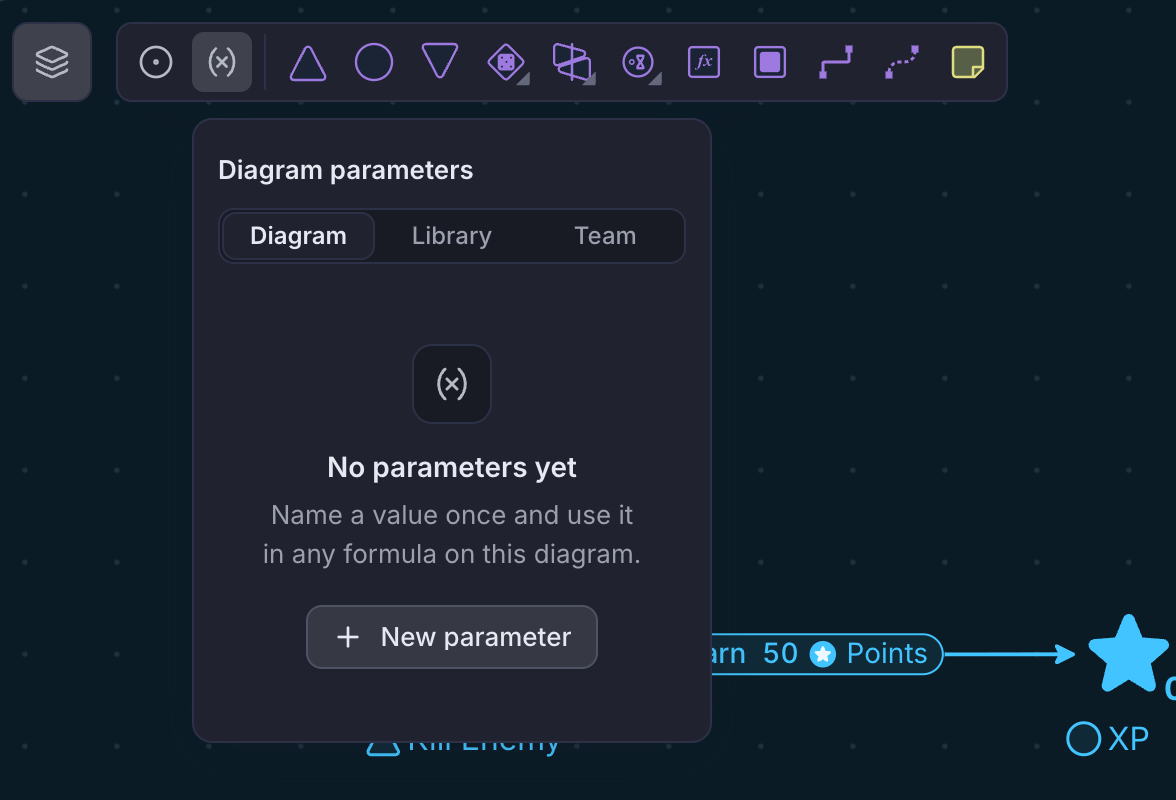
The Diagram parameters panel that opens from the Parameters button on the toolbar, with the Diagram, Library and Team tabs, the empty message and a New parameter buttonThe Diagram parameters panel that opens from the Parameters button on the toolbar, with the Diagram, Library and Team tabs, the empty message and a New parameter button

To define each variable, we will add a New parameter and choose Math expression. For instance, we can create a parameter called CardsPerPack that defines how many cards are contained in a card pack.
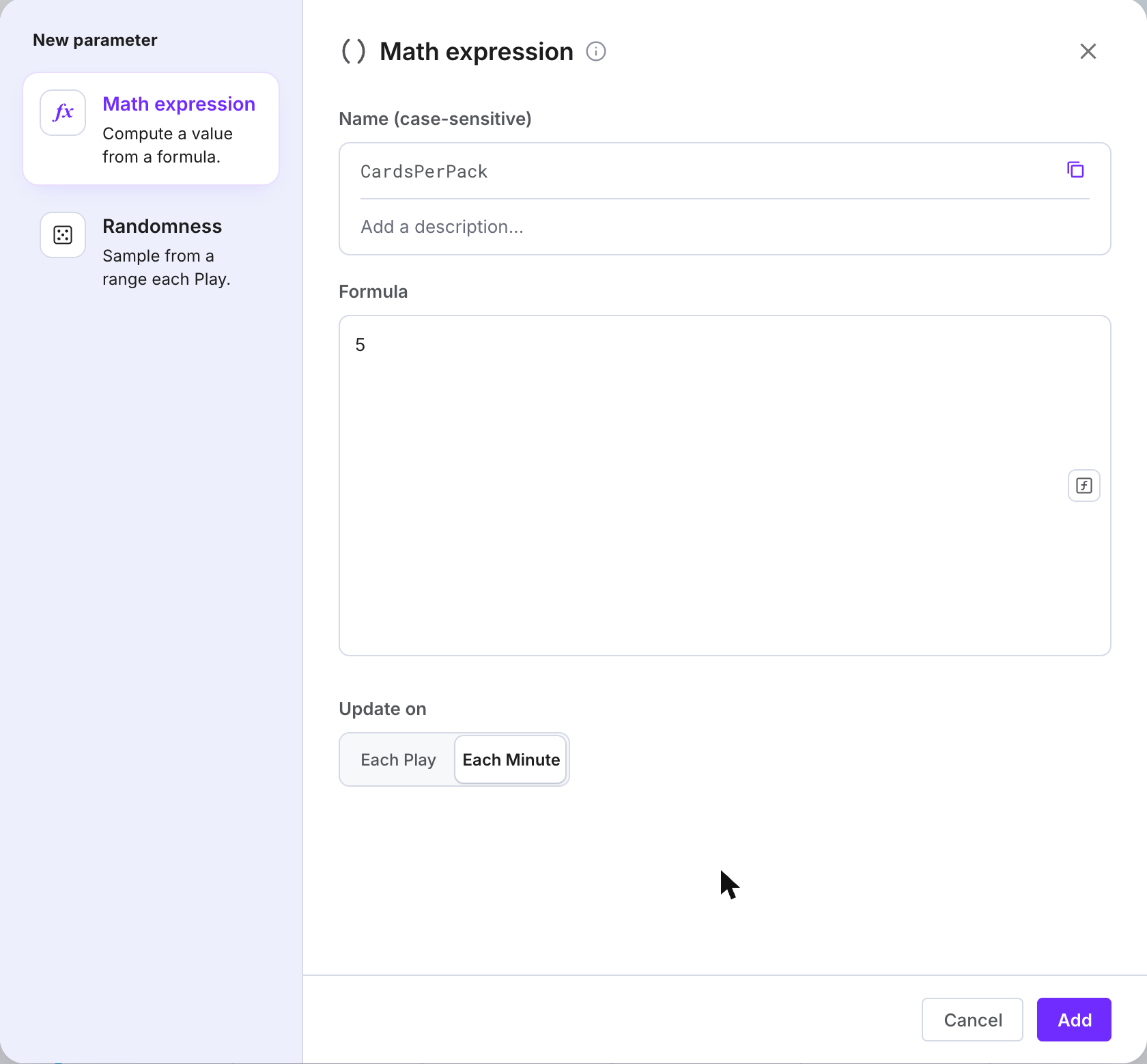
The New parameter dialog with Math expression chosen, the name CardsPerPack and the formula 5The New parameter dialog with Math expression chosen, the name CardsPerPack and the formula 5
Note

If the amount of cards per pack is random, we can write a formula, such as randomInt(x,y), or use a dedicated Randomness parameter.

Then, in the diagram itself, we replace the exact number with the name of the variable we just created. Now, whenever the variable is changed, the diagram will also change.
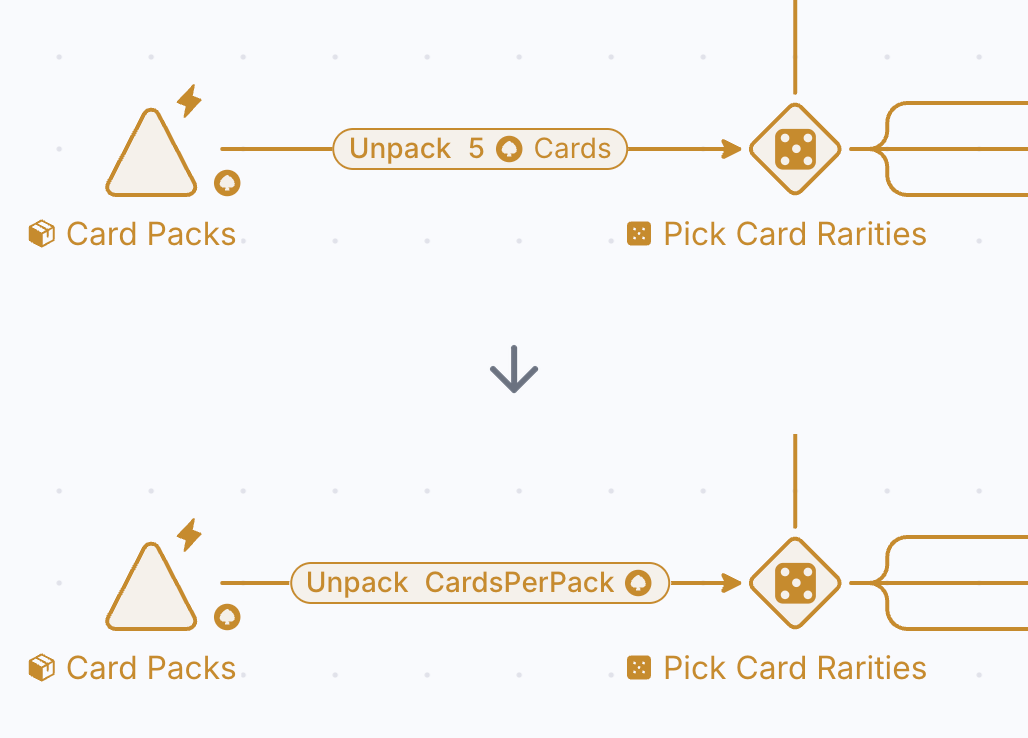
Two views of the Card Packs source feeding the Pick Card Rarities gate: the connection first reads Unpack 5 Cards, then Unpack CardsPerPack once the number is replaced by the parameter name.Two views of the Card Packs source feeding the Pick Card Rarities gate: the connection first reads Unpack 5 Cards, then Unpack CardsPerPack once the number is replaced by the parameter name.

Arrays of Values

Most of the gameplay values in our diagram come in groups of four: one value for each rarity. For efficiency, we can define all four values in a single variable, using an array.
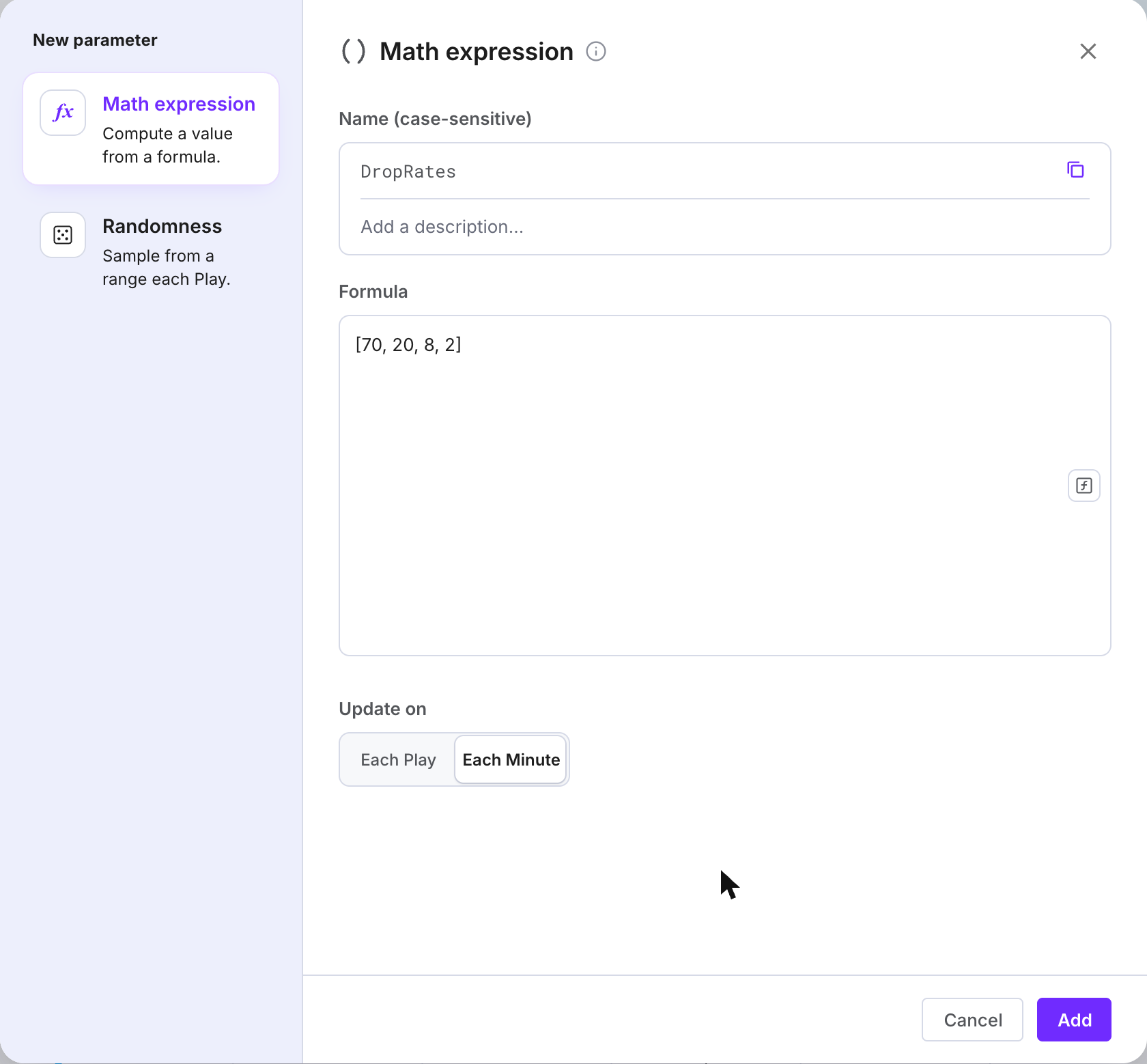
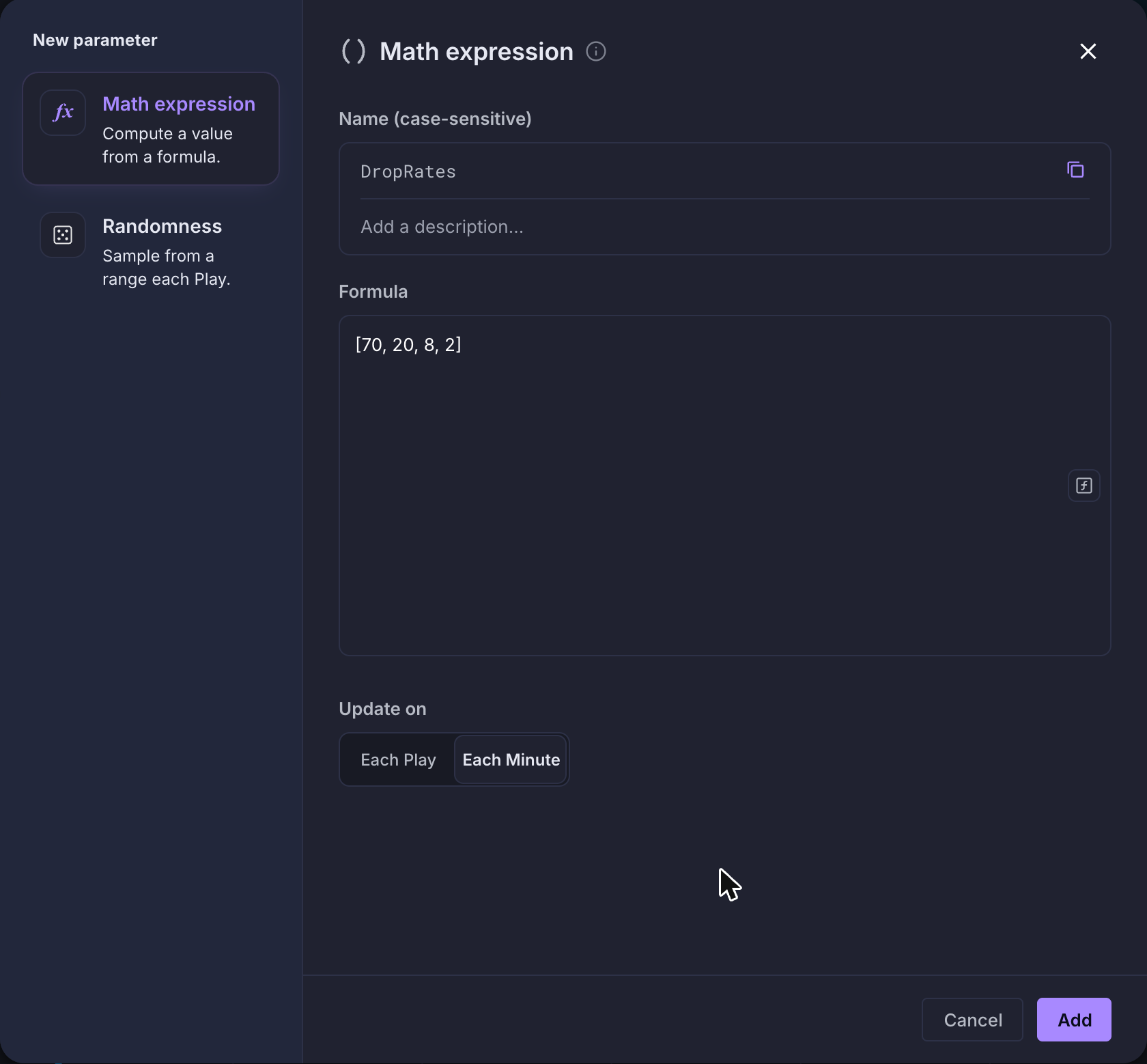
The New parameter dialog with the name DropRates and an array formula of four values, 70, 20, 8 and 2, one for each rarityThe New parameter dialog with the name DropRates and an array formula of four values, 70, 20, 8 and 2, one for each rarity

Then, when we reference this variable in the diagram, we’ll use square-bracket notation to grab the correct value from the list.
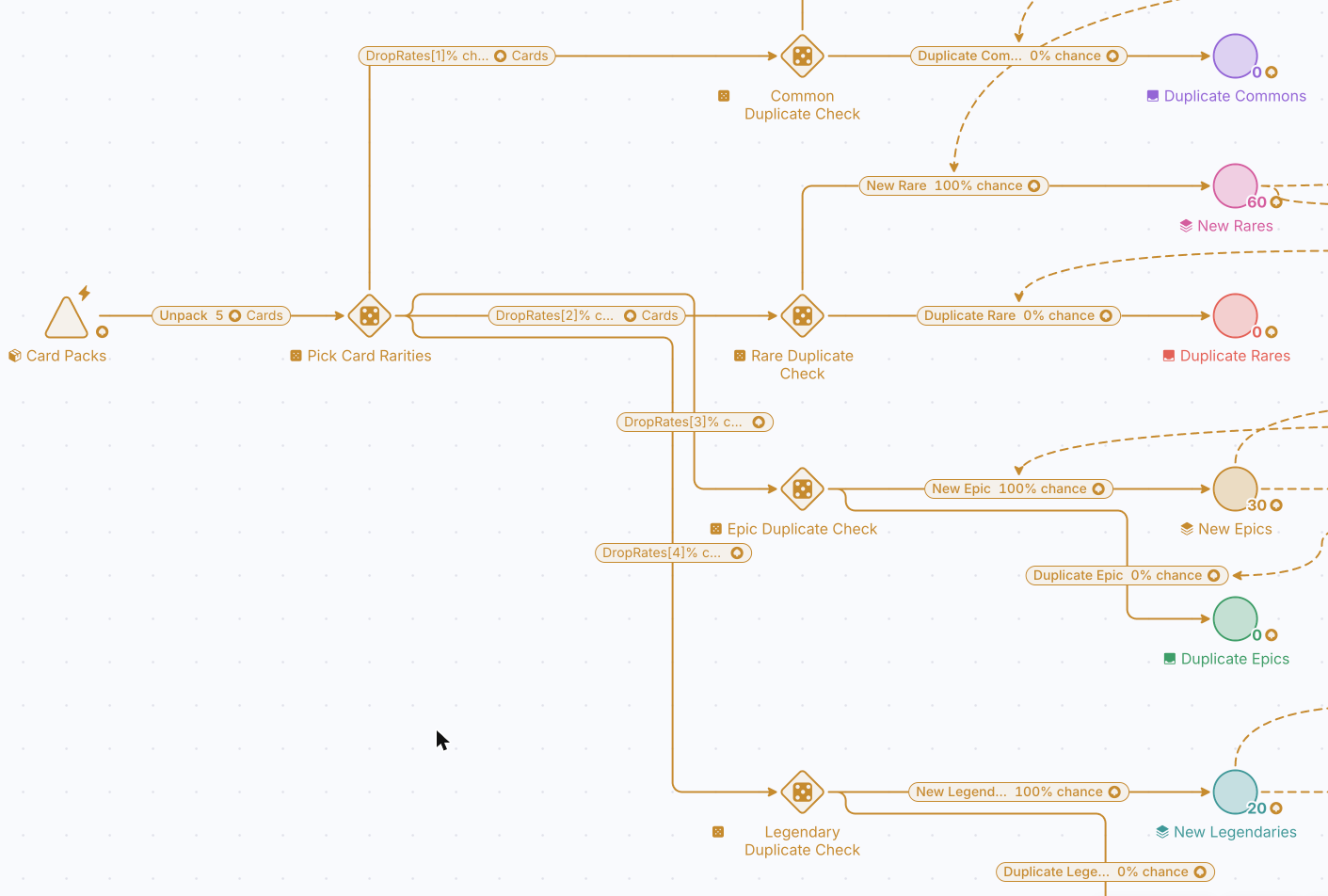
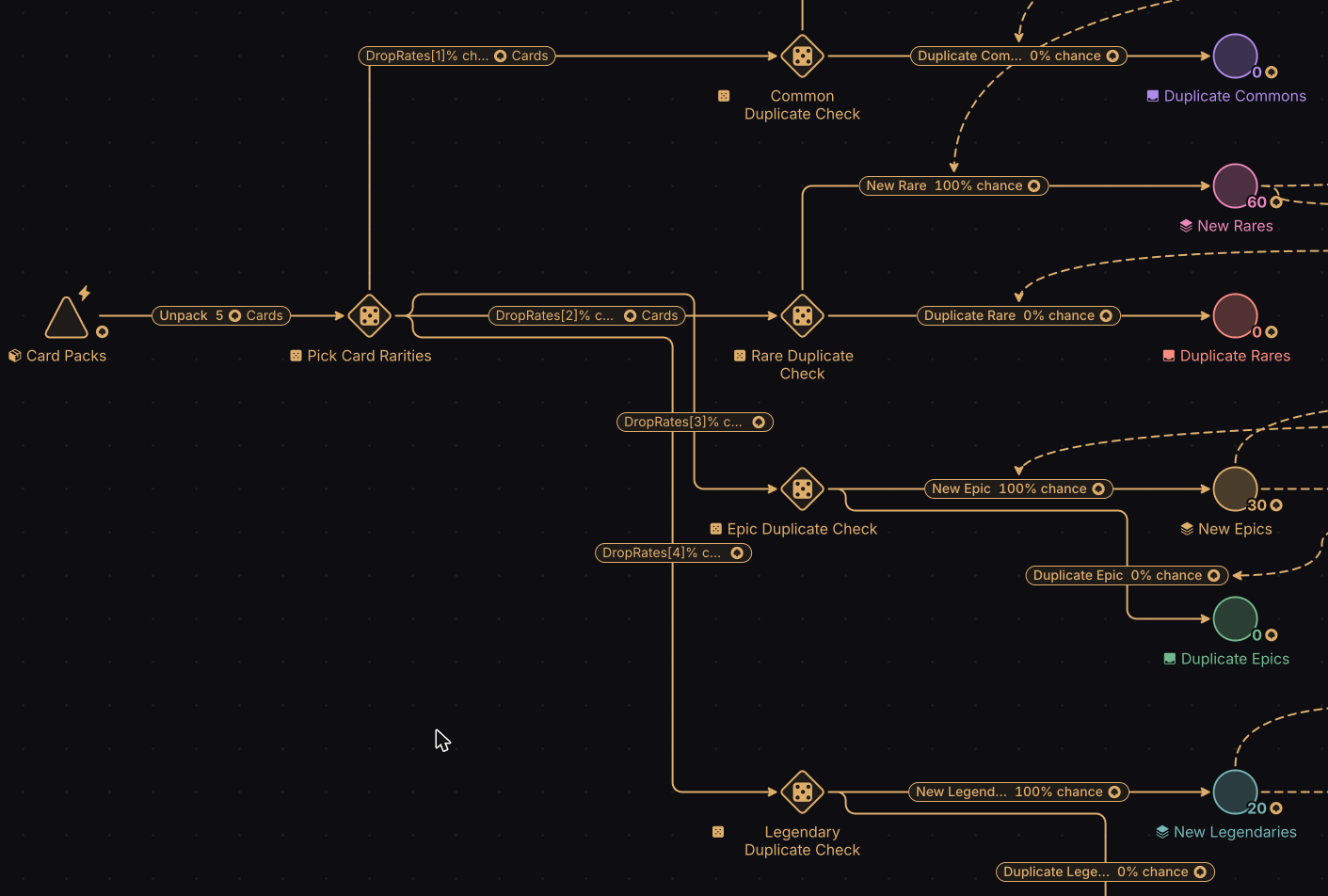
The Pick Card Rarities gate with four outputs whose chances read DropRates[1]%, DropRates[2]%, DropRates[3]% and DropRates[4]%, one for each rarity, leading to the four Duplicate Check gates.The Pick Card Rarities gate with four outputs whose chances read DropRates[1]%, DropRates[2]%, DropRates[3]% and DropRates[4]%, one for each rarity, leading to the four Duplicate Check gates.
Note

Suppose we already have a spreadsheet where all our gameplay variables are stored. In the next section, we will explore how to integrate our parameters with a spreadsheet.