Increasing XP earned per level
In this section, you will learn how to use arrays and combine them with registers. What if the amount of XP increases depending on the player’s level?
The game we have been modeling so far allows the player to win up to 50 XP per enemy killed. What if the amount of XP increases depending on the player’s level? Not only that but also, what if the amount of XP per level is obtained from a list of values? In this section, you will learn how to use arrays and combine them with registers.
Getting the XP per level from a list of values
Now we will assume that the XP earned will depend on the level of the player, as shown in the following table:
| Level | XP |
|---|---|
| 1 | 50 |
| 2 | 80 |
| 3 | 110 |
| 4 | 140 |
| 5 | 170 |
| 6 | 200 |
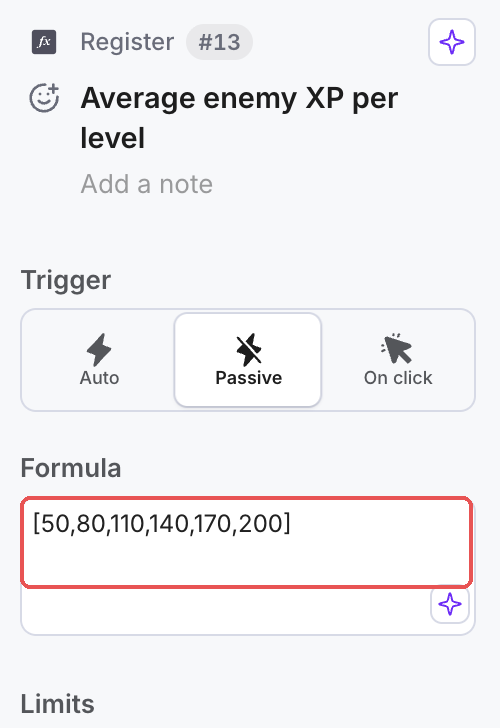
This means that for example, if the player is in level 4, they will earn 140 XP per enemy killed. When we have a predefined list of values that cannot be obtained via a formula we can use arrays. Based on this table, the array of XP earned per level can be written as: [50,80,110,140,170,200]. Each element of the array can be accessed by an index which indicates the position of the element in the array, being 50 at index 1, 80 at index 2 and so forth.
We need to find a way to get the current level of the player, and depending on this level, get the amount of XP earned.
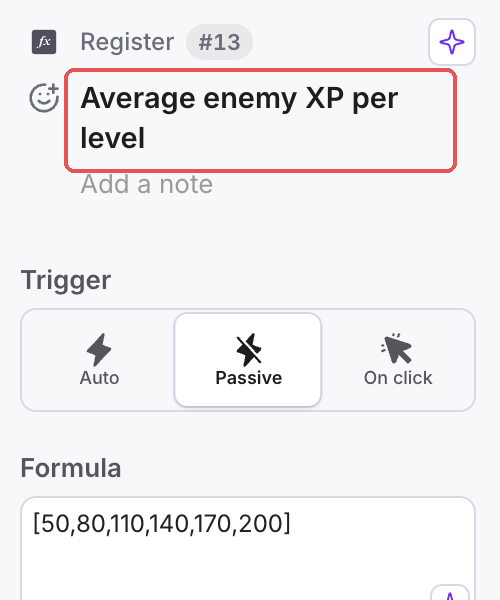
- Add a new register by selecting the Register from the toolbar or use the keyboard shortcut (r) and place it below the “Kill Enemy” source. In the label at the top of the Properties panel (it reads “Add a label” on a new component), enter “Average enemy XP per level”
- Select the register and enter the array [50,80,110,140,170,200] in the “Formula” field.
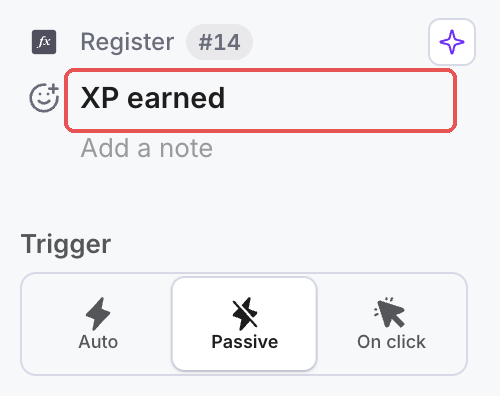
- Now we need to access each element of the array from another register. Add a new register to the right of the “Average enemy XP per level” register. In the label at the top of the Properties panel type “XP earned”
- We want to “read” or “get” values from the first register into the second register. Because we want the output of a register to be the input of another one, we will use a State Connection. Add a State Connection (either from the toolbar or using the shortcut “alt+c”). First, click on the “Average enemy XP per level” register and then click on the “XP earned” register.
- Select the State Connection. In the “Type” field, select Formula input, and in the next input box, type “xpPerLevel”. We recommend assigning descriptive names to State Connections when you use them to get values from other components.
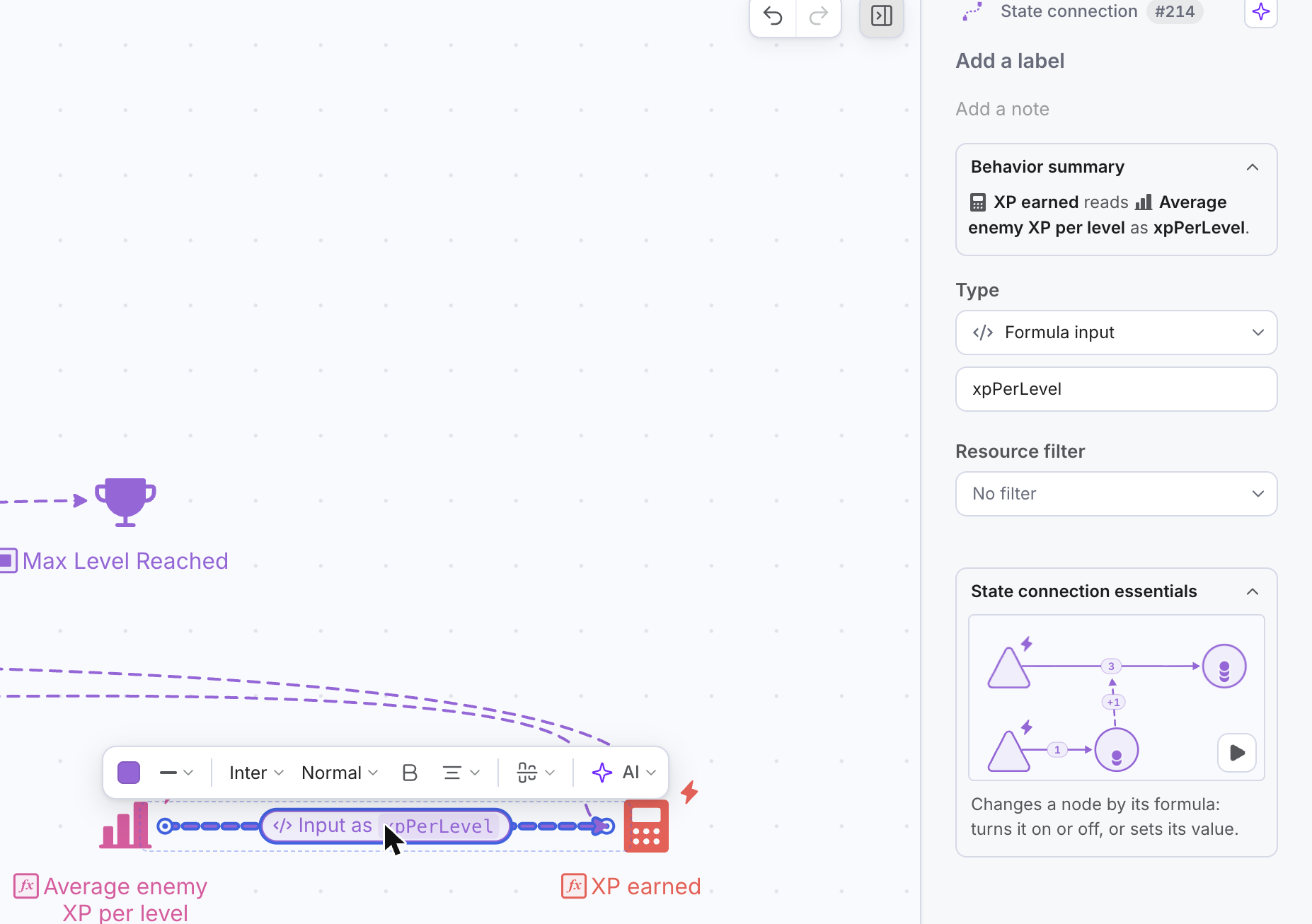
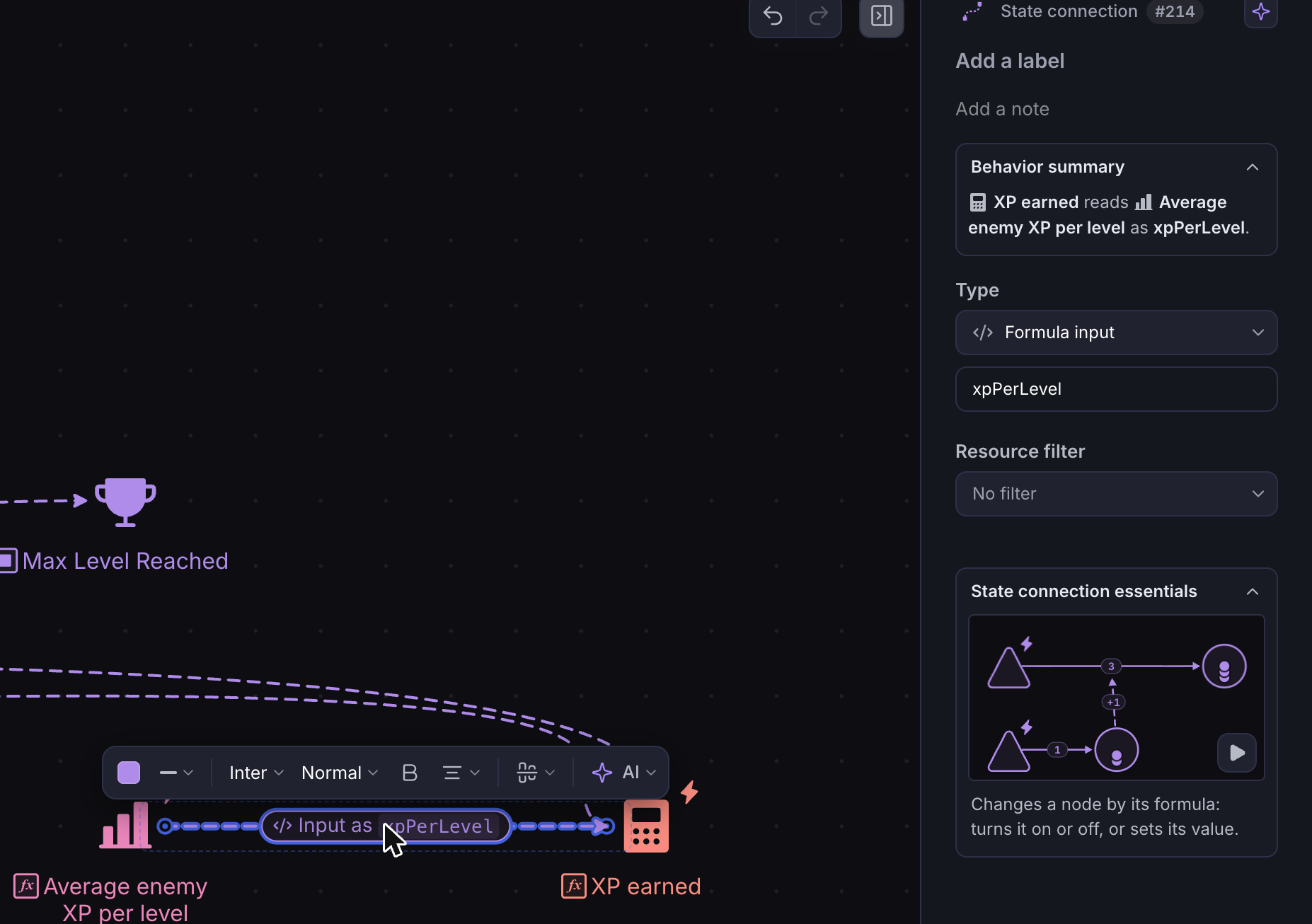
The Connection Type Dropdown is automatically updated based on the input & output node of the selected connection.
If you are not seeing Formula input, make sure that the State Connection ends at a Register.
- Now the register “XP earned” understands that if you write “xpPerLevel” in its formula, it will get the array of values from the register. Select the “XP earned” Register and in the “Formula” field write “xpPerLevel”.
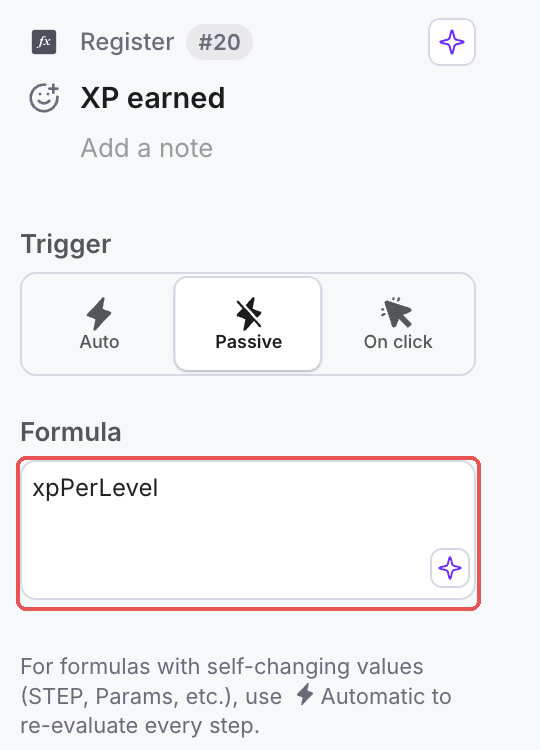
- Press “Play” or “Step” and look at the “XP earned” register. It is showing the full list of values per level when we have to get the XP earned depending on the current level
Changing the amount of XP earned
We need to get the XP earned depending on the level of the player, not the full list of values.
For example, if you want to access the XP earned for level 1 you need to write xpPerLevel[1], for level 5 it has to be xpPerLevel[5] and so on for each level. Generally speaking, to access any element of the array at a position N you need to write:
arrayName[position]
- Try writing in the “Formula” field of the “XP earned” register the value “xpPerLevel[2]” and press “Play”. What is it returning? (After you have checked it, press “Reset” to stop the Play).
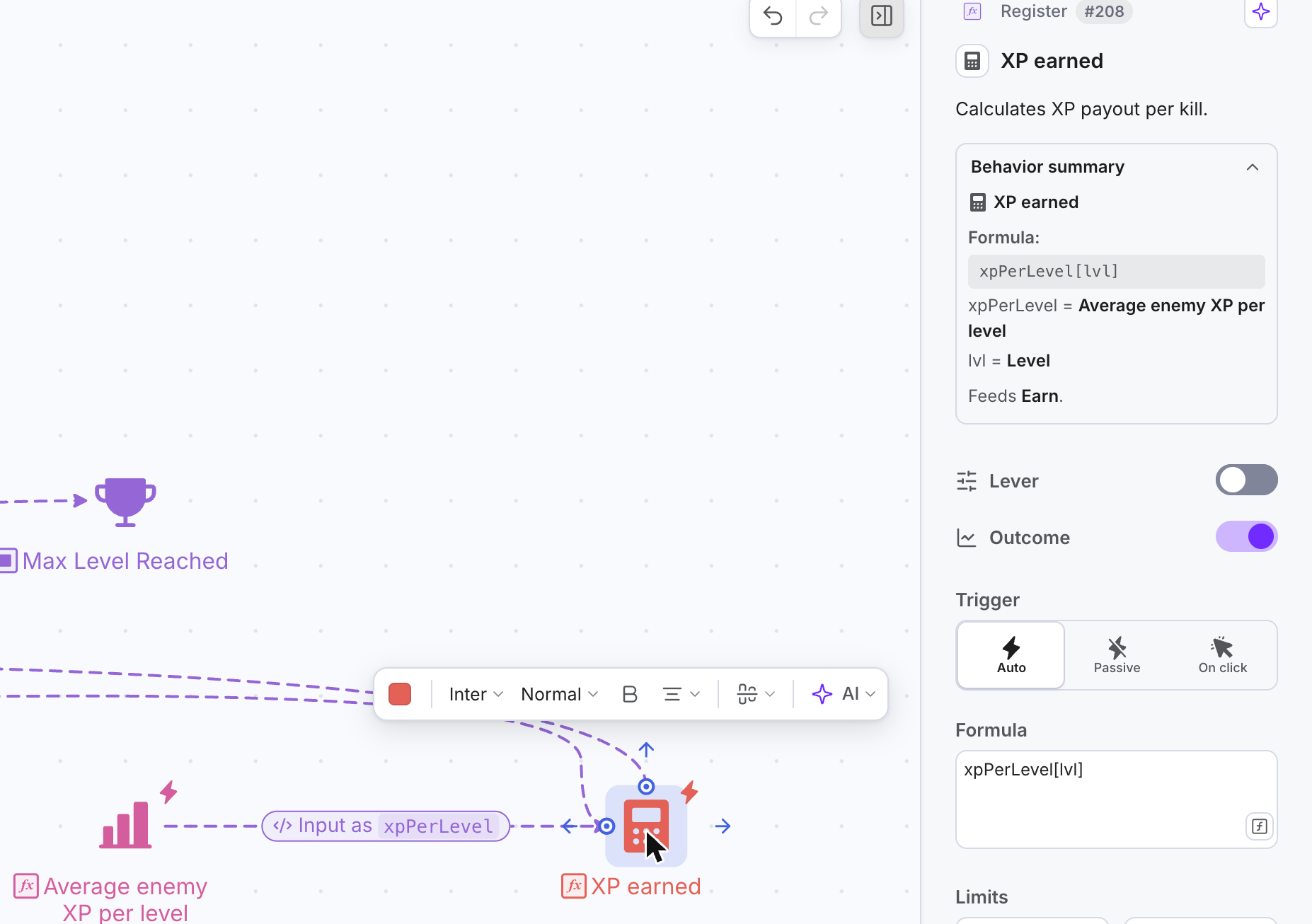
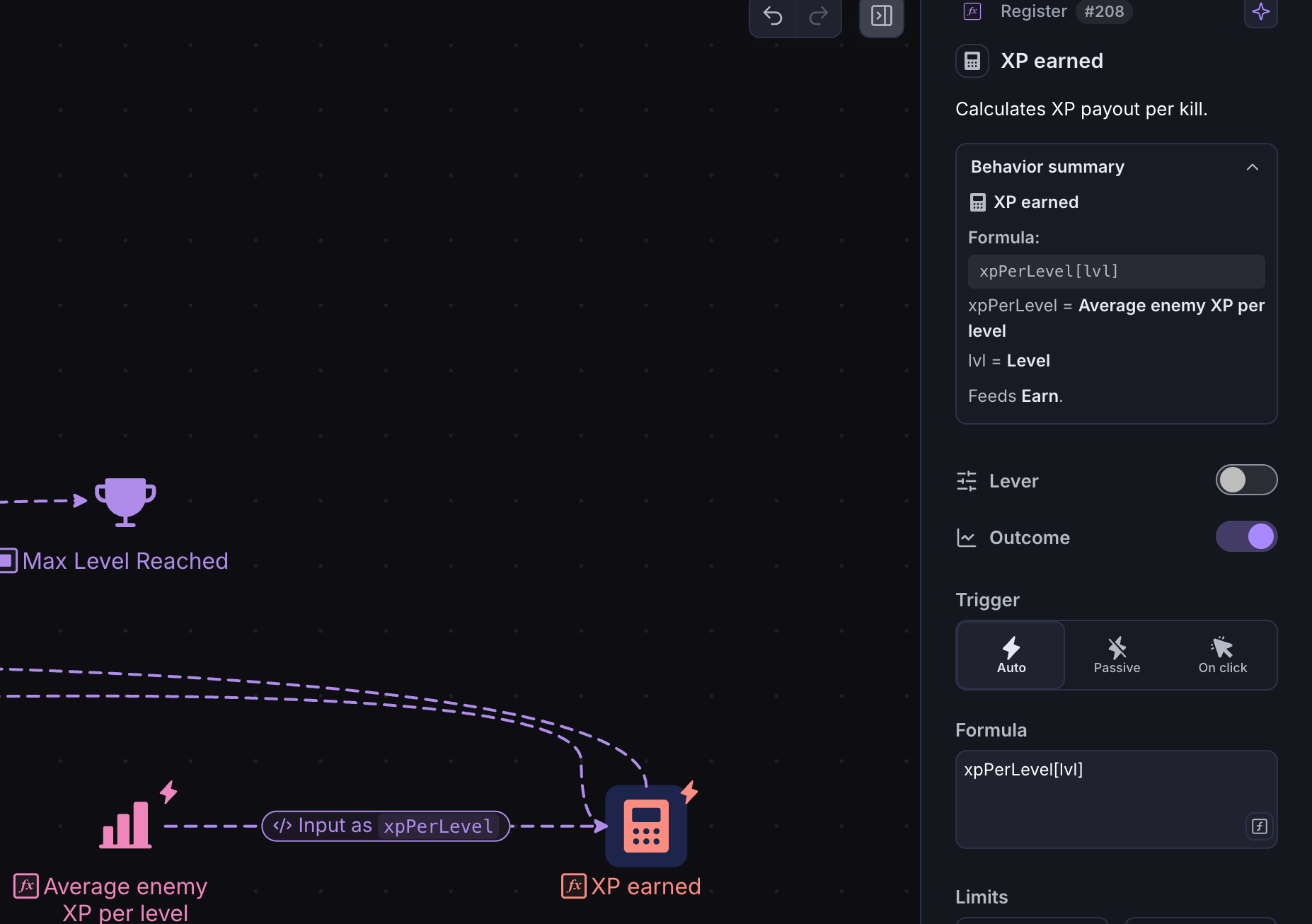
The formula returned 80 because that is the amount of XP earned for level 2, but this is wrong because the player’s level is 1 initially, so we should write xpPerLevel[1]. And what should we write in the formula when the player is at level 2? And when they reach level 4?
The number between brackets is in fact the current level of the player. This level will change during the Play, and the only component that knows the current level is the “Level” pool so we need to get it inside the register.
- To get the level from this pool, create a new State Connection. First click on the “Level” pool and then on the “XP earned” register (remember also to rearrange the State Connection). In this way, the “XP earned” register will read the current level.
- Select the State Connection and type “lvl” into the box under Type, which is set to Formula input. Now the “XP earned” register understands that “lvl” represents the current level of the player (this step is not obligatory, but it is recommended).
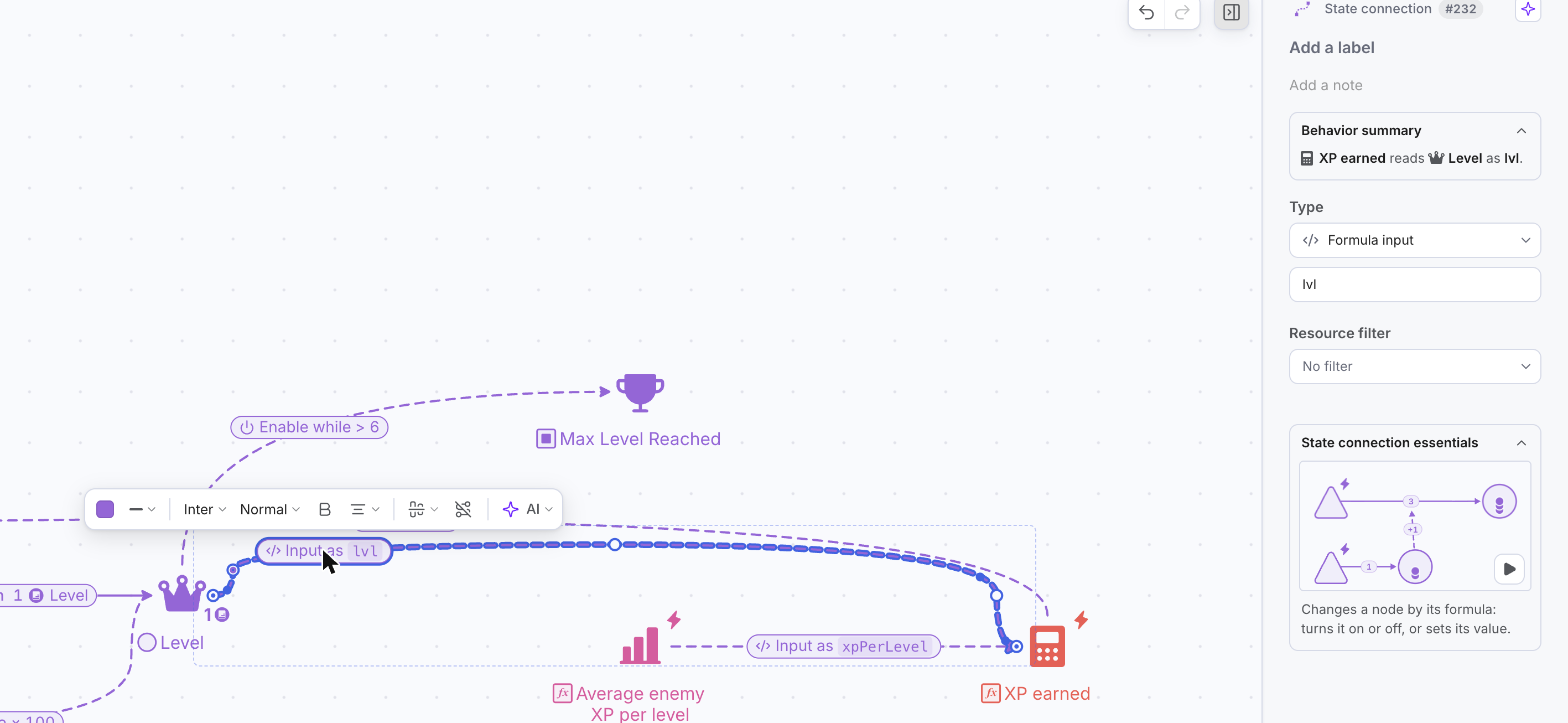
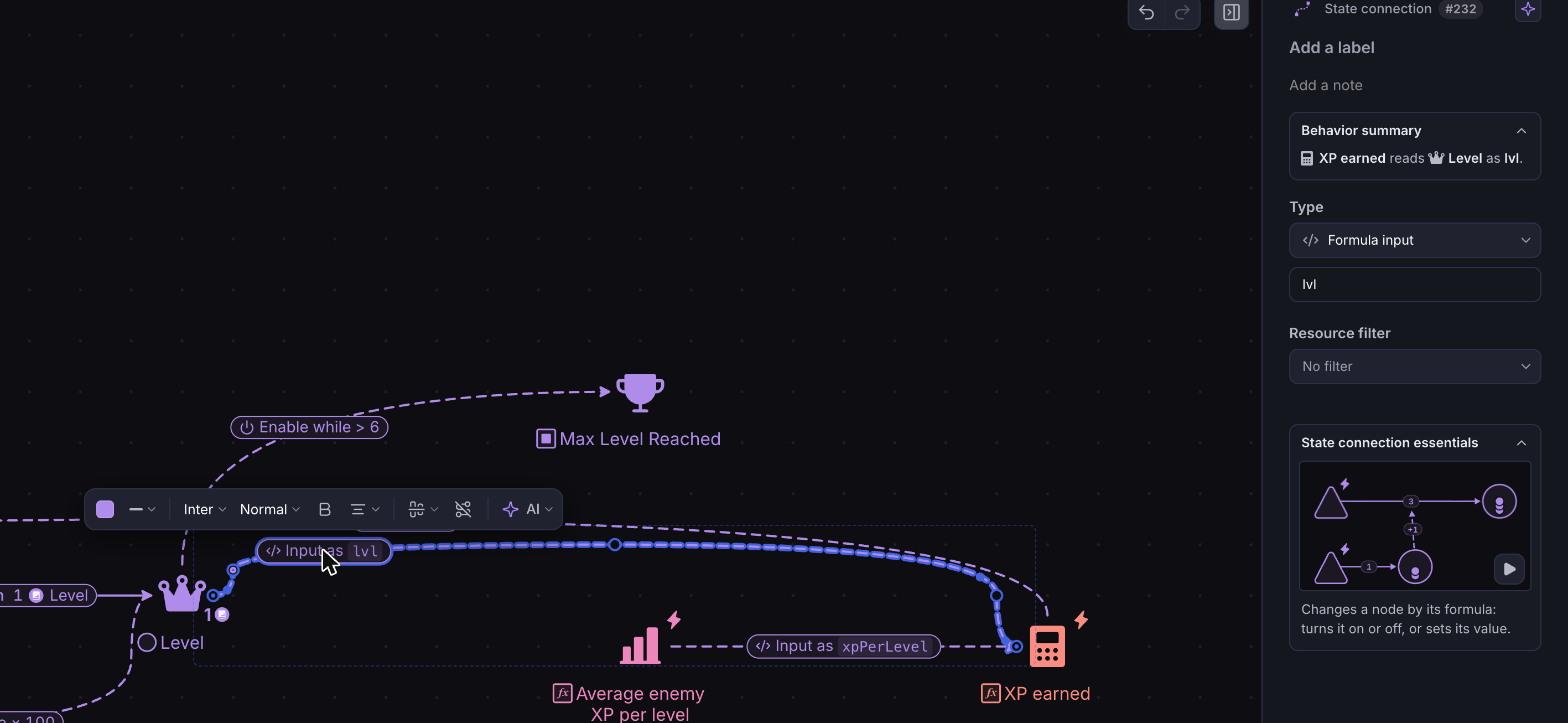
- As explained before, the number inside the brackets in the “XP earned” register is actually the current level. Select the “XP earned” Register and in the “Formula” field instead of writing “2” inside the brackets, write “lvl”.
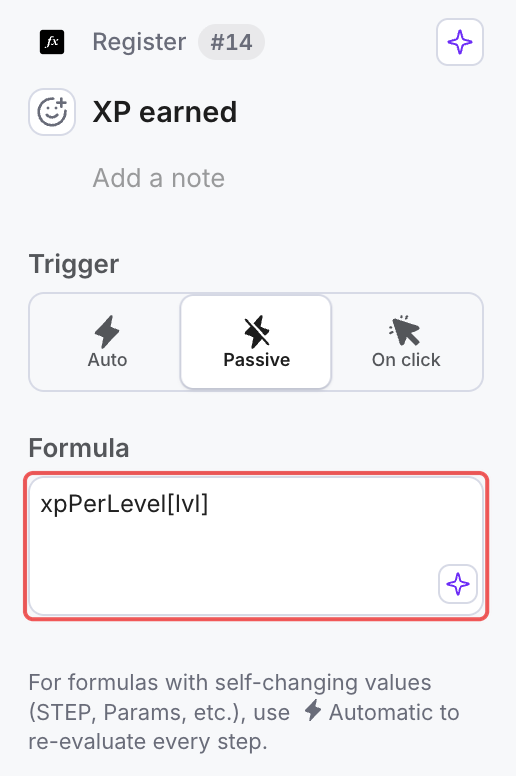
- Press “Play” and observe how the “XP earned” register changes as the level changes throughout the Play. For example, now when the player is at level 3, they should earn 110 XP per enemy
Adding randomness to the earned XP
You are now able to get the XP that the player will earn per enemy depending on the current level. Still, the player earns up to 50 XP points per enemy because the Resource Connection between the “Kill Enemy” source and the “XP” pool says so. We need to tell the Resource Connection to transfer the amount of XP given by the “XP earned” register:
- Add a State Connection (either from the toolbar or using the shortcut “alt+c”), first click on the “XP earned” register and then click on the Resource Connection between “Kill Enemy” and “XP”.
- Press “Play”/”Step” and observe the value inside the Resource Connection. Why is it sending D50 (up to 50) plus 50 more XP? This is because the Resource Connection already has a value and the State Connection is adding it to the value obtained from the register.
- There are two ways to update the value in the Resource Connection:
- Select the State Connection from the “XP earned” register to the Resource Connection and set Type to “Change value” and Formula to “Overwrite”. This will cause the State Connection to overwrite the formula in the Resource Connection with the value obtained from the “XP earned” register.
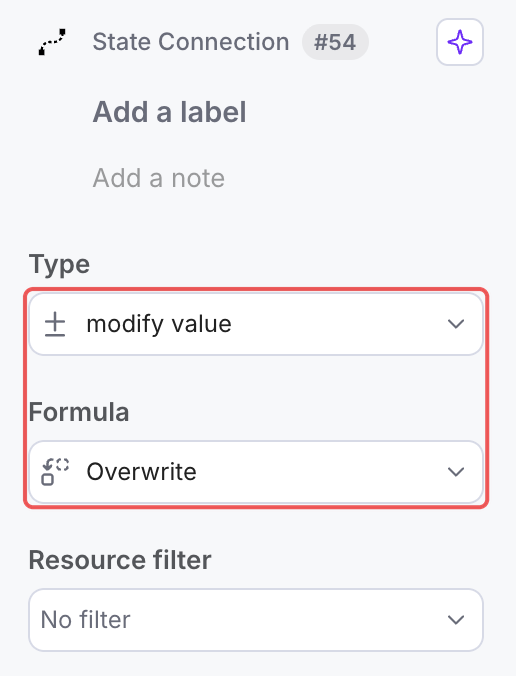
- Select the Resource Connection leave Type on “Number” and type “0” into the box under it. We are going to keep this last method (although if you combine both, it will work the same).
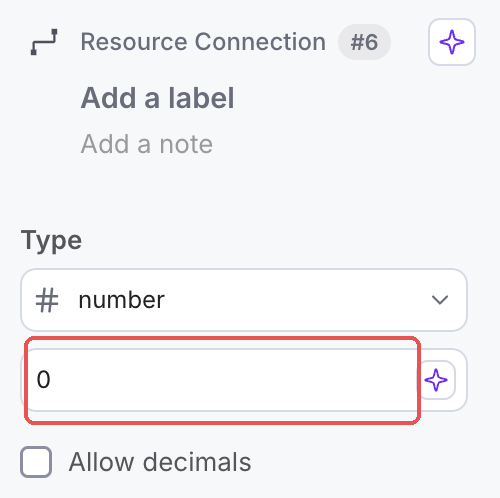
- Press “Play”/”Step” and observe how the Resource Connection now gets the value from the “XP earned” register.


Getting the XP earned for the current level
The amount of XP earned before was a random value: by using the expression “D50”, the player would get between 1 and 50 XP per enemy. Now the player is earning a static amount of XP depending on the level, although we still want them to earn a random amount of XP. To do this, we are going to use math.js functions.
Let’s assume that the amount of XP will randomly have a value between 75% of the XP per level and 125% of the XP per level.
- We want to calculate a percentage of the XP earned, and to do this we can multiply the XP returned by the array with the percentage. Select the register “XP earned” and in the “Formula” field write, for example, “xpPerLevel[lvl] * 0.75”. This will return 75% of the XP earned for each level.
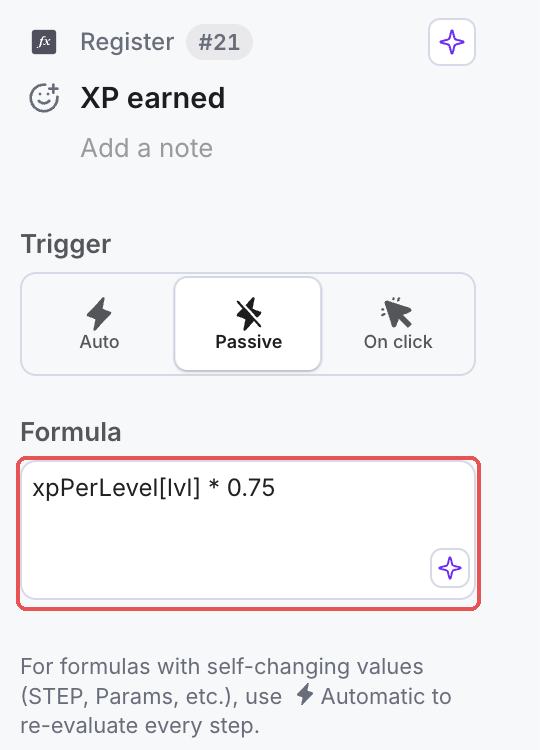
- If you press Play, you will see that the register starts with the value 37.5 instead of 50.
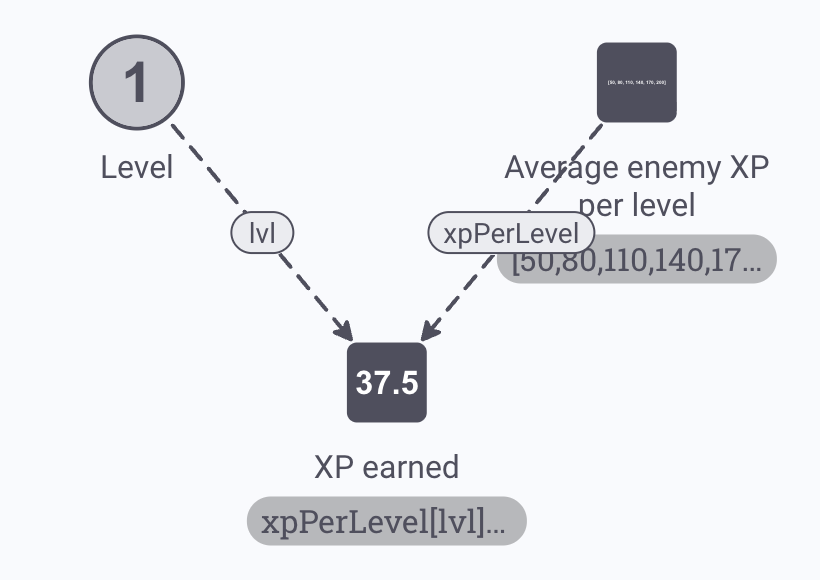
- Instead of always calculating the 75% of the XP earned, we want to get a random percentage between 75% and 125% of the XP earned. To do this you can use the random math.js function. This function requires two arguments: min and max.
In this example, we have to get a value between 0.75 and 1.25. Therefore, select the register “XP earned” and in the “Formula” field, instead of 0.75 write the following expression: “random(0.75,1.25)”
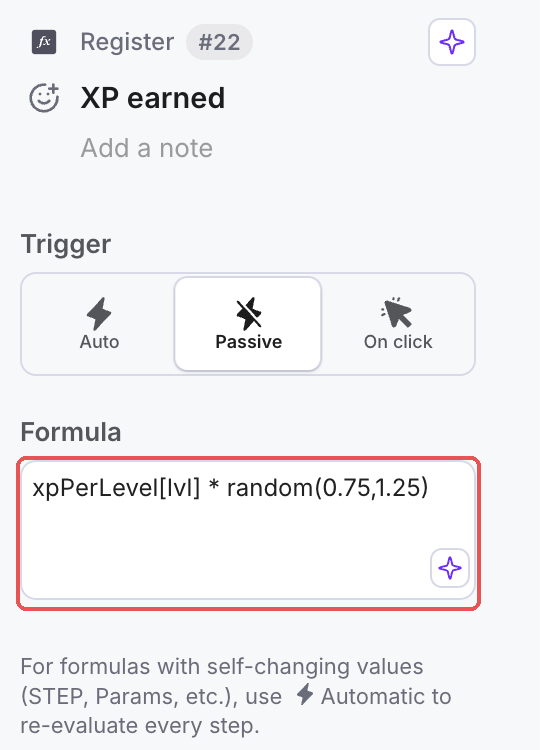
- Press “Play” and observe how the amount of XP earned is now a random value. However, this random percentage should change on each step and is only changing when the Play starts. In the example, the register has the same value in steps 1 and 2.
- Select the Register “XP earned” and tick the box “Force update value each step”. This will result in the Register updating the random value every step.
If you press play now, you can see that the random value between 0.75 and 1.25 is updated every step.