FAQ
General | Diagram | Technical | Account | Team Members | Billing & usage
Please use the links above to jump directly to a category or scroll through.
If we should add one or the other questions to any of the categories, please reach out to us or use the chat widget at the bottom-left corner.
Server Status
Machinations is currently up and running. If you encounter any issues, please reach out to us or use the chat widget in the bottom-left corner.
Hot bugs
General
You can contact us at the following email address: support@machinations.io.
If you have found a bug, please get in touch with us or use the chat widget at the bottom-left corner of the screen.
For details about our program, please visit our Vulnerability Disclosure Program page.
The easiest way is to check our official Change log page, which is updated with every release.
As of now, we do not have a confirmed ETA for the Unreal plugin. Please stay tuned for updates.
Diagram
If you need help while creating a new Machinations model, you can contact us using the integrated chat, check the documentation, view the guides posted on the Youtube channel, or join our community on Discord.
The exact behavior would depend on the specifics of the model’s configuration. Please double-check your connections and settings. The most common cause is the double trigger: when both the origin and target nodes of a connection have an active trigger, both triggers will activate the resource transfer.
The maximum number of inputs to a gate would depend on the specifics of your machination or model.
To build your desired game model, you can get inspiration from our numerous community diagrams. You also might want to check out our detailed tutorials from the documentation: Easy Level Progression and Loot and Craft.
You can use a Register to calculate a specific percentage of a node’s resources. Check out our Registers article and the Math.js Functions to learn more.
Currently, Machinations does not support JavaScript. However, registers and parameters (called custom variables in older guides) are great for generating if conditions. The easiest way to accomplish this is by following this formula:
(condition1)*result1+(condition2)*result2
Example: (gold>=100)*1 + (gold<100)*0
This formula is equivalent to: if gold>=100 then result => 1 else result => 0Currently, Machinations does not support JavaScript. However, registers and parameters (called custom variables in older guides) are great for generating if conditions.
The easiest way to accomplish this is by following this formula:
(condition1)*result1+(condition2)*result2
Example: (gold>=100)*1 + (gold<100)*0
This formula is equivalent to: if gold>=100 then result => 1 else result => 0
You may also define Conditional expressions with Math.JS operators.
The basic syntax for this is as follows: x ? y : z.
Example: gold > 100 ? 1 : -1
This formula reads: if gold is > 100 then the result is 1 else the result is -1.Currently, Machinations does not support JavaScript. However, registers and parameters (called custom variables in older guides) are great for generating if conditions. The easiest way to accomplish this is by following this formula:
(condition1)*result1+(condition2)*result2
Example: (gold>=100)*1 + (gold<100)*0
This formula is equivalent to: if gold>=100 then result => 1 else result => 0
Unfortunately, traders with three input/output connections are currently not supported. Traders require exactly two pairs of color coded resource connections. Depending on the complexity of your system, you may need to incorporate additional nodes or components to manage multiple inputs and outputs.
The single conversion will only convert 1 set of resources marked on the connections during a step, even if the origin pool has more resources available.
The multiple conversion will convert all available resources during a single step, if the origin pool contains the required resources.
You can learn more about this from the Converters & Traders article.
Yes, a Random gate will generate a random output for each unit that passes through it within a single step. Check out the documentation for Gates to learn more.
This could be due to the randomness inherent in Plays. Starting several Forecasts at once could yield more varied results.
The precision of calculations in Machinations depends on the specifics of the software and model configuration.
First, you’ll need to ensure that all nodes are properly connected and that the trigger modes of components are set as intended. If you need any additional help, please get in touch with us or use the dedicated chat.
To generate multiple resources or types of resources, you can change the formula field’s value from resource connections that perform the transfers and conversions. Additionally, you can create additional pools to store different resulting items from a crafting system.
Machinations’ service includes having our team of experts create your diagrams in Machinations. If you are looking for someone to design your web3 economy, we have external partners who can help you. Please get in touch with us.
Yes: in a formula you can refer to a component’s value from the Formula builder.
To ensure that your Diagrams are aesthetic, you can use the following suggestions:
1.) Use different layers and groups to categorize components into functional units.
2.) For large-scale diagrams, use the option “Hide layer” to declutter the canvas.
3.) Align the components on the canvas using the grid feature.
You may also check out our Best Practices article to learn more.
You can make the connection instant, or you can add an extra step before the end condition triggers so you make sure all your resources are transferred.
Adding nodes to a board is relatively straightforward; press the icon on the toolbar or use one of the dedicated keyboard shortcuts. If you are having issues, it could be a temporary glitch. Please try refreshing your browser, or contact our customer support for more help.
Yes, you can use conditions on resource connections to compare the values of pools.
Yes, Machinations supports formulas and expressions for 2-dimensional arrays. In order to access a specific value from a 2D array you should use the following syntax: array[line, column] You can find detailed examples about array formulas on our Math Expressions documentation page.
Yes. Type a formula in the Pool’s Capacity box that refers to another component or parameter; the limit is recalculated as the Play goes on. Open the Formula builder (sparkle button in a formula box) to insert a component’s value.
Anything that can be abstracted can be modeled and analyzed in Machinations.
State connections commonly trigger the issue since resource connections cannot initiate a transfer if the origin pool has 0 or less than 0 resources. We suggest using state connections with pools as targets, according to the use cases presented in the documentation.
The different values between interactive and Forecasts can be generated by random calculations performed by random gates, connections, or registers. If the difference is not intended in the diagram, you possibly encountered a bug. To report this issue, please use the integreated chat or get in touch with us.
A Register that depends on two Auto Nodes can resolve in the middle of a Step. Set the Register’s Trigger to Auto (select the Register, then use the Trigger row in the Properties panel) so it is evaluated on every Step. If the issue still persists, please reach out to us.
To generate specific gameplay/ economy / balancing loops in Machinations, you can check the Templates and the Community diagrams. We suggest starting with the Easy Level Progression tutorial to begin your journey.
To convert all resources from a pool, into a single resource in another pool you can use the following model:

When the Sink consumes all resources from Pool A, it fires a trigger to the Source that generates a resource in Pool B.
Yes. Create as many named resources as you need: select Resources in the editor toolbar, then New resource. See Filter (Color coding).
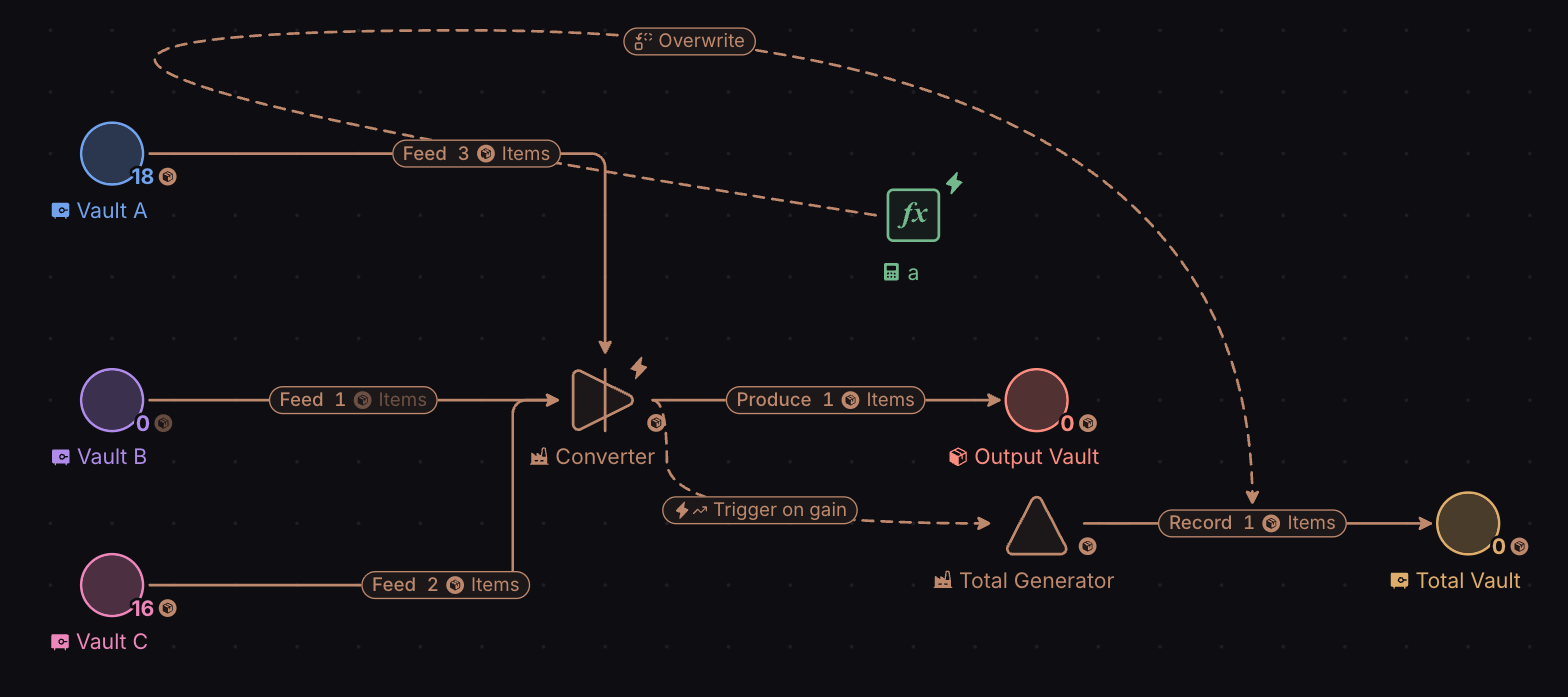
You can count the sum of the resources transferred in a gate by implementing the following model: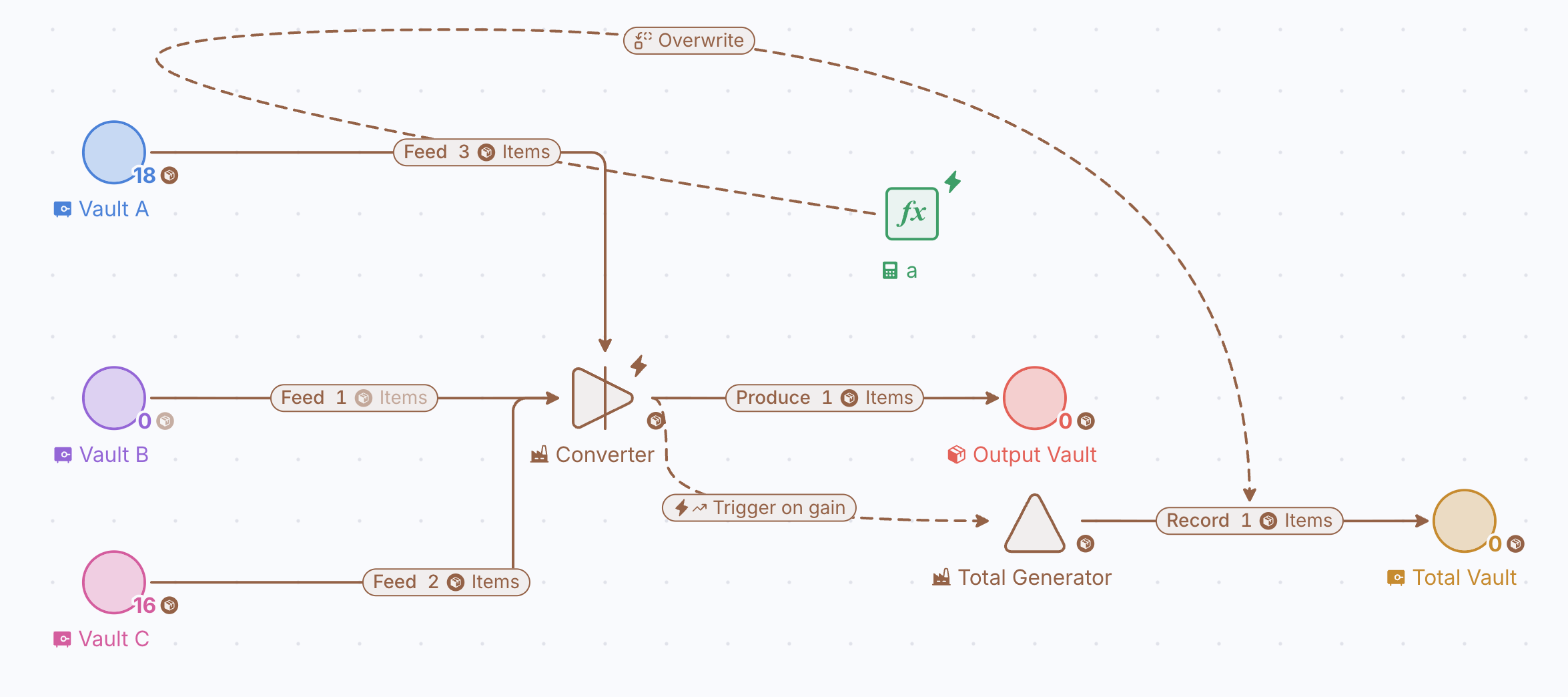
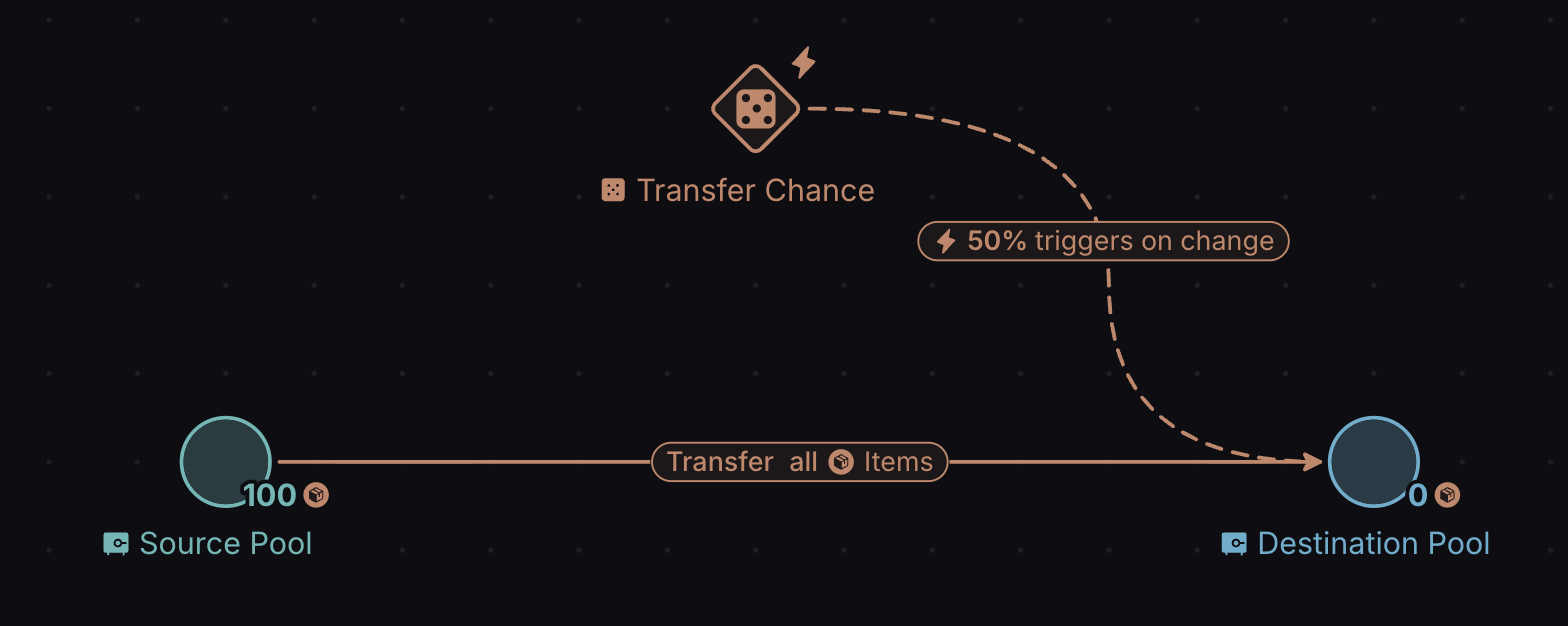
You can send all resources between pools with a random chance by following this model: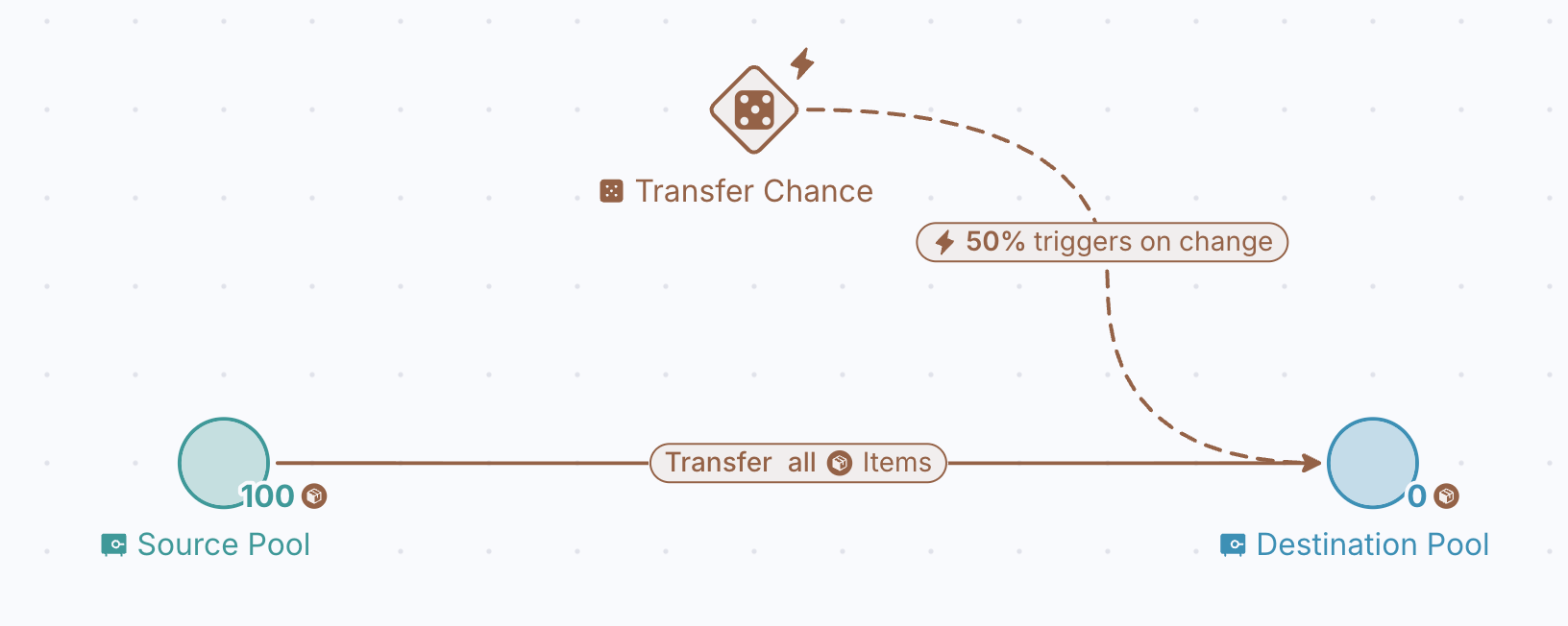
When a register is initialized, it will have its operands set to the value of the input poolsat the beginning of a step; in this case, the inputs will be set to 0 on initialization.As such, when the first division is performed, the register will compute 0/0, which, mathematically, is an undefined case, resulting in Not a Number.
Moreover, when NaN is used for any value in a diagram, any operation performed to NaN will also output to NaN. Currently, this is a limitation of Machinations and we are looking to improve this behavior.As a workaround, check if the divisor of the register is equal to 0. To achieve this, we used the following syntax:a+b+c==0 ? 0 : d/(a+b+c)
You can learn more about Conditional expressions and available operators in the Operators section in our Math.js Functions arcticle.
The best method to model a shuffle-bag random distribution in Machinations is to use Random Trigger gates with numeric formulas. Each step, the gate will update its probabilities of branch selection based on the branches selected prior. Read more about Trigger Gates.
Technical
No. Machinations is a web-based tool that requires an active internet connection.
Currently, it is not possible to change the default settings of pools. However, you can use the multiple-select function to change the desired properties shared by components.
You can use the zoom buttons from the View controller. Alternatively, you may use CTRL+ Mouse wheel (Windows) or CMD + Mouse wheel (Mac) to zoom in or out.
You can navigate the workspace/canvas by using one of the following key combinations:
– Hold the Space bar and drag, or hold the wheel (middle) button and drag. On a Mac, hold Control and drag.
Yes. Switch on Allow decimals on the Resource Connection so it transfers fractions. The number of decimals shown on the canvas is set under View options, Decimal places.
Yes, you can publish a diagram on your community profile. To achieve this, open the “Share” menu at the top right of the diagram and choose “Make public”.
In case my.machinations.io is not loading we suggest checking your internet connection first. Clearing cache and cookies of your browser and refreshing the page often helps. If the issue still persists, please contact support.
The URL cannot be changed, as it is automatically generated from the user name in your profile when you have created your account.
Please contact support and provide us with the details of your domain and subdomain names, so we can whitelist the file. This will then allow you to access the data in Machinations.
Please contact our customer support and provide them with the domain name. Whitelisting might take up to 24 hours. Once complete, you may use your JSON file in custom variables. Alternatively, you may use https://jsonbin.io/ to host your JSON file.
The formatting of data during a .CSV export depends on the software you’re using. Refer to the software’s settings or documentation to adjust how the data is formatted upon export.
Please get in touch with our support team to assist you with any issues relating incorrect functionalities for specific diagrams.
Performance can be affected by the complexity of the model and your internet connection. Try simplifying your model or improving your internet connection.
You can check the section “Creators for hire” in our community. Additionally, we have a dedicated jobs channel on our discord server.
Machinations does not allow changes to the transparency level of components and connections. However, you can hide connections by moving them to a dedicated layer and using the option “Hide layer”.
The interaction with the software might vary based on the device and browser. If you’re experiencing difficulties, try using a different browser or reaching out to our support team for assistance.
If you have saved a corrupted machination, please contact our support team for assistance with recovery.
To test reward systems, the easiest method is to Play and Forecast the model and read the charts. After a chart is generated, you can ensure that the progression/ evolution of the reward systems returns a desired outcome based on specific metrics and targets.
You can not download the files locally, however, you can export the diagram to Google Drive.
If your diagram is not loading or you encounter similar issues, please get in touch with our support team to get this investigated and resolved.
The error can have a lot of triggers; it is usually displayed when a Play or Forecast hits a problem. You should contact our support team to help with this.
Machinations does not have a feature to be displayed directly in Google Sheets. However, you can export your diagram to Google Drive, representing your design as a Google Sheets document. Additional details can be found in our Google Sheets article.
Changing your Google Drive destination can typically be done through your Google account or drive settings.
Please clear cache & cookies and re-log into Machinations. If the problem still persists, please contact customer support via email or the dedicated chat.
You can contact our support team via the integrated chat or send us an email.
This message is usually related to the length of the input array. The formula field only supports a maximum of 1024 characters as of now, we are looking into improving that.
First, you should check your internet connection and refresh the browser page. Deleting your browser cache and cookies and relogging into your account might also help. If the issue persists, please get in touch with us via the integrated chat or via email.
Yes. Open the Personas tab in the header and add a persona (by hand or with AI): it plays the nodes you choose, from its traits and goals. See Personas.
Unfortunately, once Forecasts are lost, they cannot be restored.
Yes, you can export your data to a CSV file without loading all the Forecasts in the chart.
There could be several reasons why your diagrams are not working. It might be due to incorrect connections or faulty logic in the model. If you need help troubleshooting, feel free to contact our customer support.
Forecasts might appear as unavailable due to the following reasons:
– The diagram is particularly complex, and a delay may pass before the Forecast starts;
– The AI Agent is still writing the model: Play, Step and Forecast wait until it has finished;
– Your Monthly Credits may be used up. Forecasts spend Credits, so check your Monthly Credits on the Billing & usage page.
The issue could be related to server load or other technical glitches. If the problem continues, please reach out to our technical support team.
Yes, Machinations supports handling multiple clients, including Unity 3D clients.
Machinations has a text modelling language that AI assistants use through MCP (see the MCP page). There is no text-export button in the editor.
You can find all public diagrams in our dedicated community. Also, you can find the public diagrams you created by looking over your community profile page.
Machinations needs access to your google drive to read a diagram file. Please also ensure your file has the correct format and can be opened/imported.
The issue might be caused by changes performed in the diagram’s Spreadsheet on Drive. We suggest performing the required changes in My Machinations and using the Google Drive predominantly for storage and backup. If you encounter additional issues when importing diagrams from Drive, please reach out to us or use the dedicated chat.
The zeroes in the initial steps of the CSV export represent the time before calculations have occurred in your Play. You could manually delete these rows after exporting, but there is no current setting within Machinations to prevent this from happening.
Check out our Best Practices article to better manage and optimize large-scale diagrams. If you still encounter performance issues, please contact us or use the dedicated chat widget. Please keep in mind that performance and optimization depend on your system specifications.
Machinations supports SAML 2.0 single sign-on on the Pro plan, with Azure AD / Microsoft Entra, Okta, OneLogin or any SAML 2.0 provider; see the SSO SAML setup guide. There is no API to add team members, but you can paste a list of emails into the Invite members box.
To change a public diagram to private, the diagram owner opens the sharing menu at the top right of the editor and chooses Make private (Starter or Pro).
Machinations should perform an autosave for any change performed on the canvas and the components’ properties. If you encounter any issue with autosaving, please get in touch with us or use the integrated chat.
Yes, you can! Microsoft has an Add-in for PowerPoint that allows you to embed websites. You can download the Web Viewer Add-in from the Microsoft Store and follow the instructions. Please be aware that this might only work with some versions of PowerPoint.
Account
When an account is temporarily blocked, the wait time is 10 minutes. You can also reset your password with Forgot password, or you can contact us or use the integrated chat. We can reset the countdown and you will be able to log in again.
Yes, you can move diagrams between accounts using one of the following methods:
1.) Export and import the diagram via Google Drive (more details here).
2.) Invite the second account to your team and share the diagram with the team via the dedicated button.
3.) Post the diagram on the community (the diagram will become public).
First, you must check if your account was correctly added to your company’s team. If the issue still persists, please get in touch with our support team to assist you with any issues relating to your subscription and account status.
Please contact our support team to assist you with any issues relating to accounts and connectivity. You can also use the dedicated chat.
If you are on a free plan then the diagram is public by default, there are no live editing privileges for free plans so you cannot share the model with edit permission.
Please reach out to our customer support via email or the integrated chat.
The number of components for all team members determines the component count. Please check if your team has additional diagrams. Moreover, a diagram can have hidden layers that can add to the total number of used components.
Team Members
We can change the owner of a team after you provide us with the following details:
1.) The email address of the current owner;
2.) The email address of the new owner. Please make sure that the user has a valid Machinations account.
3.) The desired team status of the old owner.
If you want to remove the old owner from the team, please let us know if you’d like to keep the diagrams created by the old owner inside the team folder.
Each team member has their own Credits: every seat on the plan includes its own Monthly Credits, and Top-up Credits belong to the person who bought them. Teams are for sharing diagrams and managing members, not for sharing Credits. Read More.
To properly send an invite, make sure that the email has been confirmed in the list by using either a comma, a space or the Enter button on the email text box.
One subscription allows one team, and one team can be composed of a custom number of members. Plan limitations are, however, shared between all members of the team.
Higher-tier plans have more Credits, Custom variables, and Accurate Forecasts.
To properly send an invite, make sure that the email has been confirmed in the list by using either a comma, a space or the Enter button on the email text box. If you encounter additional issues, please contact our support team to assist you.
Billing & usage
The Machinations Community Plan is absolutely free to use, forever! This plan gives you access to a bunch of cool features, so you can explore the platform and its core functionalities at no cost. Additionally, the Community Plan comes with a public profile that provides opportunities to showcase your work, receive feedback, and collaborate on projects with like-minded professionals.
For plan limitations on components, Machinations counts only functional nodes: the 9 node types and 2 connection types available in the toolbar.
The non-functional components such as Textboxes, Images, and Groups are not added to the diagram complexity. As such, feel free to document and beautify your diagrams!
Your account moves to the free Community plan. Your diagrams are still available and remain private, however, you might not be able to create new diagrams or edit existing ones if you have exceeded the Community plan limits.
Private diagrams created on a paid plan can not be edited on the Community plan. To unlock editing rights for the diagrams, you must upgrade your plan or change the sharing options of the diagram to public.
Absolutely. Machinations takes user data privacy and security seriously. When users choose to set their diagrams as private, only they have access to view, edit, or share the diagrams. This means that the Machinations team and any unauthorized individuals do not have access to private diagrams, ensuring the confidentiality of your sensitive information.
Also, Machinations is ISO 27001 certified, ensuring that stringent security measures are in place to safeguard your data. This certification underscores our commitment to maintaining the highest standards of information security, guaranteeing the protection and confidentiality of your data.
Users on the Community Plan have public profiles and public diagrams. This means that any diagrams you create and your profile information will be visible to other community members. If you are working on sensitive projects or prefer to keep your work private, we recommend upgrading to one of our premium plans. Please note that it is essential to understand that the responsibility of safeguarding sensitive information lies with the user when it comes to the free Community Plan.
You can manage your subscription and cancel your plan via your account settings.
Yes, invoices can typically be accessed via your account or billing settings.
Please contact our customer support team via the integrated chat or email so we can help you with any issues related to billing and accounts.
Please contact our customer support team via the integrated chat or email so we can help you with any issues related to plans and billing.
Yes, on a paid plan: use Buy top-up credits on the Billing & usage page. Top-up Credits are valid for one year and are spent after your Monthly Credits run out. Monthly Credits start again on the same day of each billing month. For anything else, use our contact form.
Please contact our customer support team via the integrated chat or email so we can help you with any issues related to plans and billing.
You can manage your payment options from your account settings.
The number of steps in a Play is set in the Steps menu of the play bar, whose Custom box takes any number from 1 to 9999. None of the current plans, Community, Starter and Pro, caps a Play below that. What a plan changes is the Monthly Credits it includes, and every step spends Credits, so a long Play uses more of them. The Pricing page compares the plans.
You shouldn’t be: the Academia Plan is free and needs no card or billing details, and a link to Machinations from your school’s website is no longer required. You apply in the app, under Settings, Billing, Apply for Academia, with your institution email. If you are still asked for billing details, write to academia@machinations.io.
The plan is charged per seat. The owner pays for each team member, and every member gets the benefits and the Credits of the plan.
The subscription is paid monthly or annually, and it can not be frozen or suspended for any period of time.
You can choose to subscribe to Machinations. In order to upgrade to a paid plan, click your profile picture at the bottom of the left rail, choose Billing & usage, then Change plan.