Layers
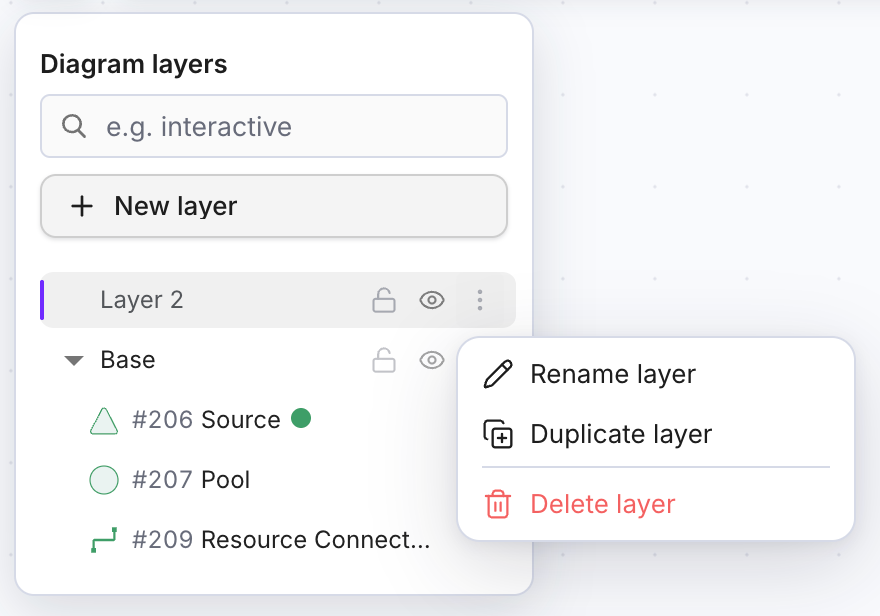
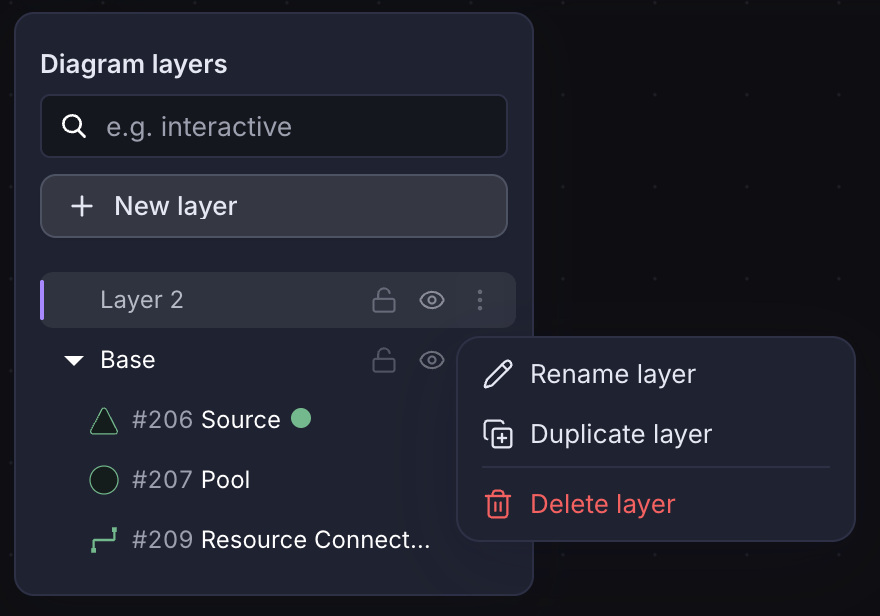
Use Layers to organize your diagram into sections that you can Lock or Hide if you need better visualization at a micro or macro level. The Layers button at the top left of the canvas opens the Diagram layers panel on the left.
To add a new Layer, press New layer under the search box. By default, all elements on the canvas are in a layer named Base, and each layer lists its components by number and name.
Layer Options
Use the eye button on a layer’s row to hide the layer from the canvas or show it again.
Use the lock button on a layer’s row to prevent changes to that layer, and press it again to unlock it so you can edit its elements.
Open the ⋮ menu at the right end of a layer’s row to Rename layer, Duplicate layer or Delete layer.
Move Nodes and Connections to Layer
To add an existing Node/Connection to a layer:
- Select the layer
- Right-click the Node/Connection on the canvas and click “Move to selected layer”
Search Layers
Type in the Search layers box to find either entire layers or Nodes and Connections on the canvas.
Nodes and Connections can be filtered in the layer search when using one of the following node proprieties as the search keyword:
- Node & Connections Types (e.g. Pool, Resource Connection, Sink);
- Node & Connections Labels;
- Node & Connections Descriptions;
- Node & Connections Formulas (e.g. d100, randomInt, all);
- Node & Connections Proprieties (e.g. Interactive, Passive, Automatic)