API Services
Web Socket communication
The Machinations API is based on socket.io. Our API accepts & returns JSON-encoded request/responses and uses the WebSocket Protocol. This allows for low-latency and efficient data transfer of large quantities of events and updates.
You can use any socket client that can work through WebSockets, but you should be aware that our server uses socket.io to provide responses, so it is easiest if you also use a socket.io compatible client.
Below, we will describe the protocol using examples for NodeJS. We also have a functional and open source implementation in the form of our C# Unity Plugin, which features a full implementation of the Machinations API using WebSocketSharp for communication.
Authentication
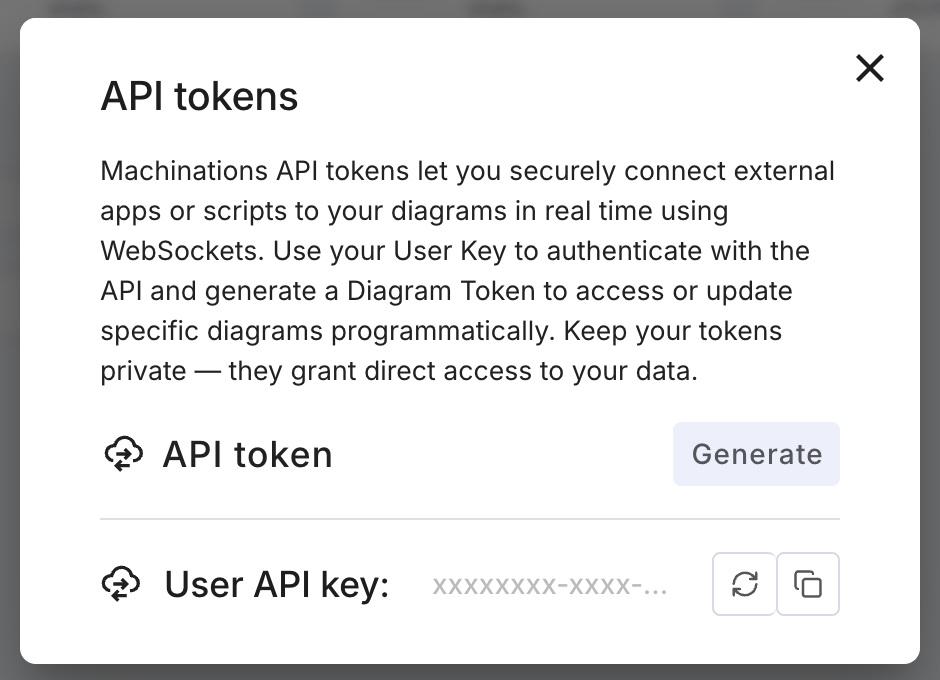
Creating new API tokens needs a Pro plan. You need to copy your User Key from your Machinations account settings, on the API key page (the key icon in the settings rail). The same key is shown at the bottom of the API tokens dialog described below:
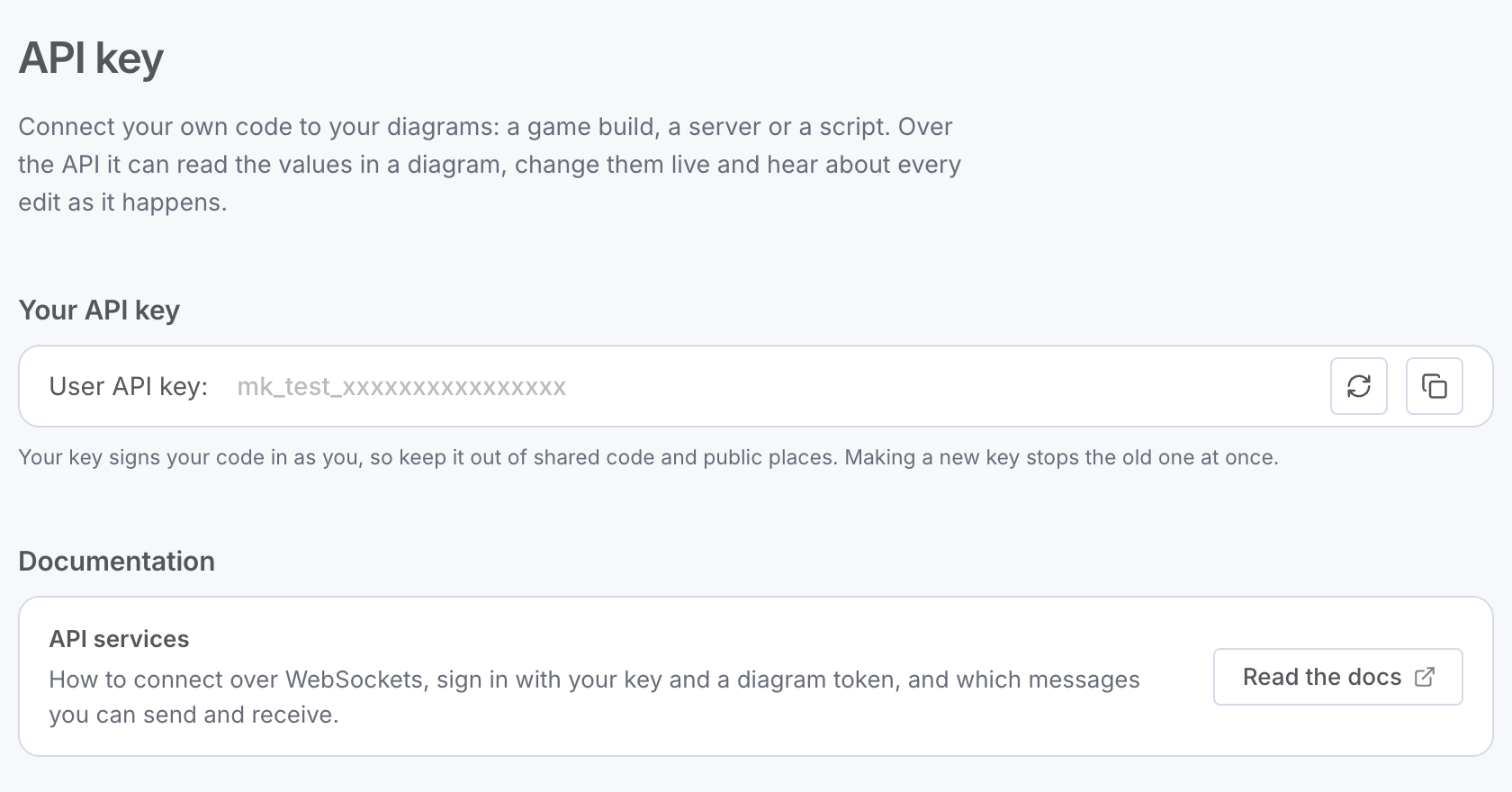
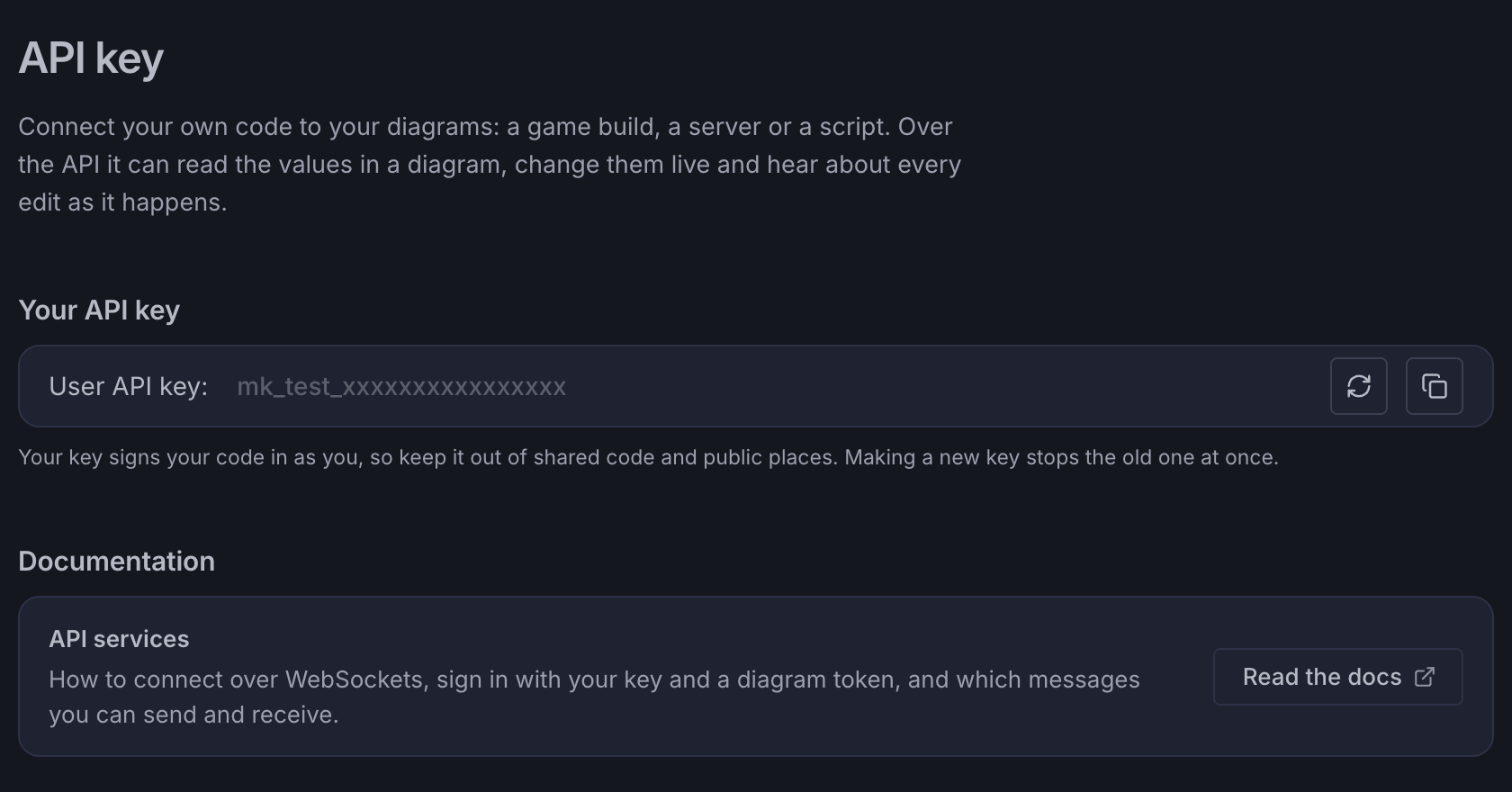
Keep your credentials secure. Do not share your secret API keys in publicly accessible spaces such as GitHub, client-side code, and so forth. All requests must be made over WSS (WebSocket Secure). Calls made over plain WS will fail. API requests without the User Key will also fail.
Besides your User Key, when you connect to Machinations, you will also need to provide a Diagram Token. You can obtain this by opening the share menu (the button at the top right of the diagram’s header bar) and choosing API token.
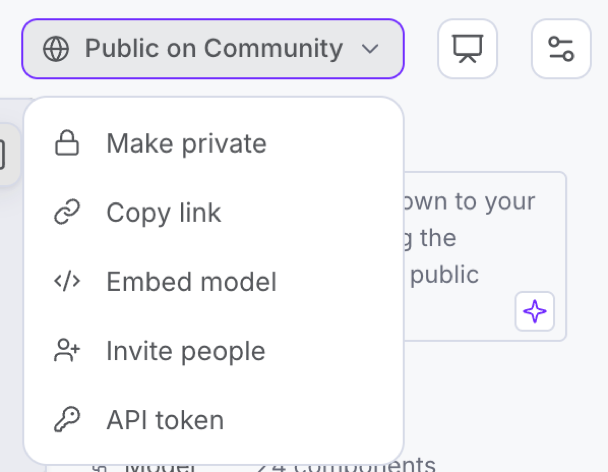
The API tokens dialog opens. Press Generate to create the Diagram Token:
To be sure: you should never send your account password for authentication when using the API.
Now that you’re armed with the required connection parameters, let’s connect to the API.
Connecting & getting all Diagram Elements
We’ll be using NodeJS to walk you through using the API, as it is small, easy to install and doesn’t require many dependencies.
Here’s a minimal package.json that is required for you to install the required client libraries:
{
	"name": "simple-machinationsio-client",
	"version": "1.0.0",
	"description": "",
	"type": "module",
	"main": "simplestConnection.js",
	"scripts":
	{
		"start": "node src/simplestConnection.js"
	},
	"author": "",
	"license": "ISC",
	"dependencies":
	{
		"socket.io-client": "4.5.1"
	}
}
Now npm install this package.jsonand create the file `/src/simplestConnection.js`:
import io from "socket.io-client";

const connectionURL = "api.machinations.io";
const userToken = "YOUR_USER_TOKEN";
const diagramToken = "YOUR_DIAGRAM_TOKEN";

const CONSTANTS = {
  SEND: {
    AUTHORIZE: "api-authorize",
    INIT: "game-init",
    EVENT: "game-event",
    GAME_UPDATE_DIAGRAM_ELEMENTS: "game-update-diagram-elements",
    GAME_GET_ALL_ELEMENTS: "get-all-elements",
  },
  RECEIVE: {
    ERROR: "api-error",
    AUTH_DENY: "api-auth-deny",
    AUTH_SUCCESS: "api-auth-success",
    INIT: "game-init",
    EVENT: "diagram-elements-updated",
  },
};
const serverAddress = `wss://${connectionURL}/?&token=${userToken}`;
console.log("Conneting via: " + serverAddress);

const options = {
  rejectUnauthorized: true,
  reconnect: true,
  transports: ["websocket"],
};
let socket;

socket = io(serverAddress, options);
socket.connect(serverAddress);

const authorize = { diagramToken: diagramToken, gameName: "Your Game Name" };
socket.on("connect", () => {
  console.log("Connecting...");
  socket.emit(CONSTANTS.SEND.AUTHORIZE, authorize);
});
socket.on(CONSTANTS.RECEIVE.AUTH_SUCCESS, (msg) => {
  console.log(CONSTANTS.RECEIVE.AUTH_SUCCESS, msg);
  const gameData = {
    diagramToken: diagramToken,
  };
  setTimeout(() => {
    console.log("Requesting Init...");
    socket.emit(CONSTANTS.SEND.INIT, gameData);
  }, 1000);
});

socket.on(CONSTANTS.RECEIVE.AUTH_DENY, (msg) => {
  console.log(CONSTANTS.RECEIVE.AUTH_DENY, msg);
});

socket.on(CONSTANTS.RECEIVE.INIT, (msg) => {
  console.dir(msg);
});

socket.on(CONSTANTS.RECEIVE.ERROR, (msg) => {
  console.log(CONSTANTS.RECEIVE.ERROR, msg);
});

socket.on("error", (msg) => {
  console.log("error", msg);
});
You can now run npm start or `node src/simplestConnection.js`.
The result of running the above code with the proper User Key & Diagram Token should be you seeing something like this:
Conneting via: wss://api.machinations.io/?&token=5ef95969-b27a-4cd7-8855-41104790fd59
Connecting...
api-auth-success { AuthResult: 'You are authorized ! Success !' }
Requesting Init...
{
    diagramElements: [...
... followed by a listing of all elements (pools, resource connections, registers, etc.) in the diagram you took the Diagram Token from.
The output of the console also clearly shows you the structure of the JSON objects you will be receiving.
Listening to Diagram Element Update events
Once you are connected to your diagram, you will be notified of changes done to the values of Elements. Add the following code to your simplestConnection.js file:
socket.on(CONSTANTS.RECEIVE.EVENT, (msg) => {
    console.log(CONSTANTS.RECEIVE.EVENT, msg);
});
If you are running the file, stop the process. Run the file via Node. Since a socket connection is open, the process will keep running. Go to your diagram and change the value of a Pool.
Back to your console, you should see something like:
diagram-elements-updated { diagramElements: [ { id: '676', resources: 2003 } ] }
A natural observation is that there’s an id there. We’ll cover that in the next section.
Updating a Diagram Element
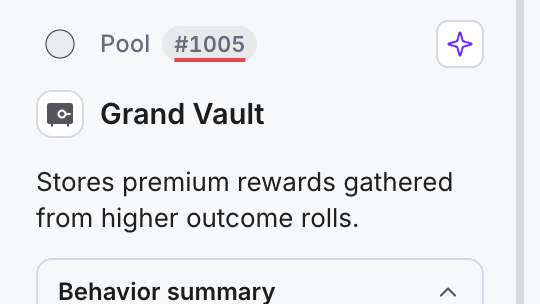
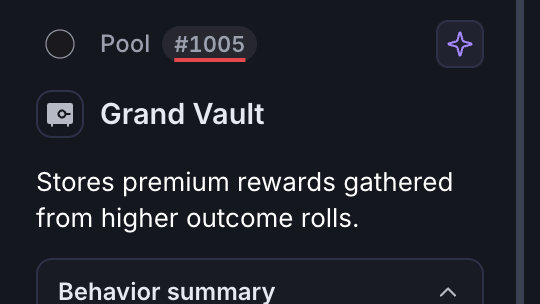
Now we’re getting to the fun stuff. Let’s update a diagram element. This is done by sending the `game-update-diagram-elements` event. A key parameter here is the Diagram Element ID, which is used to identify what diagram element you’d like to modify. Of course, you’d probably like to know how exactly do you know what is the ID of one of your diagram elements. Here’s where you can find it:
Now go to simplestConnection.js and change the function where you handle CONSTANTS.RECEIVE.INIT. Replace the event code with:
socket.on(CONSTANTS.RECEIVE.INIT, (msg) => {
  console.dir(msg);

  setTimeout(() => {
    console.log("Sending a diagram element update...");

    const updateData = {
      diagramToken,
      machinationsIDs: [{ id: 676, type: "resources", timeStamp: 12384732487, parameter: "number", value: 2200 }],
    };

    socket.emit(CONSTANTS.SEND.GAME_UPDATE_DIAGRAM_ELEMENTS, updateData);
  }, 3000);
});
As you can see, we’re passing an array of machinationsIDs. These are the Diagram Element IDs that we will update in this call. Indeed, it is possible to update multiple elements at once. Replace the id with one of your element ids and re-run the file. You should see the value of that particular element change in your diagram.
Available Properties
- id – Integer (node id)
- type – String (available types: “Source”, “Sink”, “Pool”, “Gate”, “Trader”, “Delay”, “Converter”, “Register”, “End Condition”, “State Connection”, “Resource Connection”)
- label – String (machations.io label / machinations.io nodes label)
- activation – String ( machinations.io activation see activation modes )
- action – String (machinations.io action)
- resources – Integer (machinations.io resources)
- capacity – Integer (machinations.io capacity)
- overflow – String (machinations.io overflow)
- limits – Integers (machinations.io registers limits)
- transfer – String (connection transfer)
Error Codes:
- 415050 – Invalid or missing User Key
- 415051 – Error while validating User Key
- 415070 – Missing diagram Token
- 415071 – Invalid diagram Token
- 415072 – Error during validating diagram Token
- 415073 – Parameter
diagramTokennot present in the JSON request - 415090 – Web socket not authenticated
- 415091 – Web socket not authorized
- 4150110 – Diagram parse error
- 415130 – Parameter
gameDatanot present in the JSON request - 415131 – Parameter
machinationsIDsnot present in the JSON request