SSO – SAML authentication setup
SSO (Single Sign On) is available as a Pro plan feature. Set up the SAML authorization and gain access to your personal subdomain within Machinations. This way you can use your company login credentials to log in without having to remember another password.
If you don’t know what you are doing, please check with your IT department. They will know what to do, provide the information you need and/or guide you through the setup process.
SAML 2.0 SSO Configuration
This guide provides instructions to configure SAML-based Single Sign-On (SSO) for your Machinations team, allowing users to authenticate via your organization’s Identity Provider (IdP), such as Okta, Azure AD, or any other SAML 2.0 service.
Prerequisites
- Admin access in both Machinations and your IdP.
- Your Machinations teamname (which will also form your login URL: https://teamname.machinations.io).
Setup Overview
The configuration is a two-part process:
- Configure Your IdP: Create a SAML application in your IdP for Machinations.
- Configure Machinations: Use the details from your IdP to complete the setup in Machinations.
Part 1: Configure Your Identity Provider (IdP)
In your IdP’s admin console, create a new SAML 2.0 application. When prompted for Service Provider (SP) details, use the following values.
| Field Name (Common Terms) | Value to Provide |
|---|---|
| Single Sign-On URL / ACS URL | https://teamname.machinations.io/saml/login/callback |
| Audience URI / SP Entity ID | https://teamname.machinations.io |
Note:
- You must replace teamname with your actual team name in the URLs.
- It is recommended to map the following Attribute Statements (Claims):
- email -> User’s Email
- firstName -> User’s First Name
- lastName -> User’s Last Name
After saving, your IdP will provide the metadata required for Part 2.
Part 2: Configure SSO in Machinations:
In your IdP, locate the SAML configuration details (often on a “Setup Instructions” page or in an XML metadata file). On the Team & security page of Settings, find the SSO authentication card and press Configure SSO. Then enter the following information from your IdP:
| Field in Machinations | Value from Your Identity Provider |
|---|---|
| Team Name | Your Machinations team name |
| SSO 2.0 Endpoint | IdP Single Sign-On URL / Login URL |
| Sign on URL | Audience URI / SP Entity ID |
| Public certificate | X.509 Certificate / Public Certificate |
Allow all
This switch is enabled by default. It will allow users who are in their respective teams (Google, Microsoft) but don’t have a Machinations account to join the Machinations team.
If disabled, only users who already have a Machinations account will be able to use the SSO button to quickly log in.
Force SSO
This switch turns off email-and-password sign-in on your team’s subdomain, so everyone has to sign in with SSO. It needs SSO to be set up for the team first.
If every field is completed, your SSO Authentication dialogue should look something like the above.
Log in via SSO
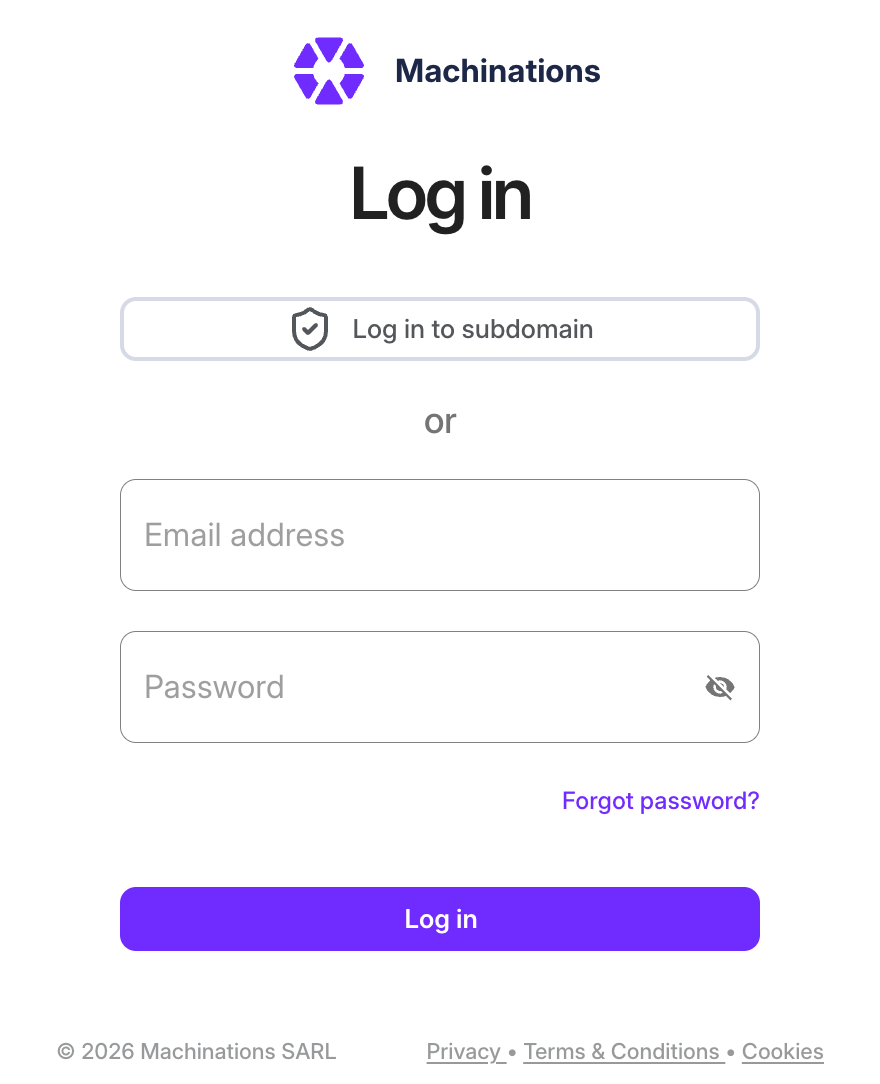
To test your SSO, enter the URL into the browser and use the button at the top of the sign-in page, which reads Log in to and your team name, to log in via SSO.
In the example below we have chosen the team name “subdomain” with Microsoft Azure. Therefore, the URL will be https://subdomain.machinations.io.
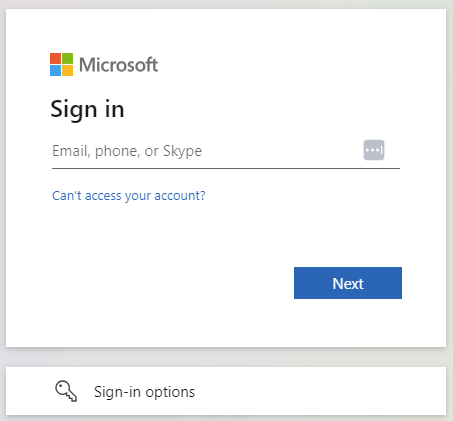
Once you click the login button you will receive the log in request from Microsoft, to verify your identity. Sign-in with your credentials and that’s it.
An “email” claim with the “user.mail” value should be included in the claim conditions of your SAML application, which is the claim used by Machinations to verify the user’s identity.
Troubleshooting
- “Page Not Found” Error on IdP: The SSO 2.0 Endpoint in Machinations is incorrect. It must be the IdP’s Login URL, not the Issuer URL/Entity ID.
- “Invalid SAML Response” / “Audience Mismatch” Error: The Sign on URL in Machinations does not exactly match the Audience URI (SP Entity ID) in your IdP. Values must be identical and case-sensitive.
After saving, test the configuration in an incognito browser window.